Mail Merge add-on doesn't send out messages to outbox. It is set to "send later", and creates a template, but stops there.

Hello,
I'm using Mail Merge add-on to send out a letter to multiple recipients. For testing purposes I have 3 contacts in csv file. However messages are not sent to outbox. csv file is added, delivery is set to "send later". Process starts fine, no error messages. Template is created. Mail merging process bar appears, but process stops there. Can anyone have experienced this problem? Any ideas how to use it?
Toate răspunsurile (1)
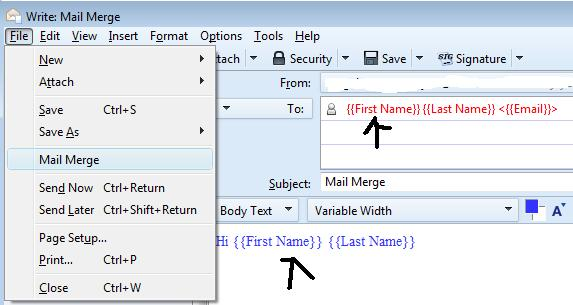
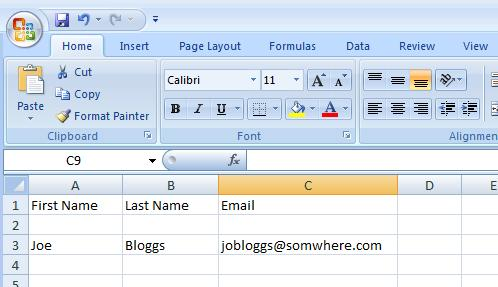
Create a .csv file which uses the correct headers. They must be the same as used in the Template email. You create a Template email and store it in Templates folder. Click on 'Write' Make sure you have entered the correct data in a 'TO' field Enter any other personal data fields you require. Enter content, but you can alter this part later if required. Make sure any signature is correctly dispalyed. Save as Template in Template folder.
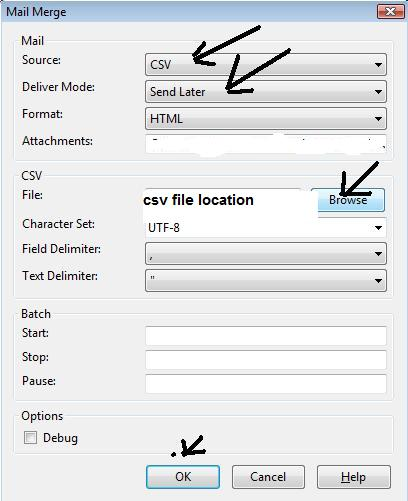
when you want to use that template email... double click on the template email so it open in the Write window. Add any required content. 'File' > 'Mail Merge' Mesage Source: CSV Deliver mode: Send Later CSV file : click on Browse and select the csv file you previously created. Character set: UTF-8 Field delimiter use a comma , Text delimiter use a double quote mark " click on OK
Emails, one for each
See images below. example Template example csv file mail merge window
If the above is not working for you, then please post image of the Template mail, csv file and mail merge window - just like the ones below.