


View > Toolbars > Formatting Bar not available

When I create a new message, I always get a text-formatted message, even though I've set the options to create HTML messages.
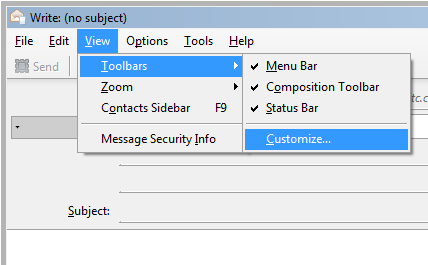
I've tried to show the formatting toolbar, but it isn't available; only the Menu Bar, Composition Toolbar and Status Bar are show as options under the View > Toolbars menu. See the attached images.
I've also tried re-installing TB a couple of times in case some components didn't get registered properly. No joy.
What am I missing?
Soluție aleasă
The screen shot of your Write window indicates you are composing a Plain Text message. There is no Insert command in addition to the Formatting Bar choice. Both of these are not used or allowed in plain text. Hence the name. The other screen shot is meaningless since it does not address HTML or Plain Text.
To switch between Plain Text and HTML on a one time basis you hold the shift key while clicking on Write. This will switch between what you have set in Account Settings. If you do this with your existing settings you should see the missing items.
To make the switch in Account Settings go to the menu bar and select Tools-Account Settings-Composition and Addressing Check the option to use HTML.
Citește răspunsul în context 👍 6Toate răspunsurile (5)
The files didn't attach the first time ... here they are.

Soluție aleasă
The screen shot of your Write window indicates you are composing a Plain Text message. There is no Insert command in addition to the Formatting Bar choice. Both of these are not used or allowed in plain text. Hence the name. The other screen shot is meaningless since it does not address HTML or Plain Text.
To switch between Plain Text and HTML on a one time basis you hold the shift key while clicking on Write. This will switch between what you have set in Account Settings. If you do this with your existing settings you should see the missing items.
To make the switch in Account Settings go to the menu bar and select Tools-Account Settings-Composition and Addressing Check the option to use HTML.
Airmail ... thanks for both tips. And hopefully this thread will be discovered by others in the future who are experiencing the same PEBKAC issue.
PEBKAC - Thats funny. Now you taught me something. I had never heard that one before . :)
The answer above is good and worked for me but what about when you start a message in HTML in iOS, save it to Draft, then reopen it in Thunderbird 28 in Windows 7.
When i do that the email opens in Draft in Text-only format in Thunderbird and I see no way to make it usable in HTML without copying and pasting it in to a new email.
Any suggestions?
PS - If this requires a new thread, someone just say so.