


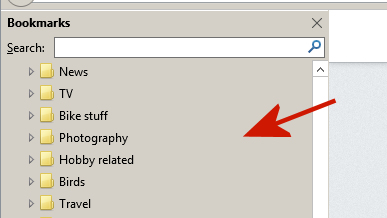
How do I change the background color for the Bookmarks side bar?

The grayish brown (I think) background color isn't working for me. I'm slightly colorblind and the highlighted cursor of the selected tab doesn't contrast enough for me to see it easily. I found how to change all kinds of colors in FF but not the background color of the bookmarks sidebar. I'd like to change the background maybe to plain white.
Solução escolhida
Got it! My eyes thank you for your help!
Ler esta resposta 👍 0Todas as respostas (3)
There might be an extension for this on the Add-ons site but if you don't find one, you can apply a custom style rule to the sidebar.
That area can be changed to a white background using this rule, for example:
#bookmarksPanel, #history-panel {
  background-color: #fff;
}
Applying custom style rules to the browser UI area can be done in either of two ways:
(1) Using the Stylish extension (2) Creating/editing a userChrome.css file
It's really late for me here, so I can't go into all the details, but there is hope!
See also this thread:
Add code to the userChrome.css file below the default @namespace line.
@namespace url("http://www.mozilla.org/keymaster/gatekeeper/there.is.only.xul"); /* only needed once */

#sidebar-header,#sidebar-search-container,#bookmarks-view-children,#historyTree {
color: #000 !important;
background-color: #fff !important;
-moz-appearance:none!important;
border-color:transparent !important;
}
The customization files userChrome.css (user interface) and userContent.css (websites) are located in the chrome folder in the Firefox profile folder.
You can use this button to go to the current Firefox profile folder:
- Help > Troubleshooting Information > Profile Directory: Show Folder (Linux: Open Directory; Mac: Show in Finder)
- http://kb.mozillazine.org/Profile_folder_-_Firefox
- Create the chrome folder (lowercase) in the <xxxxxxxx>.default profile folder if this folder doesn't exist
- Use a plain text editor like Notepad to create a (new) userChrome.css file in the chrome folder (file name is case sensitive)
- Paste the code in the userChrome.css file in the editor window
- Make sure that the userChrome.css file starts with the default @namespace line
- Make sure that you select "All files" and not "Text files" when you save the file via "Save file as" in the text editor as userChrome.css.
Otherwise Windows may add a hidden .txt file extension and you end up with a not working userChrome.css.txt file
Solução escolhida
Got it! My eyes thank you for your help!