


Manage cookies no longer appears

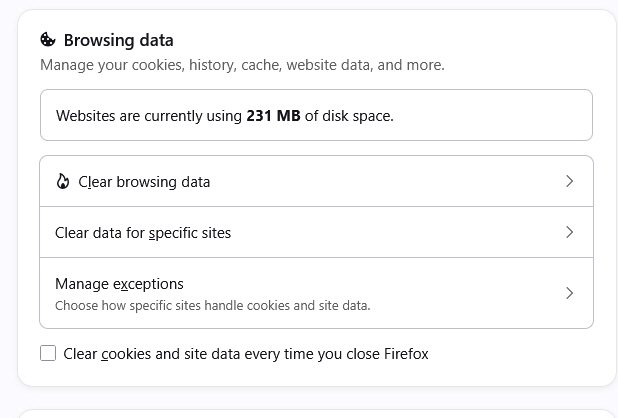
Under Settings>Privacy/Security>Browsing Data there is no longer the option to Manage Cookies, despite the help section saying that is where to find it. There is no other place in all of Settings to find the list of cookies. There is only the ability to delete all cookies in History, which I have no desire to do. I edit the cookie list weekly, and it is only now, mid August 2026, under Firefox 153 on Win 10 that I no longer have access to them. How do I get it back?
All Replies (3)
Selecting Clear data for specific sites will bring up "Manage Cookies and Site Data" list of domains showing the number of cookies and storage associated with each one. You can then select specific ones to remove.
Hope that's what you are looking for.
Thanks, but no, that only shows websites, not the cookies in A-Z order themselves.
A small favor - could someone just go to the Manage Cookies page, where all the advertising cookies are displayed - listed by company, not by website - and post the URL here? I am hopeful I can turn that into a bookmark and never have to spend another hour in Settings for nothing again.
Hi,
I don't think there's such a page in Settings... Has it ever existed?.. Maybe one of your extensions provided it?
However, note that you can remove individual cookies for individual websites in the Storage Inspector.