


My current Thunderbird profile has been created dirctly in ...AppData\Roaming\Thunderbird.
My current Thunderbird profile has been created dirctly in ...AppData\Roaming\Thunderbird. <Profiles> does exist but not contain any recent files or data. How do I restore a proper data structure without losing any emails, settings or other data?
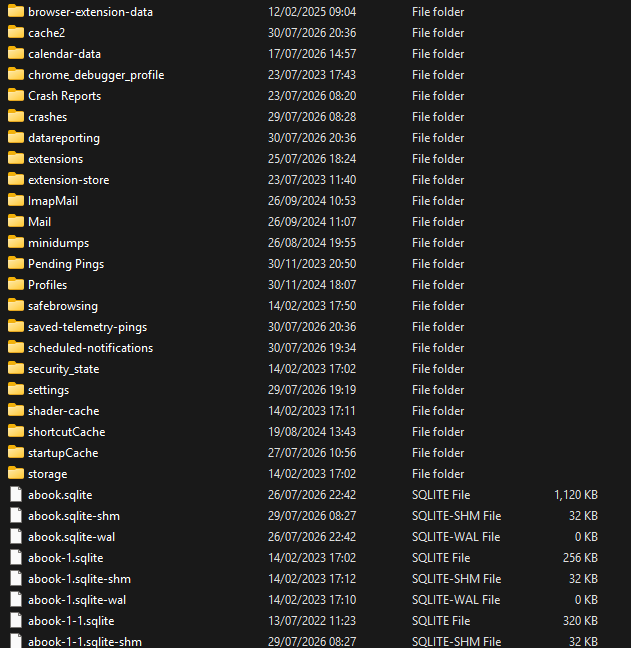
The screenshot shows the present structure
Valgt løsning
Please download your preferred version from https://www.thunderbird.net/en-US/thunderbird/all/ and install over whatever is there. Thunderbird always creates a profile in appdata\roaming\thunderbird. . Again,
- delete the appdata\roaming\thunderbird folder
- then install thunderbird
- start it once and then exit. Look in appdata\roaming\thunderbird\profiles and there should be a profile there.
- start thunderbird, click help>troubleshootinginformation, scroll to 'profile folder', click 'open folder', and then exit thunderbrd.
- after exiting thunderbird, delete all content in the profile folder and replace with your saved content
All Replies (12)
You need to provide more details. The location you stated is the correct one. The screenshot reflects a normal profile. Please give specifics on your situation. thank you
I was expecting a structure like AppData
  \Roaming
     \Thunderbird
        \Profiles
           \mz82s34p.default
with all the data in my profile below "\mz82s34p.default"
At the moment it starts below "\Thunderbird"
How do I sack up or copy my profile to a new computer?
Roger Hill
should be
I was expecting a structure like AppData
 \Roaming
    \Thunderbird
       \Profiles
          \mz82s34p.default
with all the data in my profile below "\mz82s34p.default"
At the moment it starts below "\Thunderbird"
How do I back up or copy my profile to a new computer?
Roger Hill
I agree. Your screenshot did not show the structure, so it's unclear what you have. is thunderbird using that profile? Having the profile in other than the normal place is not a problem if the user consciously does that. Can you post a screenshot that shows the file path to the profile?
The file structure is shown on the screenshot.
There is no name for the profile. How do I create a new profile? and can I then just copy the exiting data in (but where)?
An extract from the Troubleshooting Information is image 2.
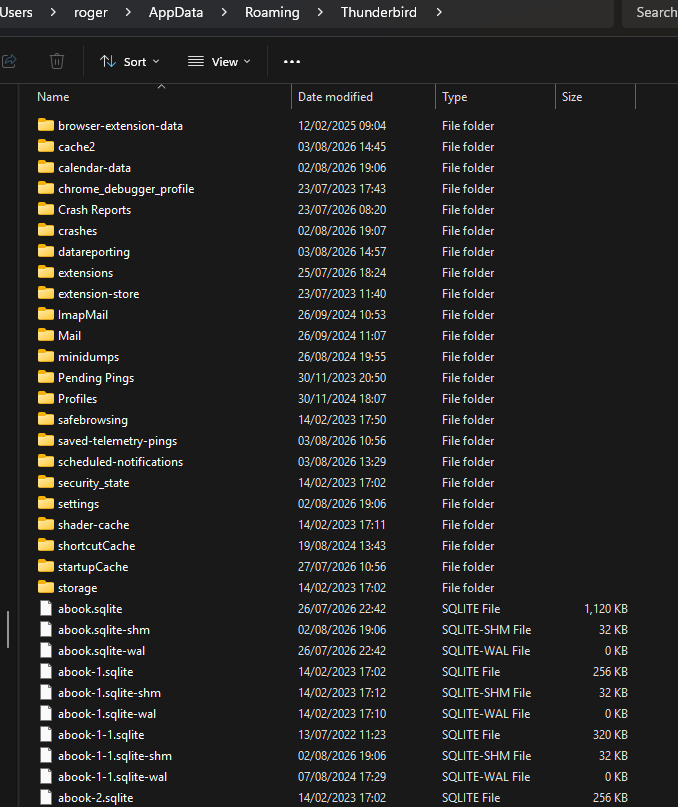
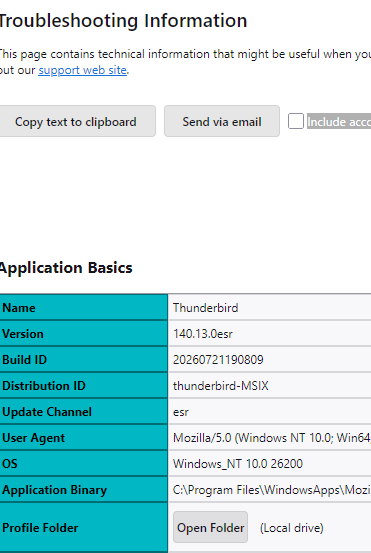
I wonder, if originally, I created a profile for Thunderbird on my (then) new computer and then copied the old profile (everything after the old profile name) directly into the Thunderbird (C:\Users\roger\AppData\Roaming\Thunderbird) directory...
Ok, whoever set this up made serious errors. Fortunately, it's an easy fix:
- copy that folder to a separate area as we will want it later
- DELETE the appdata\roaming\thunderbird folder
- start thunderbird. it should have created a new dummy profile folder
- click help>troubleshootinginformation
- scroll to 'profile folder' and click 'open folder'
- exit thunderbird now.
- you are now in the dummy profile. DELETE all content and PASTE in your save profile contents
- restart thunderbird
Thunderbird will not make a profile. A new directory is created -... /Appdata/Roaming/Thunderbird /Crash Reports
No profile folder . No working Thunderbird
It has, however, created a profile in /Appdata/Local/Thunderbird//Profiles/********. default
and
/Appdata/Local/Thunderbird//Profiles/********. default-esr-esr
Valgt løsning
Please download your preferred version from https://www.thunderbird.net/en-US/thunderbird/all/ and install over whatever is there. Thunderbird always creates a profile in appdata\roaming\thunderbird. . Again,
- delete the appdata\roaming\thunderbird folder
- then install thunderbird
- start it once and then exit. Look in appdata\roaming\thunderbird\profiles and there should be a profile there.
- start thunderbird, click help>troubleshootinginformation, scroll to 'profile folder', click 'open folder', and then exit thunderbrd.
- after exiting thunderbird, delete all content in the profile folder and replace with your saved content
Finally it worked and was quite easy when you've found how not to do it.
What is the difference between C:\Users\roger\AppData\Local\Thunderbird and C:\Users\roger\AppData\Roaming\Thunderbird ?
From your earlier question, you are right. Creating a backup of appdata\roaming\thunderbird is the solution. Here are detailed steps:
BACKUP
- ensure thunderbird is not running
- enter %appdata% in search window on task bar and press Enter key
- this should open windows file explorer in Appdata\roaming folder
- highlight the Thunderbird folder and copy to external media
RESTORE
- ensure thunderbird is installed, run once, and NOT running
- enter %appdata% in search window on task bar and press Enter key
- delete the thunderbird folder
- you should be in Appdata\roaming folder , copy&paste the exported Thunderbird folder there.
- start thunderbird and all should be there
On your last question, I have no idea what appdata\loca\roaming\thunderbird is for.. On my windows PC, I deleted it years ago and have had no problems. I'm glad all is working for ypu. :)