


Zoom not working in Settings

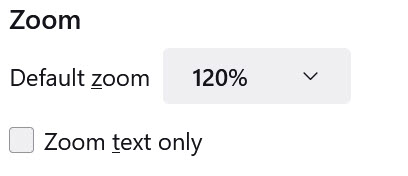
It appears that in Settings>General>Language and Appearance>Zoom, setting a Zoom % is not working. It has been working in the past, but all websites are displaying at the default of 100%.
Unfortunately, I'm elderly and need a higher zoom setting than 100%. Like I wrote above, the Zoom setting worked before.
Any help in getting the Zoom setting to work would be appreciated.


Alle antwoorden (2)
hi jjuenger,
try to set this pref to true on the about:config page.
apz.allow_zooming = true
You can open the about:config page through location/address bar top of the browser.
You can accept the warning and click "I accept the risk!" to continue.
[https://support.mozilla.org/en-US/kb/about-config-editor-firefox]
You can also try a Firefox add-on such as Fixed Zoom or Zoom Page WE. https://addons.mozilla.org/en-GB/firefox/addon/fixed-zoom/
Please let us know if this information helped you!
Thank you.

I would try starting in troubleshoot mode then restarting. I found that fixed an issue I had and it has worked for others. If it works in troubleshoot mode but not otherwise, see the link below.
You might also try this extension which gives you more options.
https://addons.mozilla.org/en-US/firefox/addon/zoom-page-we/