How can I get the downloads button back that used to be at the top of the screen?

I followed the instructions from another post to click on the 3 bars and then choose Customize. But there is no download button option. There's history, save page, find, open file, add-ons, zoom controls, edit controls, subscribe, text encoding, email link, synced tabs, preferences, forget, new private window, developer, print, new window, full screen bookmarks menu, flexible space, but NO downloads option! Of course, I can open my downloads folder by using finder or Siri but it's so much more convenient if there's a button. What's the solution?
Alle antwoorden (1)
Hi KathyKocar, there should be a button to access Firefox's downloads list.
First, the shortcut for "Show All Downloads" is Command+j (or on Windows, Ctrl+j).
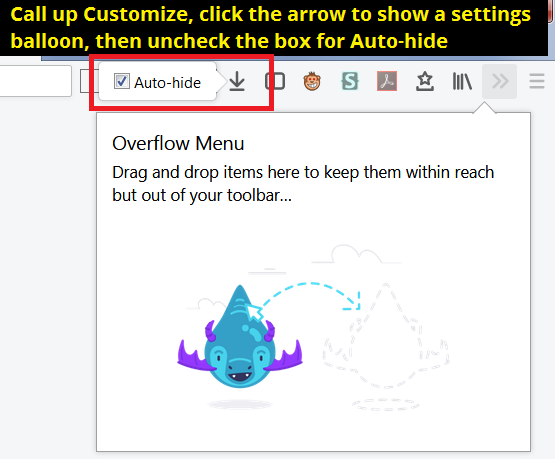
Next, the Downloads button (arrow) is hidden until after your first download of the session. To turn off hiding:
(A) Start Customize (Customize Firefox controls, buttons and toolbars)
(B) Find the arrow on the main toolbar and click it, then uncheck the box for auto-hiding:

If the arrow does not appear on the bar in Customize mode, you can reset the toolbar controls using the "Restore Defaults" button at the bottom of the Customize tab
Any improvement?