


Incoming Server Settings on Thunderbird

Windows 11 Sending, but not receiving e-mails in two OAuth addresses (one university account, one personalised domain gmail) Can't find 'Incoming Server Settings' to check if they are correct Have selected "manual configuration flow" and restarted Thunderbird
Hi, I just installed Thunderbird on a new computer and was super happy about how easy the setup has become for multiple e-mail addresses - however, I have two addresses where I can send, but not recieve e-mails. One is a university e-mail and one a personalised domain gmail - I used both without trouble in Thunderbird on my previous computer. They are both OAuth and the Outgoing Server Settings are correct, but I cannot find where to adjust Incoming Server settings. I've selected "manual configuration flow" and restarted Thunderbird, but still can't see anything new. Where do I find Incoming Server settings now? Thank you for your help,
Lena
All Replies (7)
(I have also tried temporarily disabling my antivirus software and fetching messages, as recommended. No luck)
For Gmail: When you click on 'Get Messages' - do you get any error messages ? If yes, it would be useful if you uploaded an image showing the error. Often it helps to understand the problem.
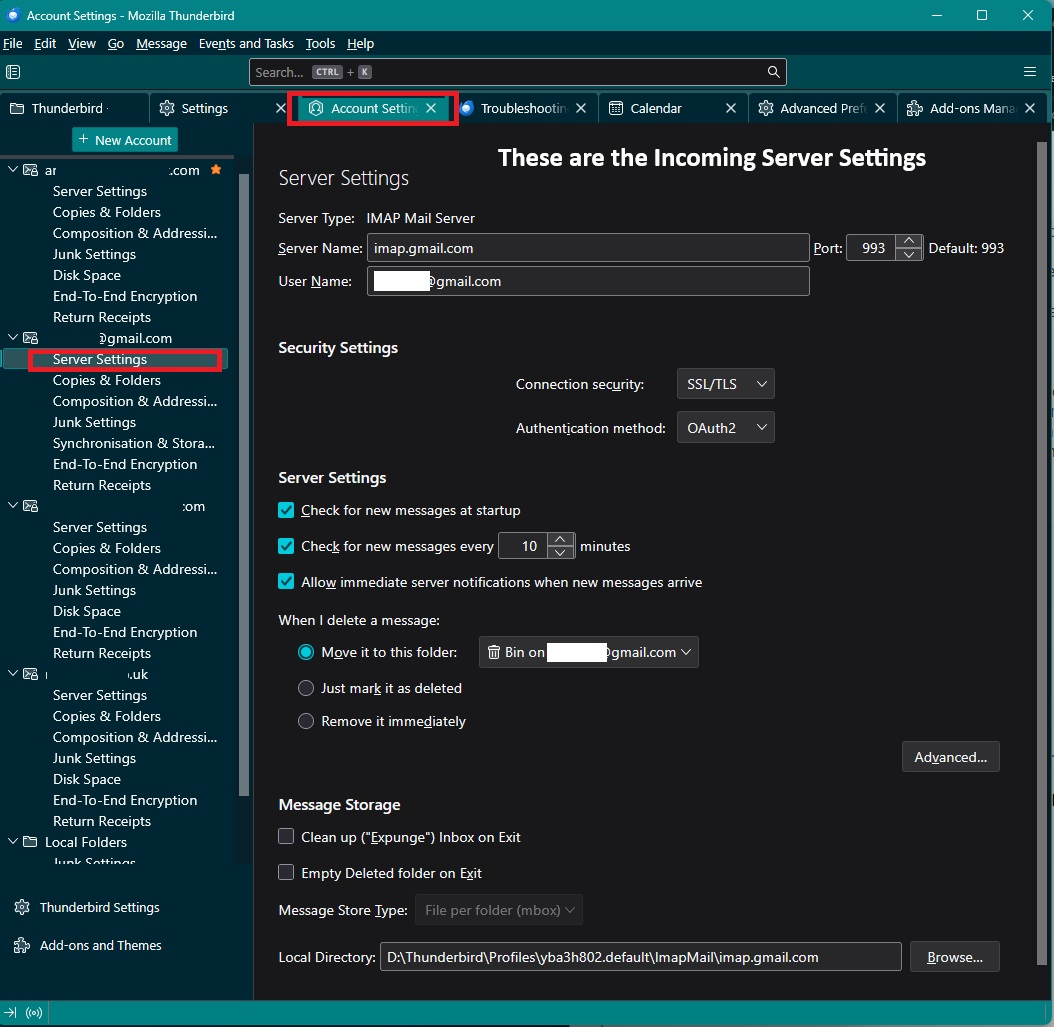
It's possible there is nothing wrong with the incoming server settings, so before you mess anything up - it would be useful to see what is currently set up. 'Account Settings' > 'Server Settings' for the gmail account is the incoming server info.
The following are some things to check: Firewall Might be controlled by Windows default OR by an Anti-Virus product you installed. Please access Firewall and make sure Thunderbird is set up as an allowed program. This makes ure no ports are being blocked. It's no use disabling an installed AV as then the default takes over. Just set up Firewall to allow Thunderbird program.
VPN Check computer to see if a VPN is installed and active. Many server s do not like VPN and gmail is one of them. It hides your IP and gmail thinks you might be a hacker. Switch VPN off.
In Thunderbird
- Settings > Privacy & Security
- Web Content
- Select 'Accept cookies from sites'
- Accept third party cookies
- click on exceptions button and add this: https://accounts.google.com
- click on 'Save Changes'
It would be useful to know if you set up Imap or POP Gmail IMAP incoming server
- server name: imap.gmail.com
- port: 993
- username: full email address
- connection Security: SSL/TLS
- Authentication Method: OAuth2
Hi Toad Hall, Thank you very much for this detailed reply! Very good to know about the firewall. Have tried adding Thunderbird to exceptions. Have also tried switching off VPN. I don't get any error messages when trying to fetch messages, apart from 'no messages found'. Have added https://accounts.google.com to exceptions.
Still no luck.
My problem is that Thunderbird doesn't show me the incoming server settings at all. I get shown "server settings" and they are correct for the outgoing server. I've always done this manually, so I'm assuming the new version of Thunderbird, in making it easier to set up accounts, somehow makes it harder to find them?
Really appreciate your help.
I suggest it might be easier to upload some images. 'Account Settings' > 'Server Settings' for gmail account should only contains the incoming server settings. See image below as guide. Please note this is specific to an IMAP account, - it says 'Server Type' IMAP Mail Server It must use only the set up shown because that is what gmail says you have to use.
I have a gmail imap account. I've blanked out sensitive data the 'User Name' = full gmail email address.
If you use an imap gmail account and do not have same then alter the data so it is the same.
I'm amazed you did not auto get this set up. I can only assume you have manually edited the data.
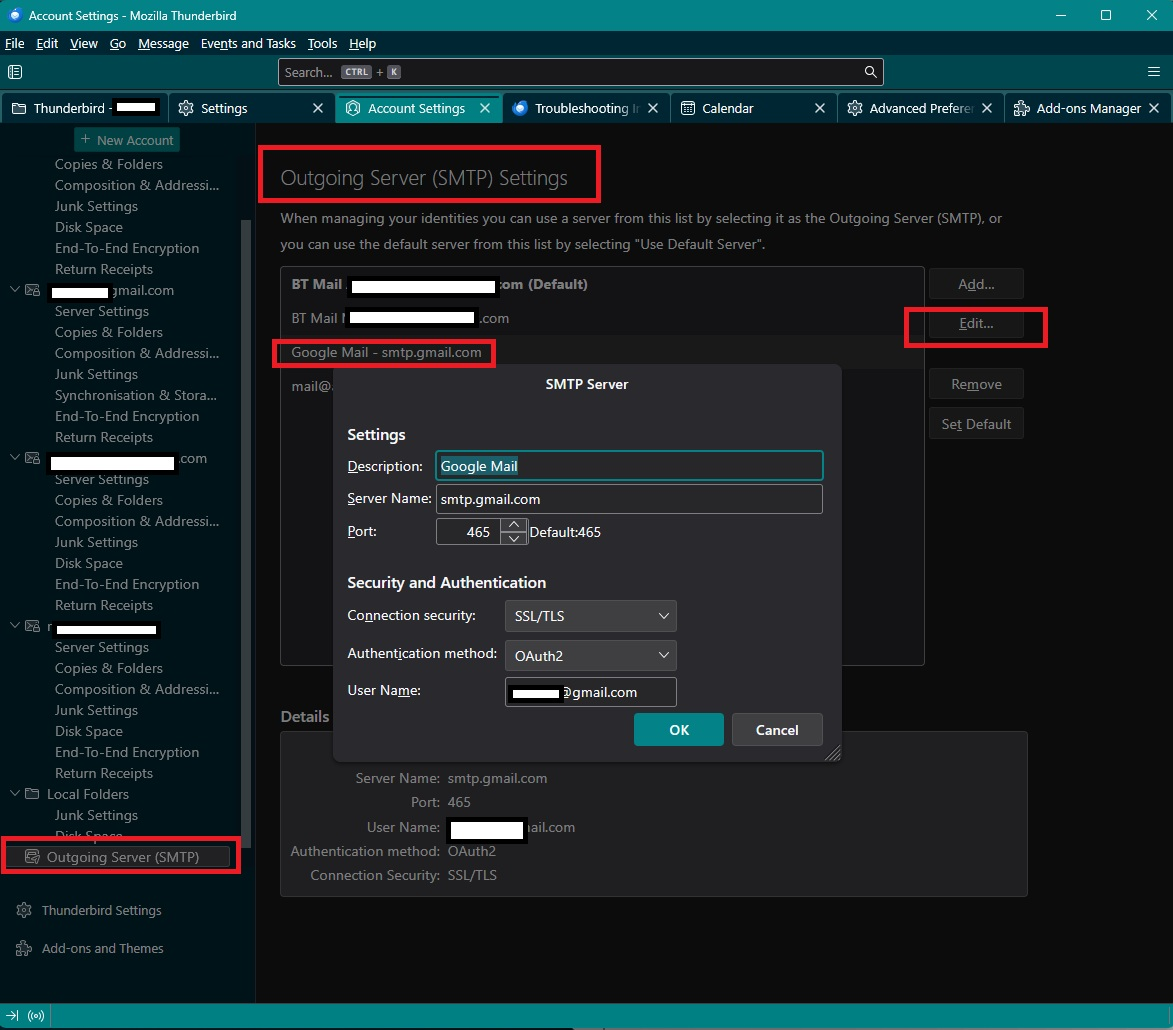
This is where the gmail Outgoing server is set up. See image below as guide In 'Account Settings'
- Left pane - scroll down to very bottom and click on 'Outgoing Server (SMTP)'
All outgoing servers get listed on the right side
- select the gmail smtp server to see data below.
- To edit - click on the 'Edit' button
- Make sure data is correct and click on 'OK'
Obviously the 'User Name' is your full gmail email address. Otherwise you should have exactly the same as the information seen in Image,
Note: if you have more than one gmail account, then in 'Description' field type your gmail email address which should be identical to what you see in the User Name field. This will then help you to make sure the correct smtp outgoing server is selected for the correct gmail account.
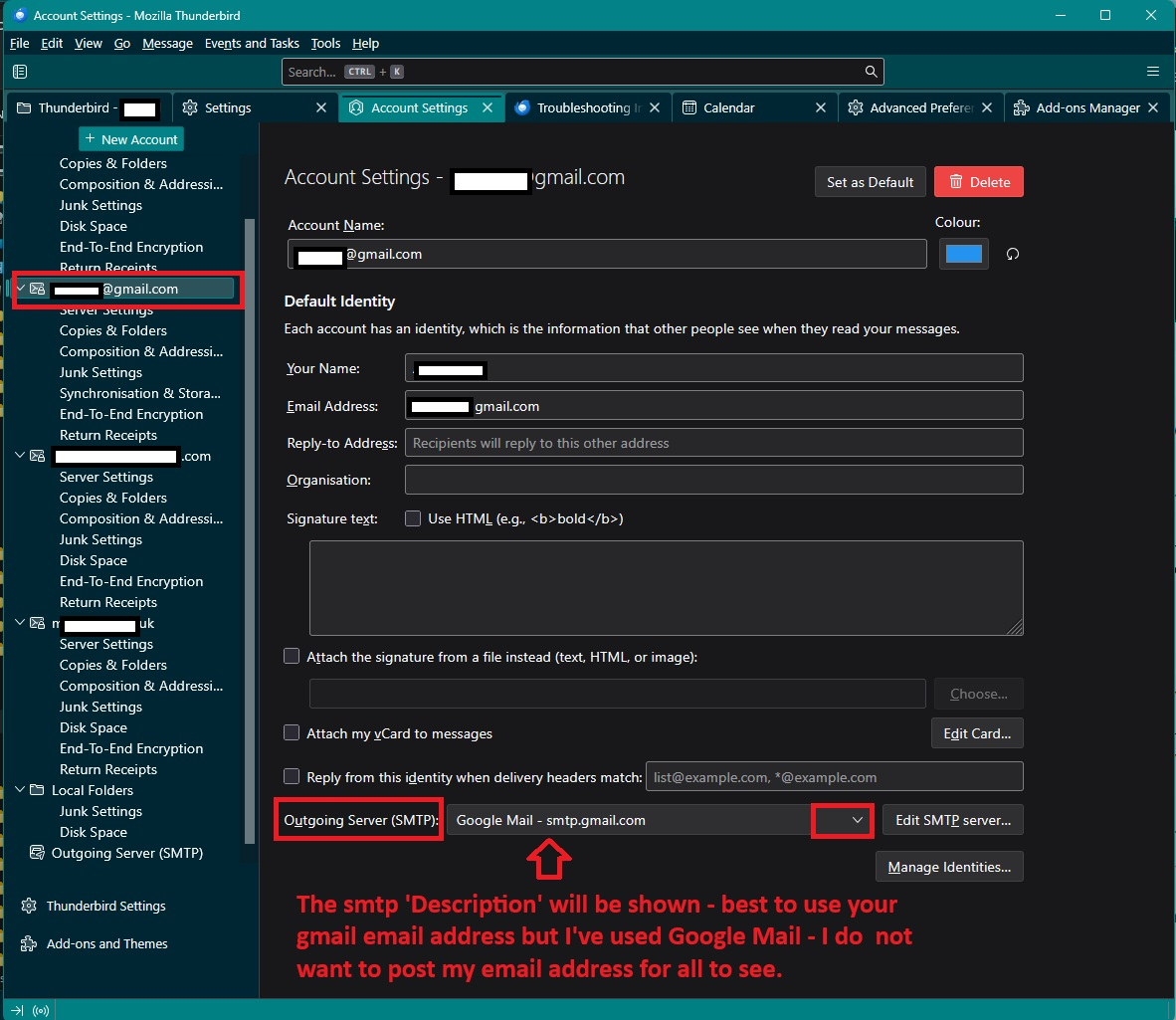
Then you make sure the gmail account is using the correct smtp server. In 'Account Settings'
- In left pane select the name of the gmail account
Account Settings then show on the right side. On right side -At the bottom you will see 'Outgoing Server (SMTP)' and it should be pointing to the correct smtp. Whatever you typed in the smtp 'Description' field eg: gmail email address - it should show this,
To make sure you have selected the correct outgoing smtp : DO NOT click on the 'Edit SMTP_Server' button. You only ever use that in exceptional circumstances and never to check you are actually using the correct server.
- Click on the drop down option and select correct gmail smtp server from list.
See image below as guide.
Ideally, the smtp DEscription field should have the gmail email address which is the same as 'User name' and then it makes it easy to select the correct smtp for the account. In image, I typed 'Google Mail' because I do not want my gmail address posted for all to see :) But it shows how the Description entry is then used when selecting correct smtp for account.
AS a heads up - nothing has changed for decades when it comes to where all the data is located. The images I uploaded - updates have had a 'Set as Default' and 'Delete' button added and it's also new to be able to select a colour for an account. But all the rest is the same. Hopefully, the images I posted will help.
Do not worry about the colour you see in those images, that's different because I've set it up that way.