


Disable auto https button doesn't work.

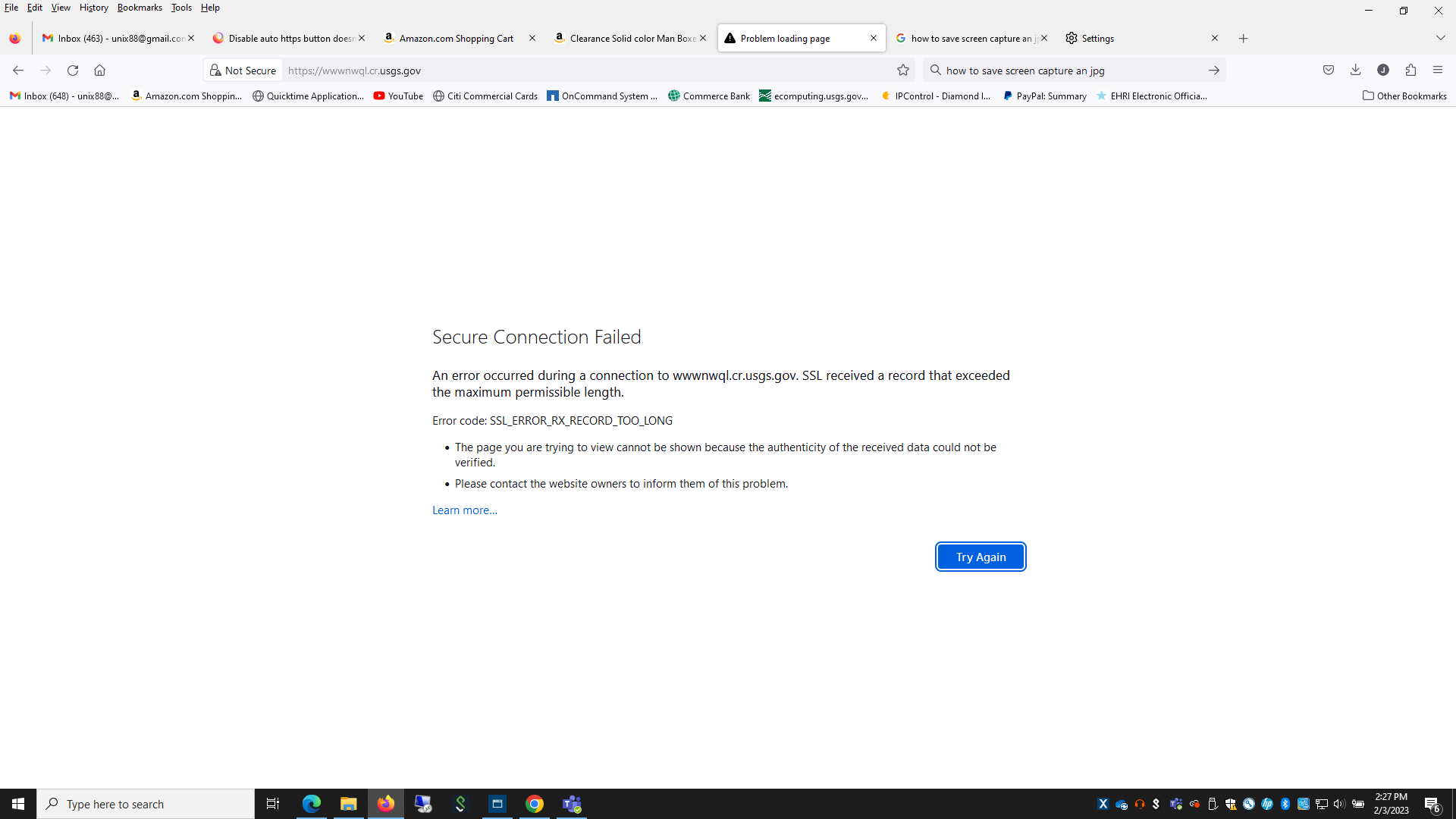
Disable auto https button doesn't work. I'm still getting error messages when trying to access web sites using only "http". Edge and Chrome still connect to "http". thx
All Replies (7)

What site are you referring to here?
I looked at this article and IT DOES NOT solve my problem. The disable feature doesn't do anything. It still errors on "http" connections.
Any site using "http".
Did you try to create the exception manually for the http://xxxx origin in "Settings -> Privacy & Security"?
best is to create the exception for the http:// origin via its Manage Exceptions instead of via the padlock icon.
- Settings -> Privacy & Security -> HTTPS-Only Mode -> Manage Exceptions
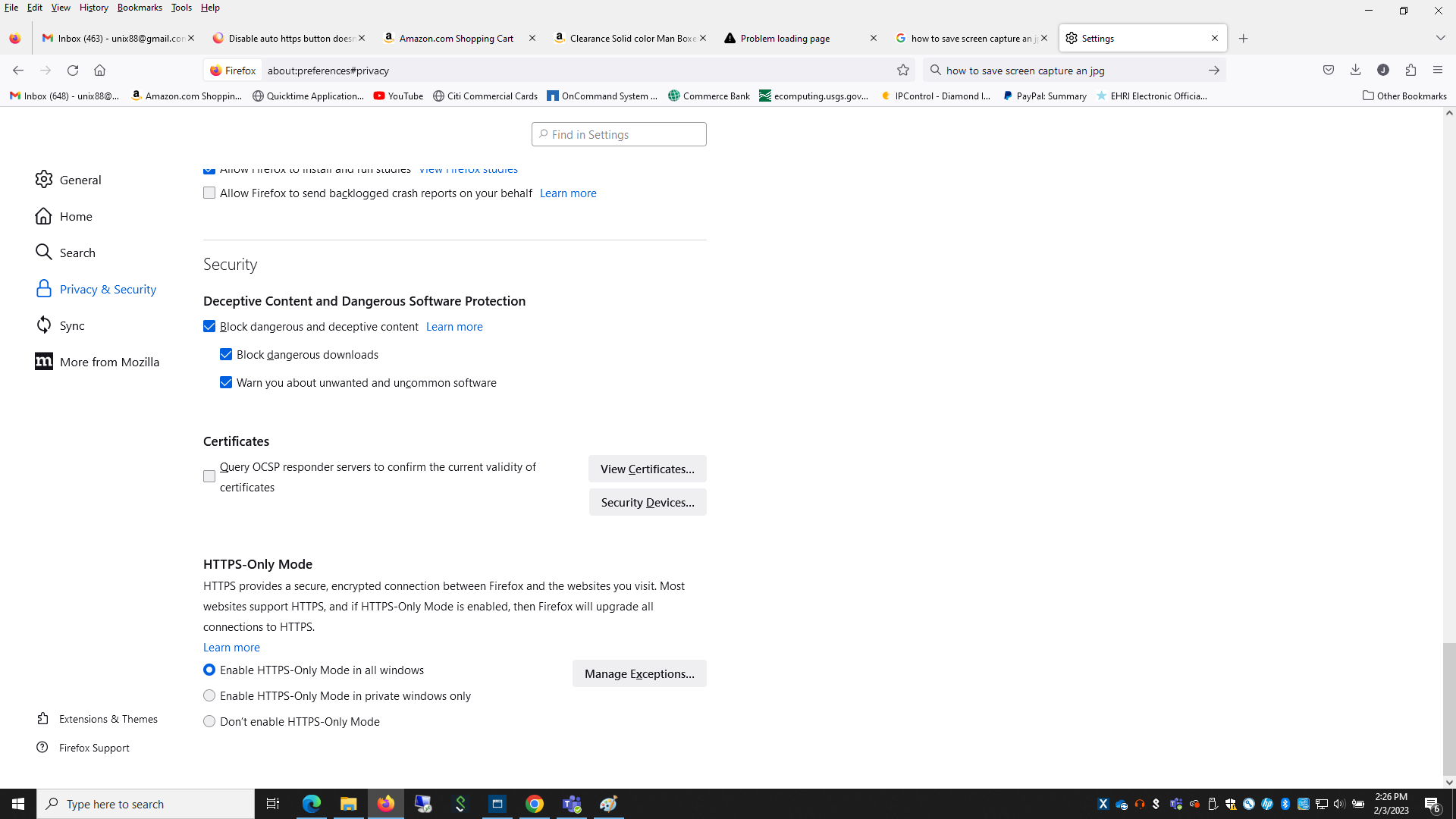
This doesn't not solve the problem. Nothing under the https settings works. See attached:
Can you attach a screenshot of the HTTPS-Only Mode exceptions window ?
Are you using a proxy or VPN?
You can check the connection settings.
- Settings -> General -> Network: Connection -> Settings
If you do not need to use a proxy to connect to internet, select "No Proxy" if "Use the system proxy settings" or one of the others do not work properly.
See "Firefox connection settings":