


Firefox Home (default) desktop is different on two computers in the same house (same accounts)

I have two computers. Both sign into the same Firefox account. Both instances of Firefox are the same version (134.0.1 64-bit).
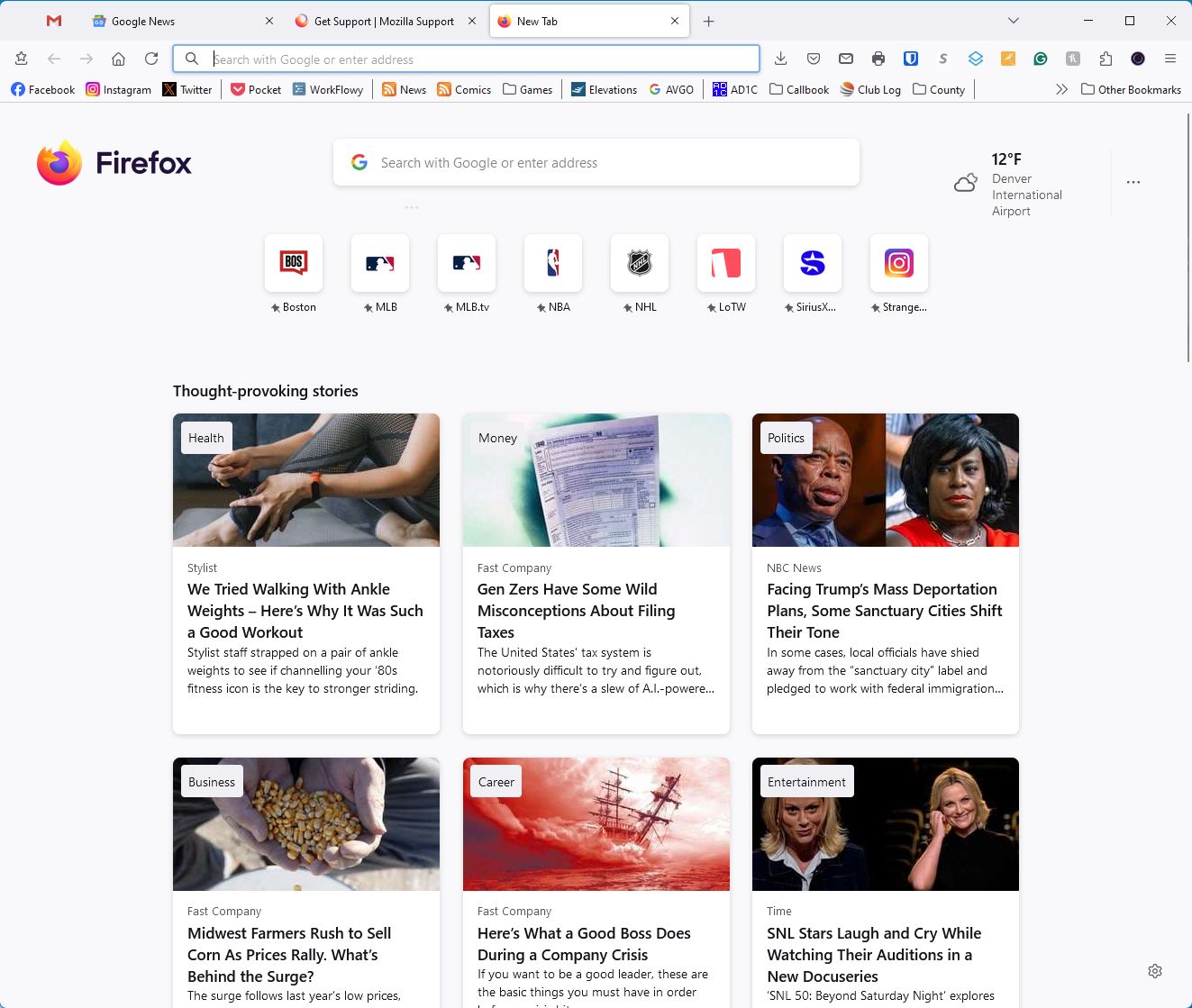
On my main computer, creating a new tab is set to Firefox Home (default), and clicking the "+" sign to create a new tab results in the recommendations appearing as seen in the first image (firefox_2025-01-19_17-42-57.png)
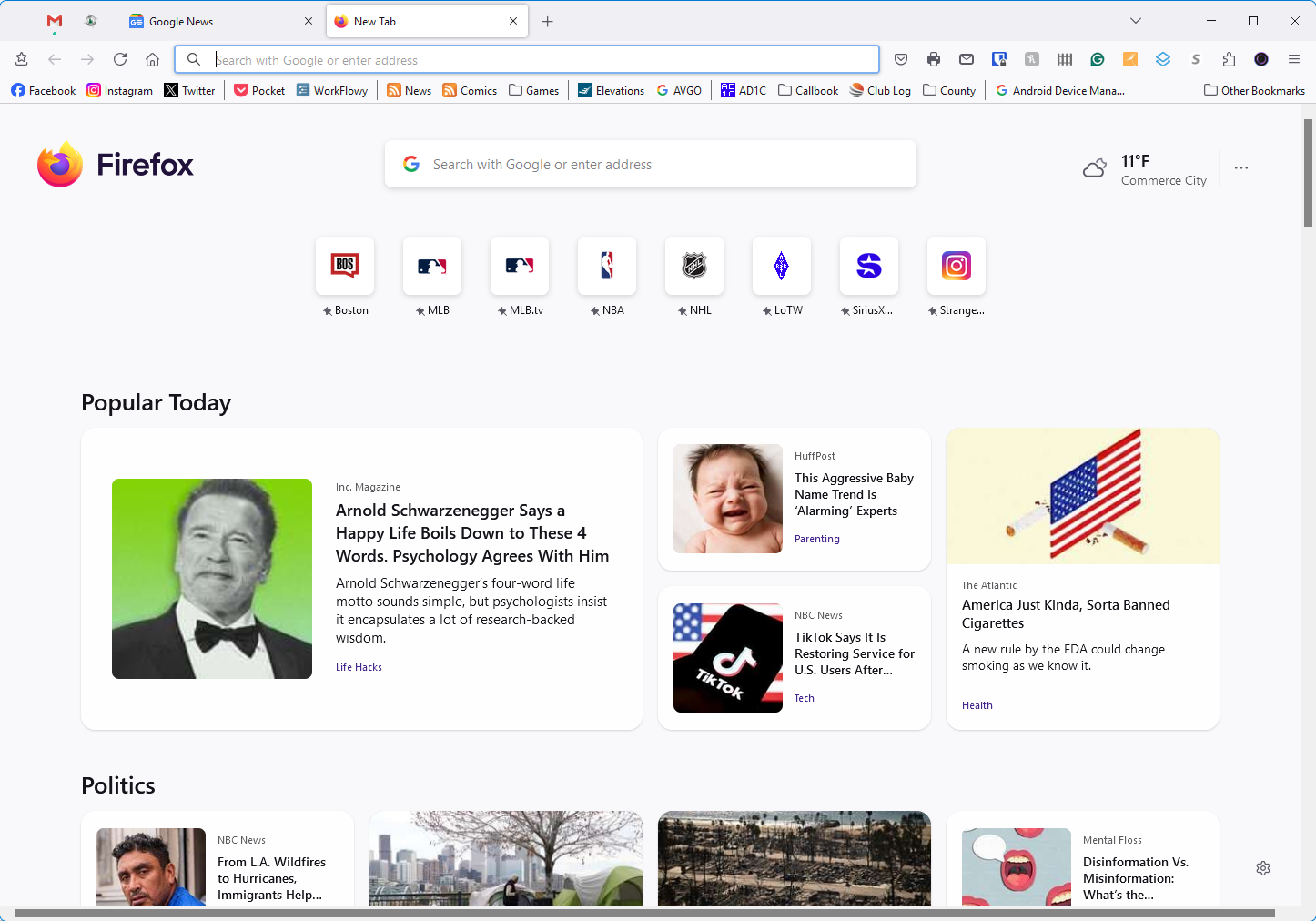
On the other computer, creating a new tab is set to Firefox Home (default), and clicking the "+" sign to create a new tab results in the recommendations appearing as seen in the second image (firefox_2025-01-19_17-43-57.png)
How to I get both instances of Firefox to do the same thing when creating a new tab, i.e. organize the recommendations like the second image?
모든 댓글 (2)
선택된 해결법
I have the "Thought-provoking stories" style. One of yours has "sections" enabled. I don't know why it's enabled, but here's how you can turn that off or on:
(1) In a new tab, type or paste about:config in the address bar and press Enter/Return. Click the button accepting the risk.
More info on about:config: Configuration Editor for Firefox. The moderators would like us to remind you that changes made through this back door aren't fully supported and aren't guaranteed to continue working in the future.
(2) In the search box in the page, type or paste discoverystream.sections and pause while the list is filtered -- Firefox should show a few preferences related to dividing the feed into sections
(3) Double-click the browser.newtabpage.activity-stream.discoverystream.sections.enabled preference to switch the value between false (do not separate into section) and true (separate into sections)
You probably need to reload (Ctrl+R) the new tab page between changes.
It's possible there is a more convenient checkbox for this somewhere, but I didn't see it.
That was the solution. Thank you!