cannot set OAuth authentication method in Thunderbird 152.0.1

Is there a bug in the code for v152? I need to connect to a ms office 365 email account with requires OAuth
The create new account process does not work, because it forces you to go through the whole (manual) process which then fails because you cannot select the Oauth option from Authentication method dropdown box - because its not there !.
This URL with the process to add OAuth: https://www.bing.com/search?pglt=419&q=setting+OAuth+in+thunderbird&cvid=22ed20c67b3843d58ddbc136bed2f174&gs_lcrp=EgRlZGdlKgYIABBFGDkyBggAEEUYOTIGCAEQABhAMgYIAhAAGEAyBggDEAAYQNIBCTExMjgyajBqN6gCCLACAQ&FORM=ANNTA1&PC=ASTS
fails at Step 2 because it does not let you complete to then go to Step 3 - because the account is never created !
How do I fix this ? thanks
ყველა პასუხი (2)

The create new account process does not work, because it forces you to go through the whole (manual) process ...
Only if the Thunderbird ISPDB does not fetch your email server account or cannot connect to your account, you will have to choose the manual configuration approach. None of that is supposed to happen for a Microsoft Office 365 account. What exactly goes wrong in your case? Please be more specific.
... which then fails because you cannot select the Oauth option from Authentication method dropdown box - because its not there !.
You'll have to use the correct server names. See https://support.microsoft.com/en-US/Outlook/pop-imap-and-smtp-settings-for-outlook-com
Solved - but its not immediately obvious.
On your outlook URL - yes I have those parameters and use them (because the default auto process fails with the wrong server names so I configure them manually)
I've solved it. The circular loop can be broken at step3 (Dialog 3) of the create new account process. Step - 1 (Dialog 1) enter your name and email address - click configure manually
Step 2 (Dialog 2) enter the incoming server details. In the choose authentication method dialog - choose anything (OAuth2 is not available in the dropdown !)
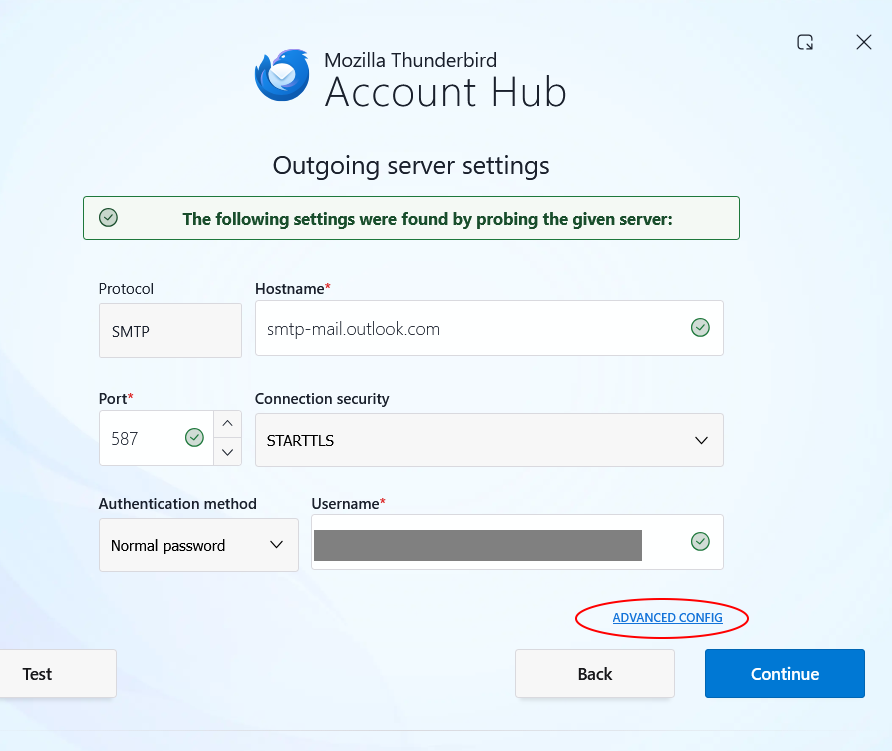
Step 3 (Dialog3) - see screen grab attached Enter the outgoing server details. Then click Test: note how it comes back with Normal password as the selected Authentication method. (but OAuth2 is not available in the dropdown menu) Then - click Advanced Config. *This is the key to breaking out*
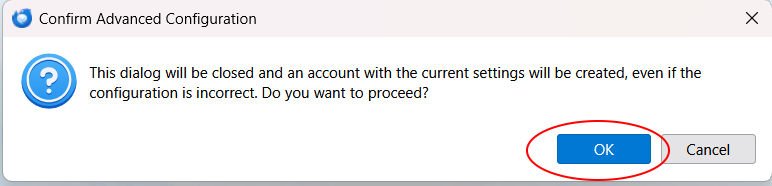
You get Dialog 4 ! (screen grab) click Yes. This is what gets you the new created account (in the TB app list of accounts) - even if the current server and smtp settings are wrong.
Now - in TB, on the new account that is shown in the list of accounts - fix it up. Get the name and email correct, In Server settings - *now* you can select the OAuth2 method. In edit smtp settings - *now* you can select the OAuth2 method.
Then it works !!
On a side note - all this is happening on a new pc. I have been using TB 140.12.1esr (64-bit) installed on a different machine for years. That version DOES provide the option for OAuth2 in the dropdown menu of available authentication methods. Why has v152 removed it ? It was already part of your core code and would have taken more effort to remove it than continue as is ?
This whole issue dies if you simply bring back OAuth2 in to the dropdown menu and it (should) work first time without the extra mucking about.
regards