


Unable to follow video to prepare to transfer Thunderbird to new computer

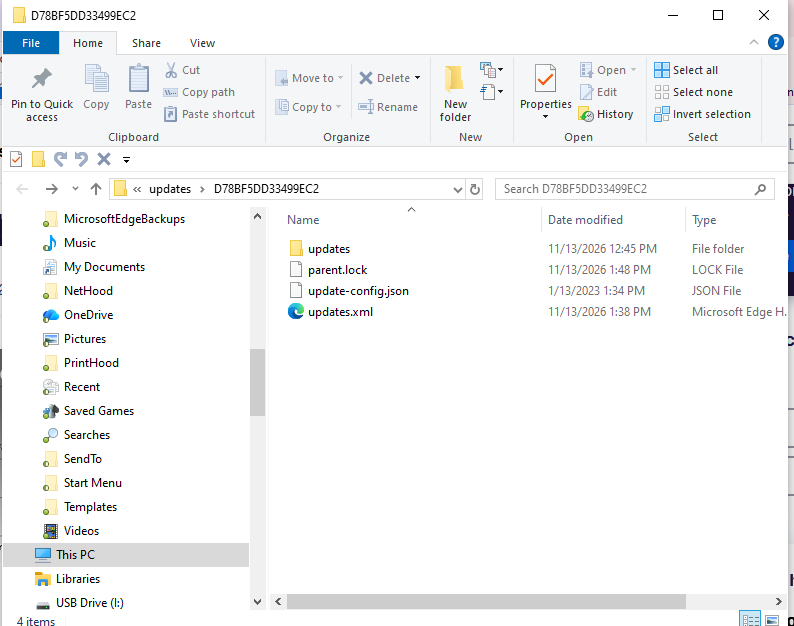
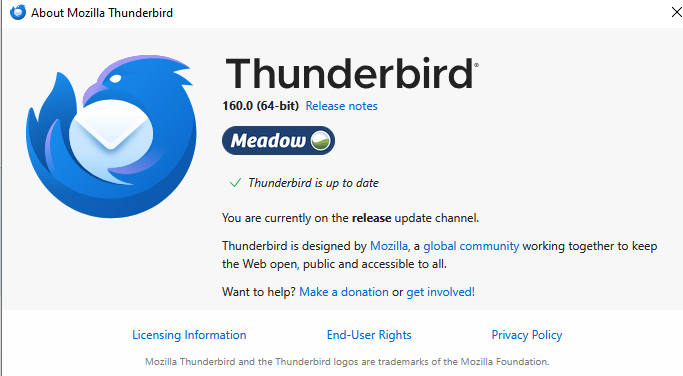
When I follow the instructions to save the files necessary to transfer Thunderbird to a new PC, this attached file explorer window is what displays. Going up 3 levels does not get me to where I need to be. Is there some other way, or do I need to upgrade Thunderbird on the old PC first?
I am computer challenged, shall I say. Thank you for your time and trouble, Dave Frank
すべての返信 (3)
Try this approach instead. Let me know of any problems and on which step the problem happened
BACKUP
- ensure thunderbird is not running on old PC
- enter %appdata% in search window on task bar and press Enter key
- this should open windows file explorer in Appdata\roaming folder
- highlight the Thunderbird folder and copy to external media
RESTORE
- ensure thunderbird is installed, run once, and NOT running on new PC (it appears you have already done this step)
- enter %appdata% in search window on task bar and press Enter key
- delete the thunderbird folder
- you should be in Appdata\roaming folder , copy&paste the exported Thunderbird folder there.
- start thunderbird and all should be there
I just now was able to get Thunderbird transferred to the new PC running Windows 11. There have been the usual delays and trips to the place I purchased the new one. The instructions above worked as far as my hotmail address went. My Frontiernet address has a folder in the list on the left of the screen, but as no inbox folder. My gmail address has no folder. How I can I get those two up and running?
I just now noticed that the email addresses also did not transfer.
Thank you for all your help.
この投稿は Dave F により に変更されました
Try this: Highlight the account in folder pane, rightclick and select 'subscribe'. That should display a list of folders you can tick. I presume by 'email addresses' you're referring to the addressbook. I do not know how the transfer was done, as that is part of the profile. But, if the old computer is still available, it's an easy fix;
- in thunderbird click help>troubleshootinginformation
- scroll to 'profile folder' and click 'open folder'
- exit thunderbird
- now, in the profile, there are two files to copy: abook.sqlite and history.sqlite COPY those
- now, on new computer, repeat these same steps
- exit thunderbird
- now, paste the two files, overlaying the two that are there
この投稿は david により に変更されました