


Unable to Add a Gmail Account to Thunderbird Despite Successful Authentication

Hello,
I’m having trouble adding my Gmail account to Mozilla Thunderbird. The Google authentication process completes successfully, but the problem persists in Thunderbird, and I’m unable to configure the account correctly.
I have double-checked the account names and credentials, and I can confirm that they are correct. The authentication process has been completed successfully multiple times, and the passwords have also been verified. Therefore, the issue is not caused by incorrect account names, passwords, or authentication details.
I have attached screenshots showing the problem for reference.
Could you please help me identify the root cause of this issue and explain how to resolve it?
Thank you for your help.
Best regards,
すべての返信 (2)
Please do some checks as it seems you may be blocked - it looks like you do not get to the browser opening where google asks you to allow Thunderbird access. All the displayed data seems correct, but I cannot say whether the password is correct as only you know the password. Check all the following so we can rule out potential problems.
Check password is correct: The only way to check that is to logon to your gmail webmail account via a browser. If you get access then you know password is correct. Confirm you get access.
On Computer: Please check the following: Firewall. Firewall may be controlled by the default set up by OS OR if you installed an Anti-Virus program then it might be controlled it. Access Firewall Set up the Thunderbird program as an allowed program to ensure the Firewall never blocks Thunderbird access to internet and various ports.
VPN Please check your computer to see if a VPN has been enabled. Gmail and many other servers do not like VPN because it hides your IP address. Some Anti-Virus programs have a VPN and in some cases it might be auto enabled. Switch off VPN.
Localhost: Some people manage or maintain a website and use a program that uses the localhost. Programs such as Apache Xampp. You need to make sure those are switched off whilst setting up gmail.
Confirm:
- Firewall has Thunderbird program as allowed
- VPN is switched off
- Programs using localhost are switched off.
In Thunderbird cookies must be enabled
- Settings > Privacy & Security
- Web Content
- Select 'Accept cookies from sites'
- Accept third party cookies 'Always'
- click on 'Exceptions' button
- Add : https://accounts.google.com'
- set to 'Allow'
- click on 'Save'
Whilst in 'Privacy & Security' Check no password for that gmail account have been previously set.
- Under 'Passwords'
- Click on 'Saved Passwords'
- Do you see any lines that are created using username = that gmail email address?
- If yes, then remove them.
Exit Thunderbird. Allow a few moments for background files to update. Start Thunderbird
Try to create the gmail account and report back on results.
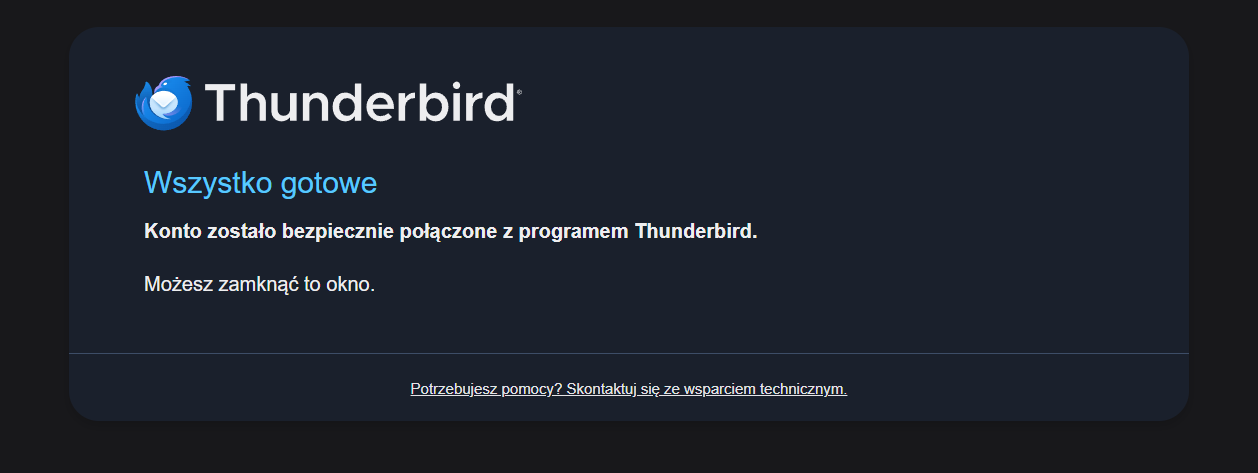
I notice the first image says: all set your account has been securely connected to Thunderbird. You can close this window.
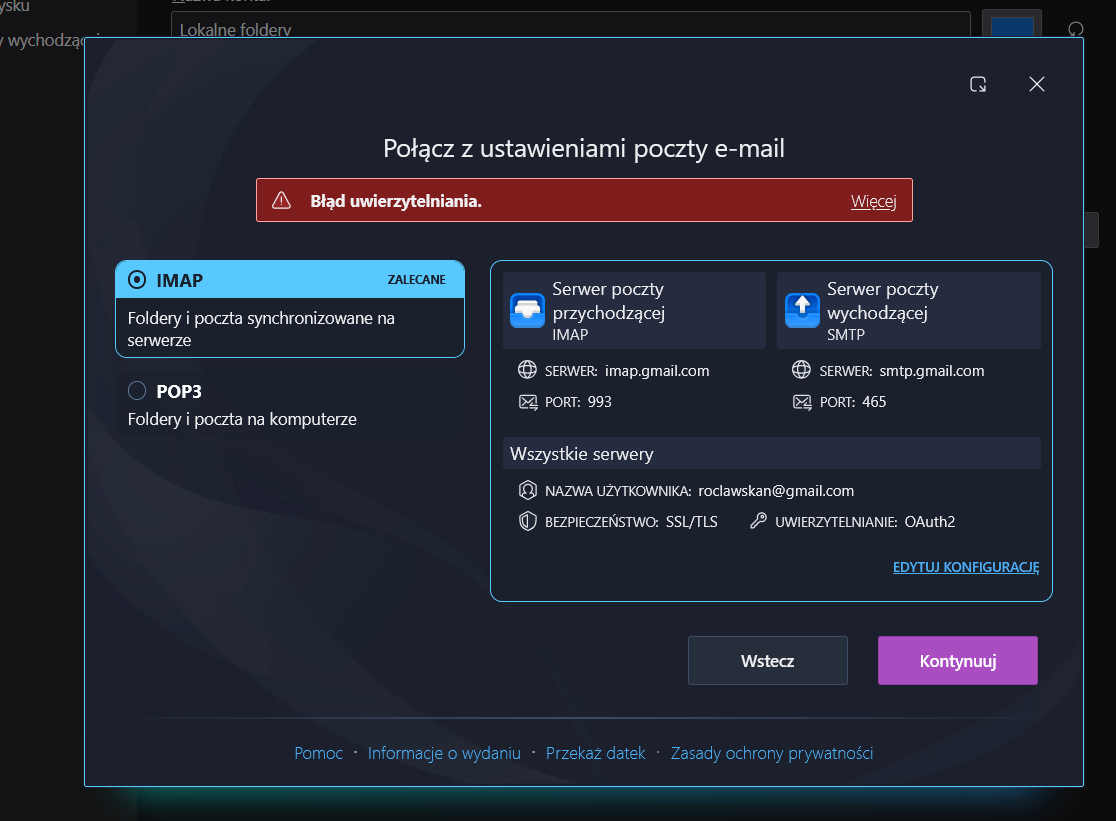
So I'm not sure why you still have the second window open saying 'authentication error'. That only appears when you first start to create the account.
The authentication error would not have got as far as the all set window. You also mention the gmail account has been created. In which case the second image implies you were trying to add it again.
Maybe you have not told me the full process of events ? Did you remove the account and try to add it again ? If yes, then google was expecting the Oauth password saved after first attempt and you would have entered the normal password which gmail would say is wrong, so authentication would fail.
Access 'Account Settings' and remove the account, access Settings > Privacy & Security' and remove all the lines showing the stored passwords including the oauth password for that email address/account. You would need to do check everything to do with account was removed. Exit and restart Thunderbird, so you know all background profile files are updated.
At this point you would then be able to try to add the gmail account again.
Once account is created, then you h ave the Oauth set up ok. Report back on results after doing the above.
この投稿は Toad-Hall により に変更されました