


Thunderbird folder 235GB

I am transferring my thunderbird folder to a new computer and it is 235 GB. I dont understand why it is so large. Are ALL my emails being saved? How do I delete so I can make smaller??
すべての返信 (6)
if this is an IMAP account, it's possible to reduce the profile significantly for the transfer. If a POP account, share that. If an IMAP account and you want to reduce ongoing storage, share that. In summary, you've asked several questions and we'll try to assist. Thanks.
Hi David Thank you...It is an IMAP account. I am trying to change settings to not save emails...it is crazy...not sure if I am doing the right thing!! Fran
To minimize space, try this: - at account settings, click synchronization&storage, and set sync to 30 days. - then, click help>troubleshootinginformation - scroll down to 'profile folder' and click 'open follder' - now exit thunderbird - you are now in profile. click the imapmail\<acountname> folder and DELETE the inbox, inbox.msf, sent, sent.msf entries. if there are other files, folders of same format, delete them as well. Any questions or unusual folders, post screenshot of what you see. - now, in windows, follow these steps to transfer the profile to new pc: Here is the link for moving a profile in Windows when installed in default location:
https://support.mozilla.org/en-US/kb/moving-thunderbird-data-to-a-new-computer
here is the info in brief steps:
- ensure thunderbird is NOT running on old machine
- enter %appdata% in search window on task bar and press Enter key
- this should open windows file explorer in Appdata\roaming folder
- highlight the Thunderbird folder and copy to external media
- ensure thunderbird is installed on second computer and NOT running
- enter %appdata% in search window on task bar and press Enter key
- you should be in Appdata\roaming folder , copy&paste the exported Thunderbird folder there. This may prompt to overwrite an existing folder of same name. allow it
- start thunderbird and all should be there - and space required should be less
So I am a little bit worried about losing all messages...but I wont, right? :) Just all the old.... Also I am on a Mac (not windows) Here is what I see in Profiles...
So just delete the Inbox, etc...
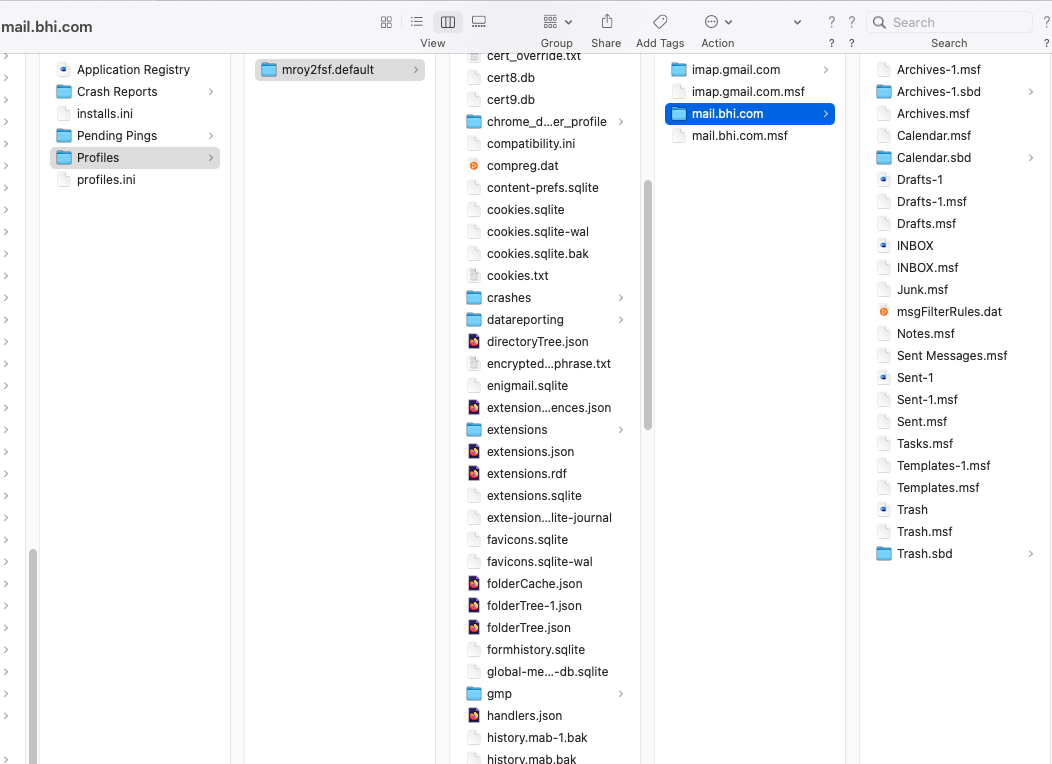
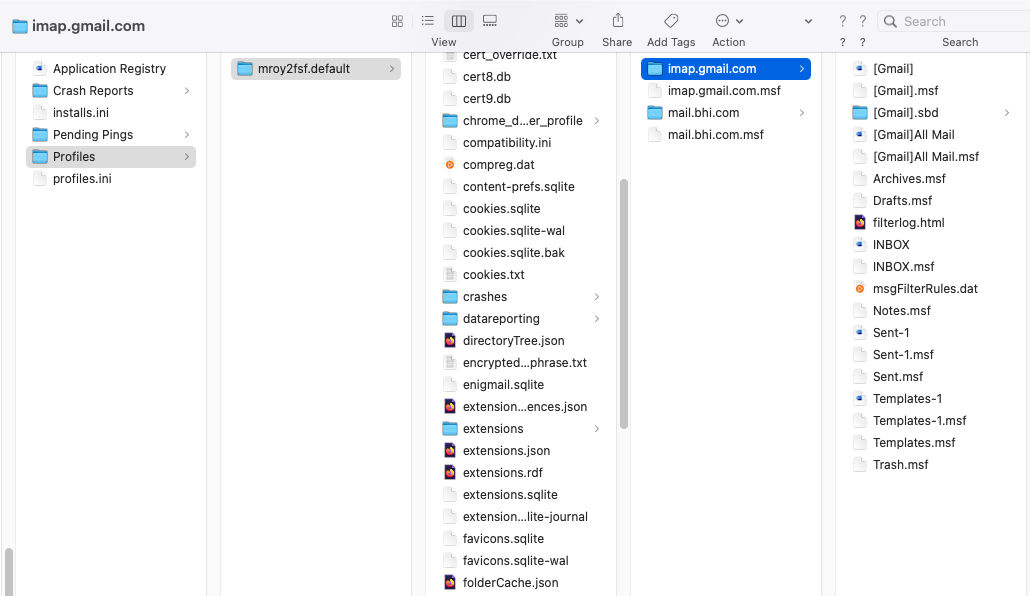
Remember, the account is IMAP. all folders will be repopulated
If you are still having problems when using a newer version, please post a new question and we'll take a new look at it.