


Firefox VPN stopped working and now just gives me an infinite Get Started Sign in Loop.

The built in VPN worked great for me for a couple of months, but now whenever I try to turn it on, it starts with the "Get Started" screen, which takes me to a page to confirm my account. When I press continue the VPN button just goes back to the "Get Started" screen & the loop repeats. I've tried signing out & refreshing my Firefox installation but I keep getting the same result. Before it started doing this the button to turn on the VPN was appearing but would not react to clicks.
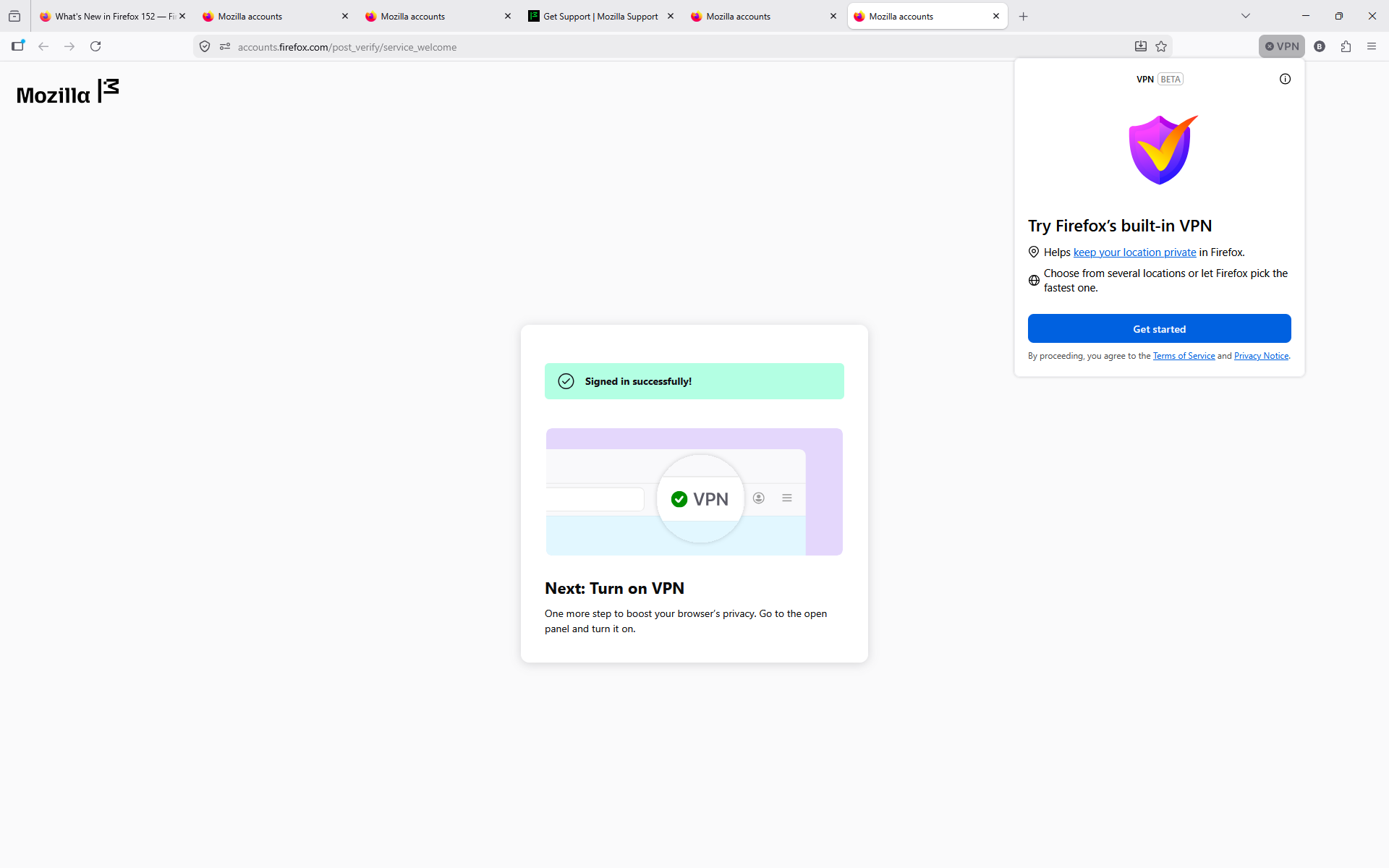
All Replies (3)
Hi there, So sorry this issue wasn't responded to sooner. We were wondering if you're still experiencing this issue?
Hello,
Yes this is still an issue. I just get an infinite loop of "Get Started."

Quick Fix!
Click the three horizontal lines (Menu) in the top-right corner of Firefox and select Settings. Click on Sync (or Mozilla Account / Account and Sync) in the left-hand sidebar. If it says you are logged in, click Sign Out to break the corrupted loop connection. Close Firefox entirely, reopen it, and return to that exact same Account and Sync settings page. Sign back into your Mozilla account directly through the master settings panel. Once the settings page confirms you are fully logged in, go back to your toolbar and click the VPN icon. It should recognize your account state immediately and change to the "Turn On" toggle without sending you to a browser tab.
Hope that helps!