


ESR for Firefox issue

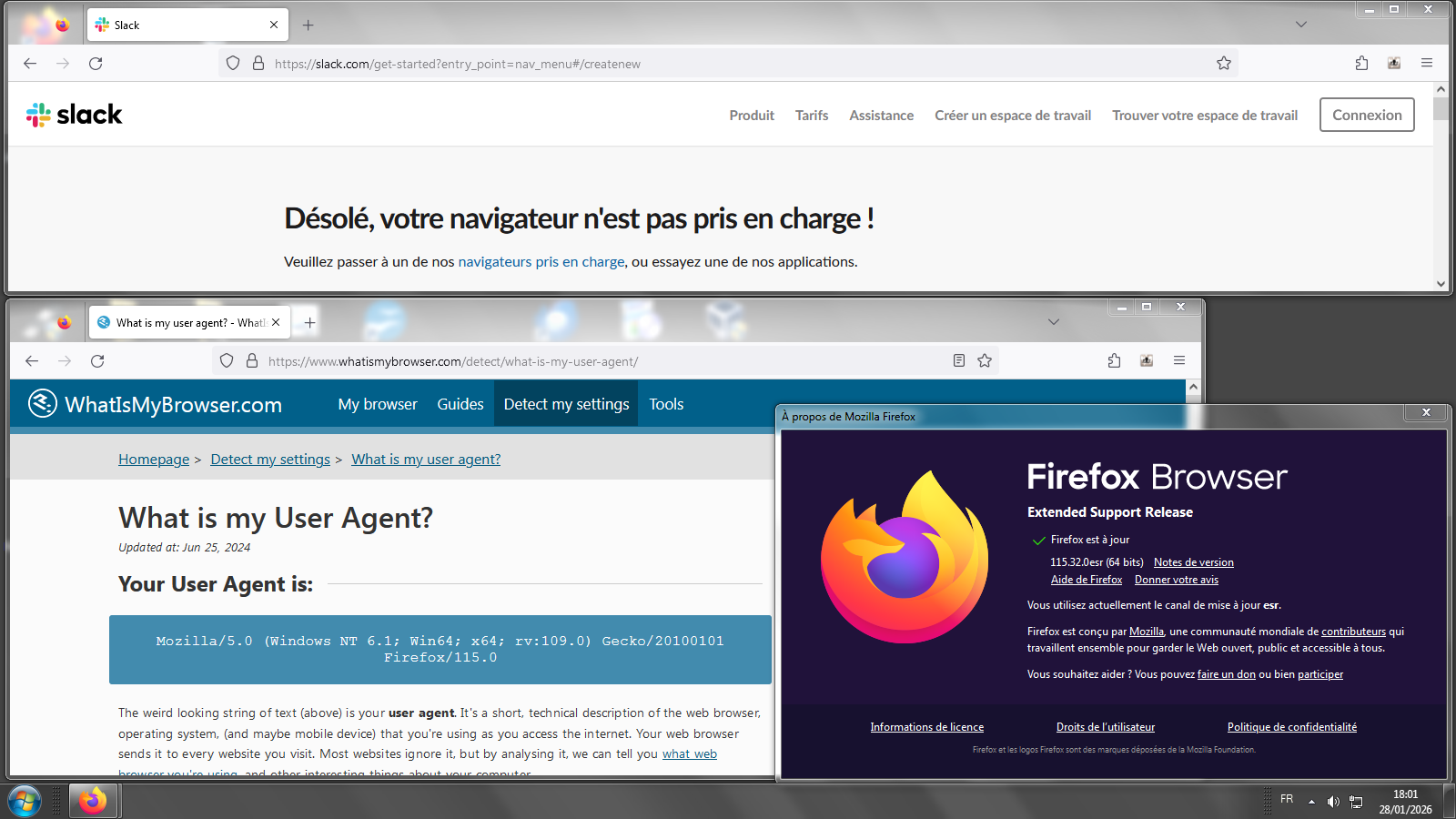
a web site continues to say mozilla browser need update to correctly access web page. I have downloaded latest update ESR for Firebox (using windows 7 OS) But web site still says I need update! Is it me or the web site that has the problem?
Semua Balasan (3)
It's probably still showing that message because your browser is old. Yes, it's the current ESR, but still an old version of the current 147.0.2 Firefox. I have win7 and can verify the issue. What's the site?
Diperbarui oleh jonzn4SUSE pada
Hello
About the subject ESR 115 end of life. https://support.mozilla.org/en-US/questions/1562333#answer-1796634
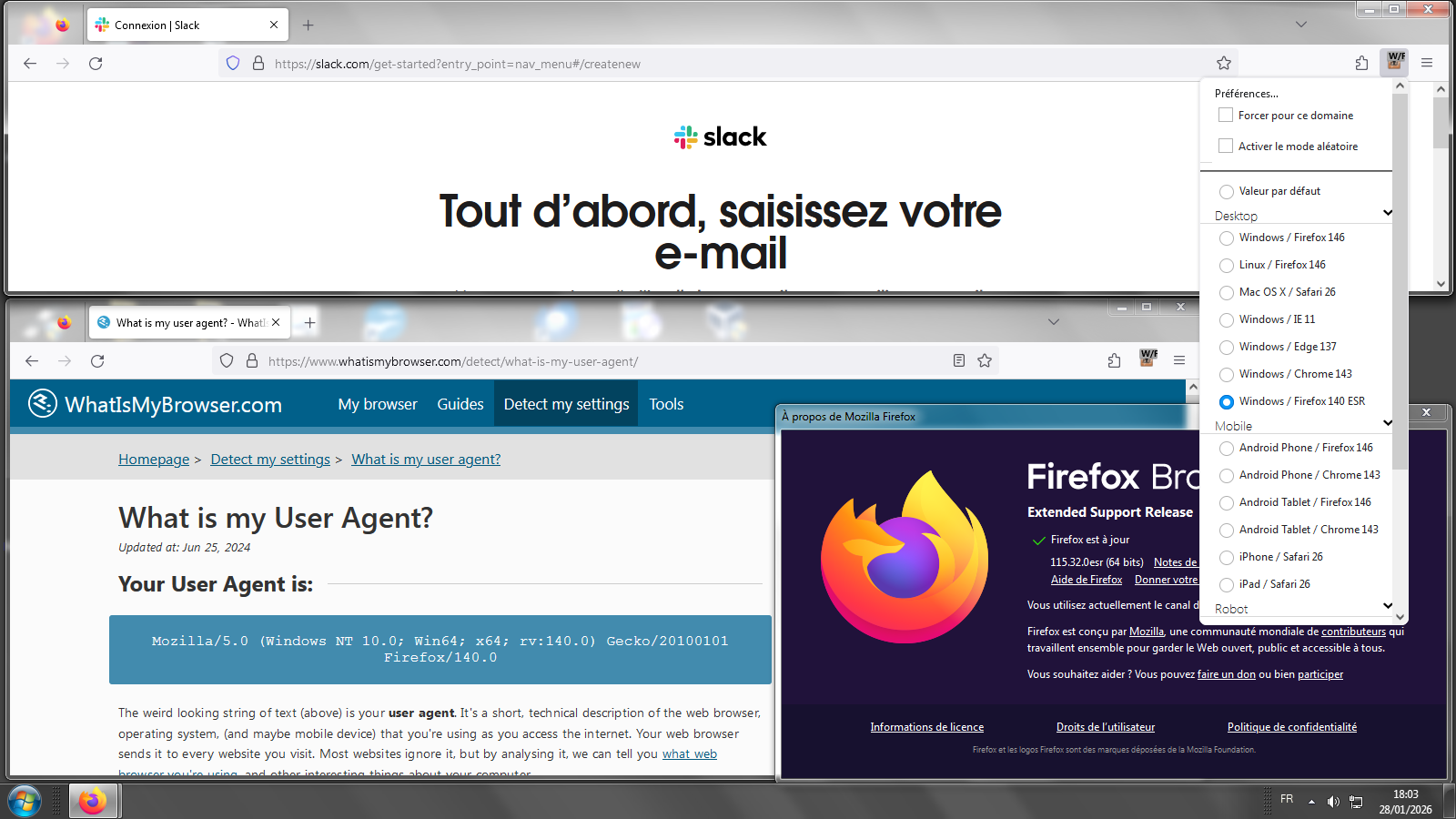
About a test with Windows7. And with User Agent Switcher https://addons.mozilla.org/firefox/addon/uaswitcher
John T Schaffer said
a web site continues to say mozilla browser need update to correctly access web page. I have downloaded latest update ESR for Firebox (using windows 7 OS) But web site still says I need update! Is it me or the web site that has the problem?
Firefox 116.0 and later including the current Fx 140.7.0esr and 147.0.2 Release requires Windows 10, 11 to run.
Firefox 115.32.0esr based on the old Firefox 115.0 Release is the most current Firefox you can run on the old EOL Windows 7, 8, 8.1.
There is something you can try to fool those sites into thinking you have a more current version.
- In a new tab, type or paste about:config with a colon : in the Location (address) bar and press Enter/Return. Click the button accepting the risk.
- In the search box on top of the page, type or paste forceVersion and pause while the list is filtered
- Double-click the network.http.useragent.forceVersion preference to display an editing field, and change the value to 128 or 140 then press Enter/Return or click the blue check mark button to save the change.
Diperbarui oleh James pada