


Unable to print TB message
When I try to print a message from Inbox, I see the print dialog and fill/select the options and click PRINT. Nothing happens. It goes into a wait with the Windows "whirling circle". I get a Windows message that print isn't responding.
PRINT DIALOG https://www.dropbox.com/s/9apembn5ts5q4gb/thunderbird%20print%20does%20not%20respond.jpg?dl=0 link text
EMAIL MESSAGE link text
TIA for your help. SweetTasha
Semua Balasan (3)
I uploaded an image of the print dialog. I have the .eml file but apparently the forum doesn't permit uploading that.
SweetTasha.
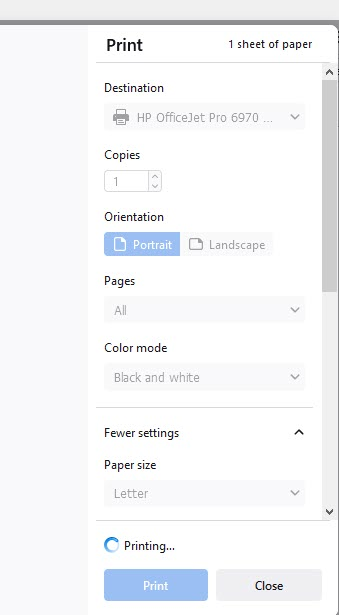
The print command was defaulting to a printer that no longer exists. I should have caught that but the non-existent printer name and the new name were identical except for trailing characters.
SweetTasha.
- In Menu icon > Preferences > General
- Scroll to bottom
- click on 'Config Editor' button
- accept the friendly warning:)
- In top search type: print.printer
Each printer is listed and will have several preferences for that printer.
Locate the 'non-existant' printer - and then click on the 'bin' delete icon on the right. Remove all entries for that 'non-existant' printer. This should get it removed from the list of printers when you want to print.