


YouTube has green vertical strip in all screens. How to fix it?

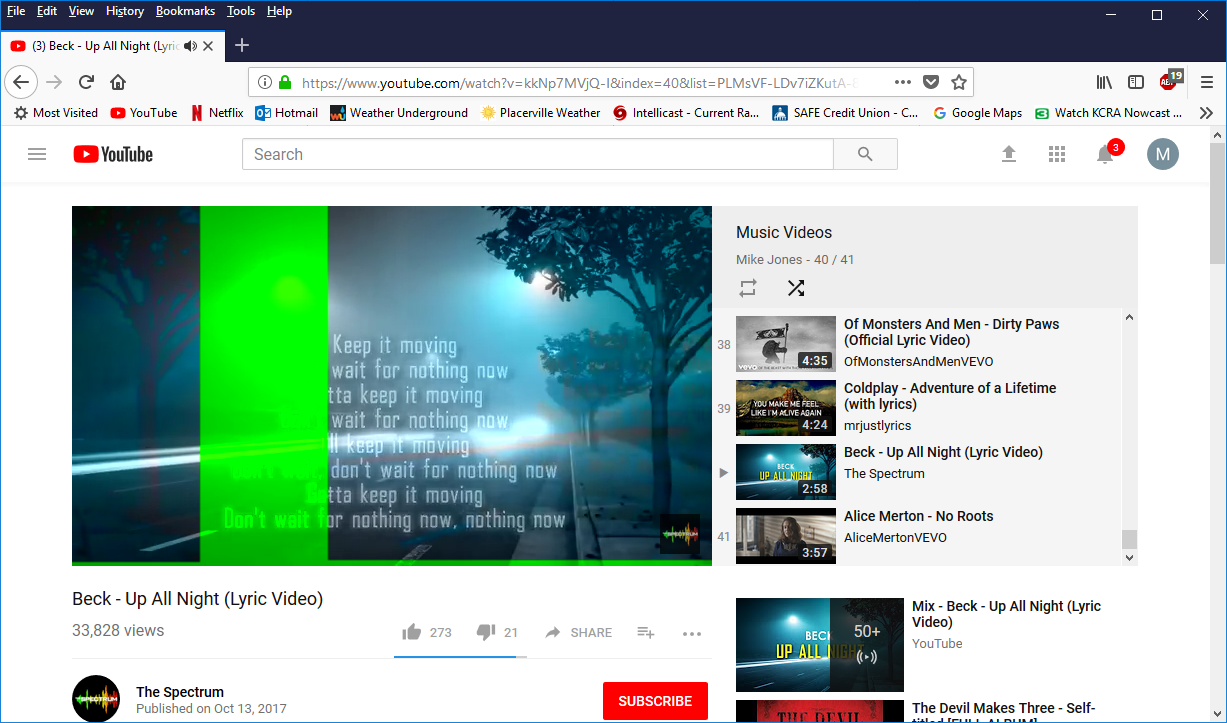
YouTube video's all have a green stripe about 1-2 inches wide from top of screen to bottom of screen, both in regular size screen and full screen. There is also a green line where the progress bar appears. This happens also to video's on news sites, PBS, etc. Any video that uses Flash player is affected. It does not happen in Microsoft Edge, nor does it happen with Silverlight video player (NetFlix) when using Firefox.
I've tried the suggested solutions including video accelerator selections, updating Flash Player, refreshing Firefox, etc. I've also searched the web for a solution, but haven't even found anyone else with this problem.
Any assistance will be appreciated, Thank you. Mike
Kiválasztott megoldás
Hi,
In case the above doesn't do the trick, would you give this a try (if you haven't already) :
Type in the address bar about:config (press Enter) (promise to be careful, if asked)
Type in the search bar and look for the preference :
media.wmf.dxva.d3d11.enabled
And set its value to false
Then close and restart Firefox in order for the change to take effect.
Any good ?
Válasz olvasása eredeti szövegkörnyezetben 👍 1Összes válasz (4)

Start Firefox in Safe Mode {web link} by holding down the <Shift> (Mac=Options) key, and then starting Firefox.
A small dialog should appear. Click Start In Safe Mode (not Refresh). Is the problem still there?
Kiválasztott megoldás
Hi,
In case the above doesn't do the trick, would you give this a try (if you haven't already) :
Type in the address bar about:config (press Enter) (promise to be careful, if asked)
Type in the search bar and look for the preference :
media.wmf.dxva.d3d11.enabled
And set its value to false
Then close and restart Firefox in order for the change to take effect.
Any good ?
Thank you very much. The solution using "media.wmf.dxva.d3d11.enabled" and changing to false seems to have worked.
Thanks again.