


Mozilla VPN Release 2.40.0 - Bad Image Error

Hello Community and/or Support,
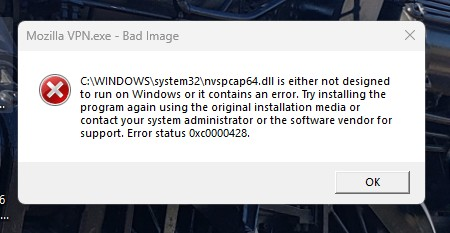
After installing the latest "Mozilla VPN Release 2.40.0" upon Windows 11 Version 26H2 OS Build 26300.9711, I received the follow error message 3 to 4 times in a row. after acknowledging the error (pressed "OK").
(See attached image) Mozilla VPN.exe - Bad Image is either not designed to run on Windows or It contains an error. Try installing the program again using the original installation media or contact your system administrator or the software vendor for support. Error status OxcOOON28.
Prior to installation, I just booted my computer and observed that my VPN App needed to be updated. I did not open any other app or perform any other work.
The VPN update informed me that it needed to close my current VPN connection to continue with the installation Update, which I allowed the update to manage.
In my troubleshooting efforts, reviewing other forums, and ask Google Gemini, I have performed the following. 1). Rebooted the computer after install. (Same Error Message) 2). Uninstall and reinstall Mozilla VPN. (Same Error Message) 3). Updated my NVIDIA GeForce GTX 1660 Ti driver to the latest release. (Same Error Message) 4). Ran "sfc /scannow" as administrator within the Command Prompt (Same Error Message). 5). Ran "dissm /online /cleanup-image /restorehealth" (Same Error Message).
Is there a method to correct the "Bad Image" error from popping up after restarting my computer? Also, would someone be so kind to inform the Mozilla VPN software team of this error?
Thank you all for your time!
All Replies (6)
Hi, Mozilla VPN is one of Mozilla's premium products. In order to get premium support from a dedicated agent, please submit your question with your Mozilla VPN app by going to Settings > Help > Contact Support. Alternatively, you can sign in to the Mozilla account connected to your subscription here (if not already) and then use this link.
The Mozilla VPN form link can also be found at top at Ask a Question > Mozilla VPN. Just make sure the Mozilla Account you use has the Mozilla VPN subscription so you can post there.
Thank you, James. I was able to submit the issue via the Mozilla VPN App.
I appreciate your feedback.
I had the same problem on bootup this morning. One thing to add though: clicking the update button on the pop-up appeared to do nothing. So I downloaded v2.4.0 from the Mozilla website, uninstalled the VPN, installed the update, rebooted the PC, got the same errors as mentioned. Unfortunately I'd deleted a copy of the VPN's previous version installer, else I'd of re-installed that. Maybe I could download it again.
Previous versions are archived at https://ftp.mozilla.org/pub/vpn/releases/ — e.g. https://ftp.mozilla.org/pub/vpn/releases/2.39.0/windows/ for the penultimate installer.
UPDATE & FIX
After contacting Support and implementing the following steps, it has corrected my issue. The key was deleting the "MozillaVPN" Folder from windows.
Here was the response/steps:
==============
To begin, I'd like to mention that one possibility is that the error may have been caused by a corrupted or incomplete download. Therefore, we recommend that you try the troubleshooting steps below:
1). Before doing the following, double-check the task manager (you can search for this or press control+alt+delete to bring it up) to ensure that the Mozilla VPN is not currently open. If it is open, right-click the process in the task manager and select "End task".
2). Uninstall Mozilla VPN from your device.
3). Now, open the Windows "File Explorer". Click on the "View" tab at the top of the window. On the far right side of the option near the top of this tab, you should see a box called "Hidden Items". Ensure you have checked the box so you can view hidden files and folders.
4). Now that you can view hidden items, click on "This PC" on the left side of the File Explorer. Now click on your hard drive (This should be labeled "Windows (C:)" and will be towards the bottom of the window. From here, open the Users folder and open the folder for your user. Now find and open the AppData folder, open "Local".
5). Inside the Local folder, you should now see a folder for Mozilla (if you have the Firefox Browser installed) and another for Mozilla VPN. Right-click on the MozillaVPN folder and choose the delete option. Ensure that you do not delete the "Firefox" folder. Restart your system.
6). Now, re-install the Mozilla VPN from https://www.mozilla.org/products/vpn/download/ and attempt to open it and connect.
Important: During the download, please ensure that you have a stable internet connection. If possible, we also recommend trying a different network to see whether this makes a difference.
Additionally, if you have access to another device, could you please check whether the app works there? In particular, it'd be helpful to know whether you experience the same issue on another device running Windows 11, as this would help us narrow down the possible cause.
Lastly, instead of downloading the latest version of Mozilla VPN, you may try downloading version 2.38 of the VPN. You can find the file to download it here: https://archive.mozilla.org/pub/vpn/releases/2.38.0/windows/
Thanks for the info! Yes, that's fixed it, must of been some leftovers from the previous installation. Thanks again mtooth2!