


Why is Firefox used so much RAM workload since a week?

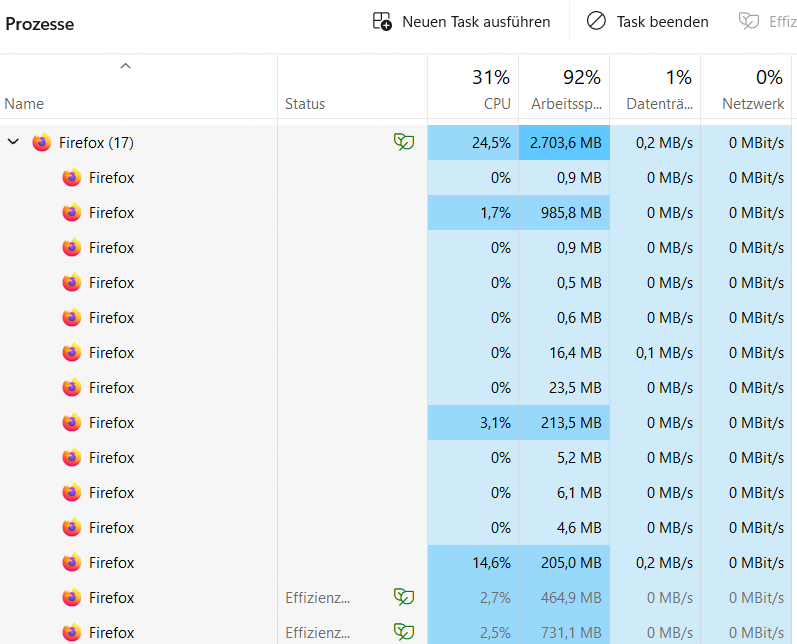
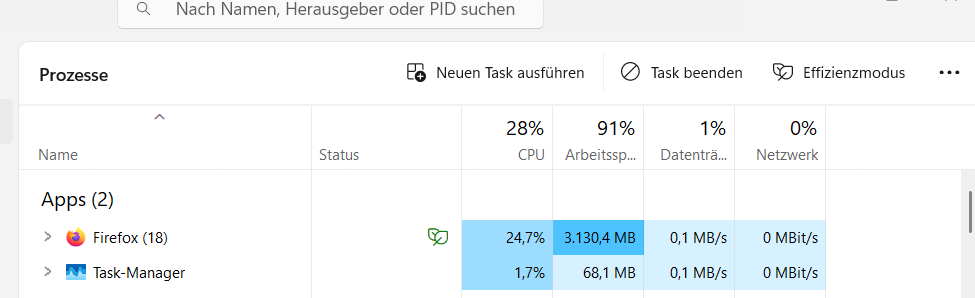
Hey there since a week when I brows with Firefox on Windows desktop the RAM uses jumped from around 60% spiked to 92-95% RAM and that changed just come a long a week ago. If change brows like Chrome different story, back down at 65. So you can also see a massive number on Firefox system running.
Question: Whats the reason for the change? What happend?
Best, Janosch
כל התגובות (5)
Hello,
Try disabling graphics hardware acceleration in Firefox. Since this feature was added to Firefox, it has gradually improved, but there are still a few glitches.
You will need to restart Firefox for this to take effect so save all work first (e.g., mail you are composing, online documents you're editing, etc.) and then perform these steps:
- Click the menu button
 and select Settings.
- Select the General panel.
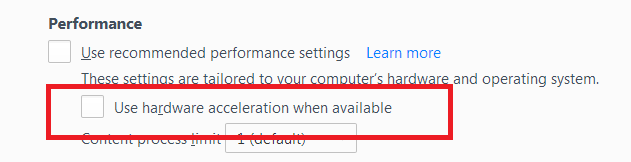
- Under Performance, uncheck Use recommended performance settings. Additional settings will be displayed.
- Uncheck Use hardware acceleration when available.
- Close Firefox completely and then restart it to see if the problem persists.
Did this fix your problems? Please report back to us!
If the problem is resolved, you should check for updates for your graphics driver by following the steps mentioned in these Knowledge base articles:
- Troubleshoot extensions, themes and hardware acceleration issues to solve common Firefox problems
- Upgrade your graphics drivers to use hardware acceleration and WebGL
Thank you.
Hey Phantom,
thank for your reply. I appreciate. I´ve switched it off the hardware like you showed in the settings, and is still off. So, I kept close tabs on the RAM usage rate. The Ventilation still jumps on and the rate is just below 85% drain the battery on my laptop pretty rapid and leads to limitation of flexibility and chareing. Again, that appears just with Firefox not with Chrome or Bing or Safari. Just appears one week ago, that that issue came up.
Any idea? Any idea how I could provide you with more information? Best, Janosch

Hello,
Try Firefox Troubleshoot Mode to see if the problem goes away. Firefox Troubleshoot Mode (previously known as Firefox Safe Mode) is a special diagnostic mode that temporarily turns off hardware acceleration, disables add-ons (extensions and themes) and resets some settings. See the Use Troubleshoot Mode in Firefox article for details.
If Firefox is open, you can restart in Firefox Troubleshoot Mode from the Help menu:
- Click the menu button
 , click Help, select Troubleshoot Mode and click Restart in the "Restart Firefox in Troubleshoot Mode?" dialog that opens.
If Firefox is not running, you can start Firefox in Troubleshoot Mode as follows:
- On Windows: Hold the Shift key when you open the Firefox desktop or Start menu shortcut.
- On Mac: Hold the option key while starting Firefox.
- On Linux: Quit Firefox, go to your Terminal and run firefox -safe-mode
(you may need to specify the Firefox installation path e.g. /usr/lib/firefox)
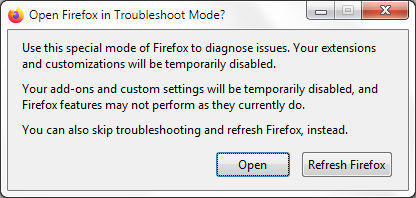
When the Firefox Troubleshoot Mode window appears, select "Open".
If the issue is not present in Firefox Troubleshoot Mode, your problem is probably caused by an extension, theme or hardware acceleration. Please follow the steps in the Troubleshoot extensions, themes and hardware acceleration issues to solve common Firefox problems article to find the cause.
To exit Firefox Troubleshoot Mode, just close Firefox and wait a few seconds before opening Firefox for normal use again. (If you can't exit Firefox Troubleshoot Mode, please see Firefox is stuck in Troubleshoot Mode).
When you figure out what's causing your issues, please let us know. It might help others with the same problem.
Hey Phantom, sorry for the delay. I appreciate your supports once again. :)
So as quick follow-up on your, troubleshooting-modus, founded, decrease of the RAM usage. But not a really drop. First, I thought better then in the first place, but no.
Does it make sens to re-install Firefox or do have a live support-team or service where they log in to like Microsoft-access-my-screen-service thing?
Because, I do totally appreciate your support. It would be so much straight forward exchange-debugg-one-session.
Best, Janosch
Hello,
Certain Firefox problems can be solved by performing a Clean reinstall. This means you remove your Firefox program files and then reinstall Firefox. This process does not remove your Firefox profile data (such as bookmarks and passwords), since that information is stored in a different location.
To do a clean reinstall of Firefox, please follow these steps: Note: You might want to print these steps or view them in another browser.
- Download the latest Desktop version of Firefox from mozilla.org (or choose the download for your operating system and language from this page) and save the setup file to your computer.
- After the download finishes, close Firefox.
- Windows: Click the Firefox menu , then click "Exit".
- Mac: Click the Firefox menu at the top of the screen, then click "Quit Firefox".
- Linux: Click the Firefox menu , then click "Quit".
- Windows: Click the Firefox menu
- Delete the Firefox installation folder, which is located in one of these locations, by default:
- Windows: (Note: Check both folders.)
- C:\Program Files\Mozilla Firefox
- C:\Program Files (x86)\Mozilla Firefox
- Mac: Delete Firefox from the Applications folder.
- Linux: If you installed Firefox with the distro-based package manager, you should use the same way to uninstall it - see Install Firefox on Linux. If you downloaded and installed the binary package from the Firefox download page, simply remove the folder firefox in your home directory.
- Windows: (Note: Check both folders.)
- Now, go ahead and reinstall Firefox:
- Double-click the downloaded installation file and go through the steps of the installation wizard.
- Once the wizard is finished, choose to directly open Firefox after clicking the Finish button.
More information about reinstalling Firefox can be found here.
WARNING: Do not use a third party uninstaller as part of this process. Doing so could permanently delete your Firefox profile data, including but not limited to, extensions, cache, cookies, bookmarks, personal settings and saved passwords. These cannot be easily recovered unless they have been backed up to an external device! See Manually back up and restore Firefox profile data.
Please report back to say if this helped you!
Thank you.