


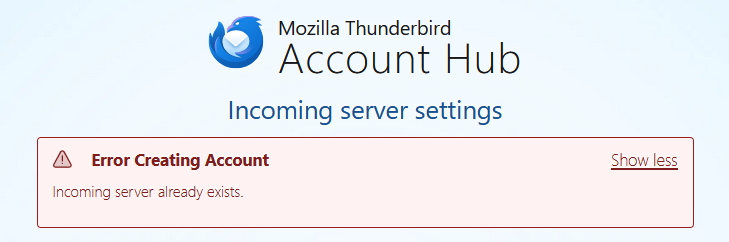
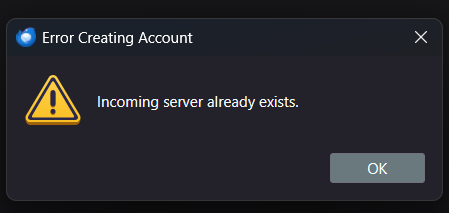
Incoming server already exists.
Hi,
Thunderbird: 142.0 (64-bit)
With Account Hub
When I try to add a mail account that I deleted before, I receive an error message:
- Error Creating Account
- Incoming server already exists.
When I add my email account, I receive the message, "Can't find a server," and Thunderbird adds the incoming server configuration somewhere. It's not in the "Account Settings" menu.
Without Account Hub
I deleted my profile folder and started from scratch.
I tried to use the same configuration settings I have in the mobile version of Thunderbird, but without success. Unfortunately, it's not possible to import the settings from Thunderbird Mobile.
I have the same problem with the Account Hub, or without it. How can I fix this problem?
Many thanks,
Bewurke troch Jose op
Keazen oplossing
FIXED
1. Close Thunderbird: Make sure the application is completely closed.
2. Locate your Profile Folder: C:\Users\[Your_Username]\AppData\Roaming\Thunderbird\Profiles\
3. Find the profiles.ini file: Inside your Thunderbird profiles directory, locate the profiles.ini file. This file lists all your Thunderbird profiles.
4. Find the correct profile folder: The profiles.ini file will show you the name of your profile folder, which is typically a string of random letters and numbers followed by .default-release (e.g., abcdefgh.default-release). Go into that folder.
5. Delete the residual information in the file: Inside your profile folder, look for a file named prefs.js (BACKUP FIRST) and open it with a text editor. Search for your email address or the domain of your email provider. You are looking for a line that starts with something like user_pref("mail.server.serverX.hostname", ...); where X is a number. This line holds the incoming server information that is causing the conflict. Carefully delete the entire block of lines related to your email account. It will be a set of lines with mail.server.serverX and mail.account.accountX that match your email. If you're not comfortable editing the file, you can try deleting the entire file, but this will reset other preferences as well.
My X = 3 user_pref("mail.server.server3.check_new_mail", true); user_pref("mail.server.server3.clientid", … user_pref("mail.server.server3.directory", … user_pref("mail.server.server3.directory-rel… user_pref("mail.server.server3.hostname", … ...
Best regards, Jose
Dit antwurd yn kontekst lêze 👍 0Alle antwurden (1)
Keazen oplossing
FIXED
1. Close Thunderbird: Make sure the application is completely closed.
2. Locate your Profile Folder: C:\Users\[Your_Username]\AppData\Roaming\Thunderbird\Profiles\
3. Find the profiles.ini file: Inside your Thunderbird profiles directory, locate the profiles.ini file. This file lists all your Thunderbird profiles.
4. Find the correct profile folder: The profiles.ini file will show you the name of your profile folder, which is typically a string of random letters and numbers followed by .default-release (e.g., abcdefgh.default-release). Go into that folder.
5. Delete the residual information in the file: Inside your profile folder, look for a file named prefs.js (BACKUP FIRST) and open it with a text editor. Search for your email address or the domain of your email provider. You are looking for a line that starts with something like user_pref("mail.server.serverX.hostname", ...); where X is a number. This line holds the incoming server information that is causing the conflict. Carefully delete the entire block of lines related to your email account. It will be a set of lines with mail.server.serverX and mail.account.accountX that match your email. If you're not comfortable editing the file, you can try deleting the entire file, but this will reset other preferences as well.
My X = 3 user_pref("mail.server.server3.check_new_mail", true); user_pref("mail.server.server3.clientid", … user_pref("mail.server.server3.directory", … user_pref("mail.server.server3.directory-rel… user_pref("mail.server.server3.hostname", … ...
Best regards, Jose
Bewurke troch Jose op