


How to add rows to "Files & Attachments" in Thunderbird > Preferences > General?
How can I add rows to the "Files & Attachments" table in Thunderbird > Preferences > General?
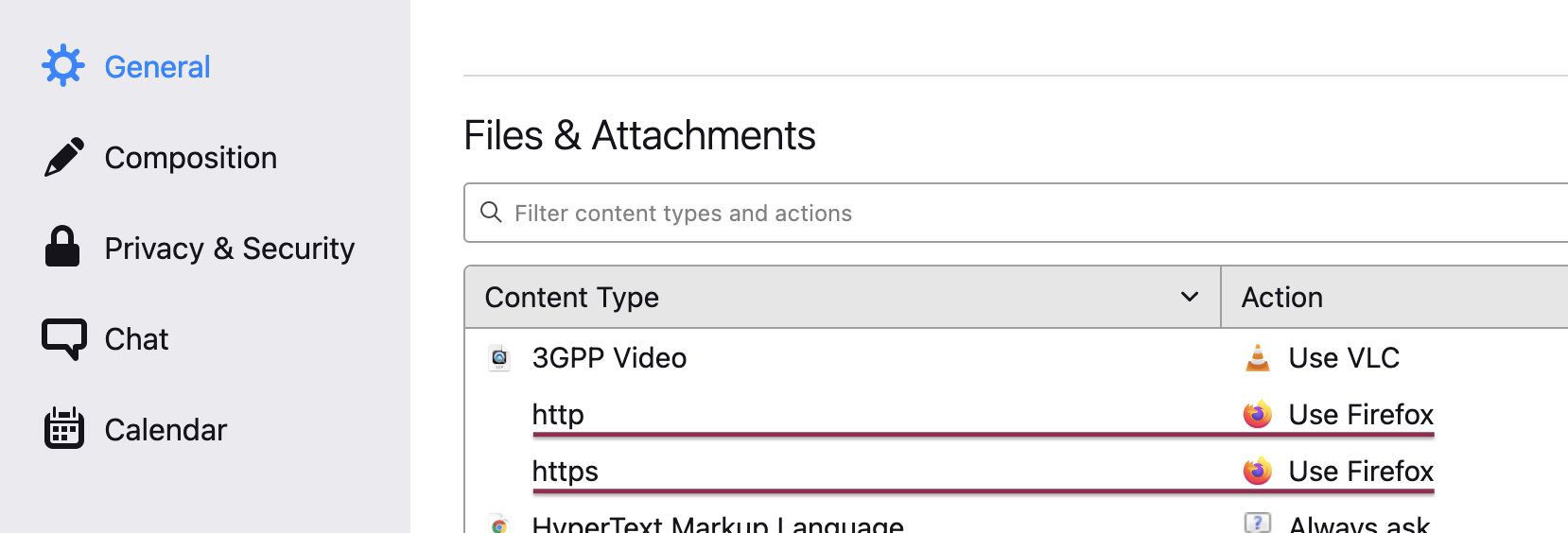
I want to recreate this on my macbook pro running macOS Big Sur 11.6.4 and Thunderbird 91.6.2:
(see attached image)
Solution choisie
These are defined in the file handlers dot json - Normally, when you open a new attachment, TB prompts for default and adds to the list. I encourage making a backup before editing, and only edit with TB not running.
Lire cette réponse dans son contexte 👍 1Toutes les réponses (4)
Solution choisie
These are defined in the file handlers dot json - Normally, when you open a new attachment, TB prompts for default and adds to the list. I encourage making a backup before editing, and only edit with TB not running.
david said
These are defined in the file handlers dot json - Normally, when you open a new attachment, TB prompts for default and adds to the list. I encourage making a backup before editing, and only edit with TB not running.
That got me over the hump, thank you, David.
I used the macOS find command to locate handlers (dot) json in a sub-folder /system/Volumes/Data/Users/myusername/Library/Thunderbird/Profiles. Closed Thunderbird app, used jsonlint (dot) com to expand the one-line JSON files into something readable, both on my iMac (source) and macbook (destination) computers. The bit that needed copied from source -> destination was this:
               ,
               "https": {
                       "action": 2,
                       "handlers": [{
                               "name": "Firefox",
                               "path": "/Applications/Firefox.app"
                       }]
               },
               "http": {
                       "action": 2,
                       "handlers": [{
                               "name": "Firefox",
                               "path": "/Applications/Firefox.app"
                       }]
               }
Note: that leading comma is important. After copying in that JSON I copied the entire handlers (dot) json file into jsonlint again to validate I didn't miss anything -- like a comma, say -- and saved the file before restarting Tbird app. This got the two rows into the table in Files & Attachments as in my first image attached hereto.
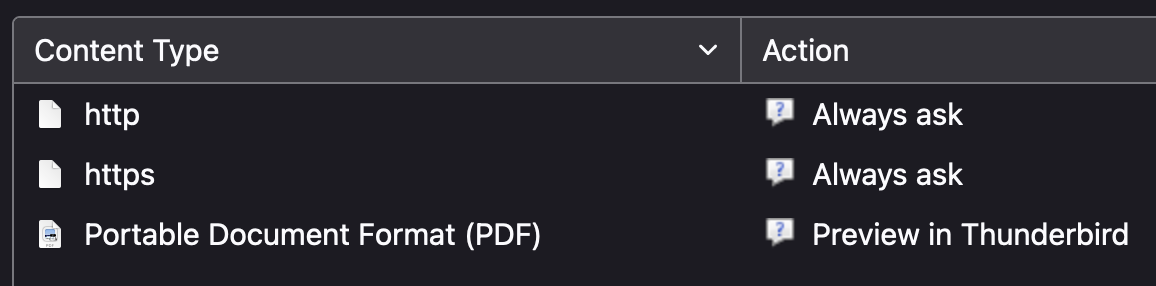
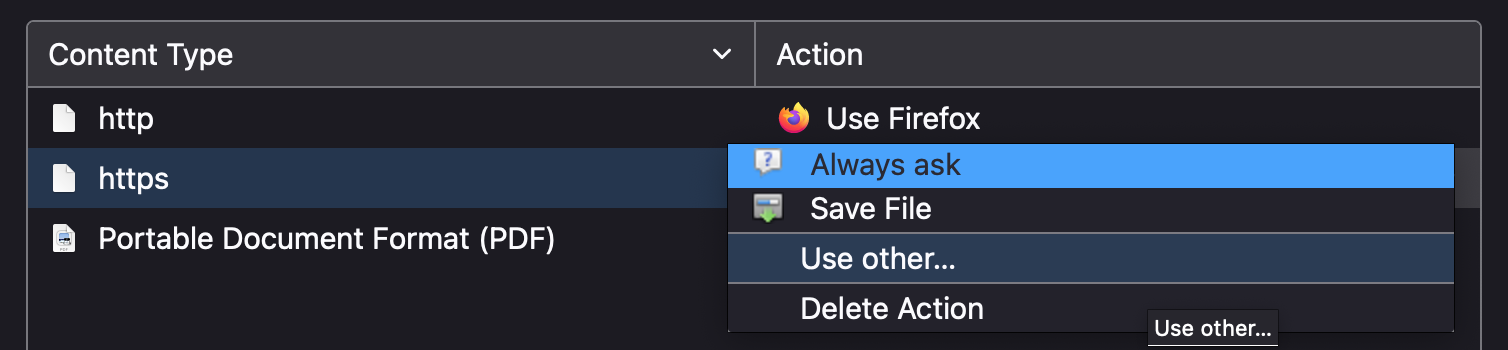
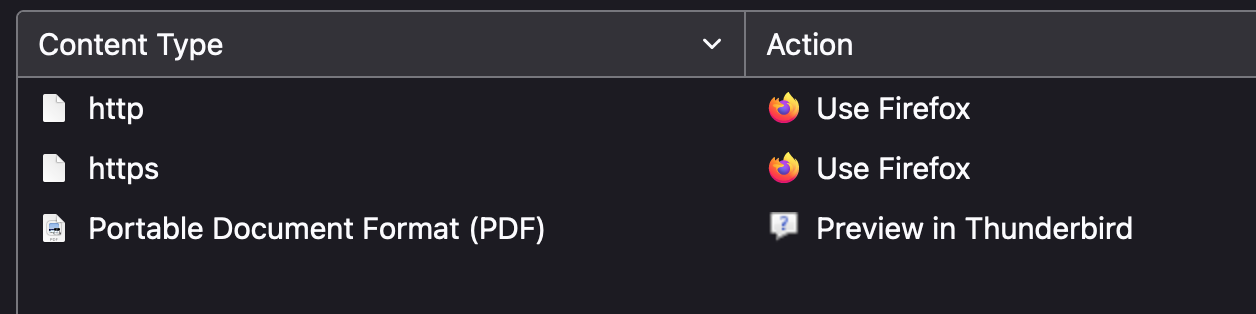
That got me very close, but not all the way there. The Always ask part didn't work; I think this has been my fundamental malfunction. That was easy to fix by way of the Thunderbird UI, as seen in the second and third images, where I clicked the pulldown in the Action column and changed Always ask to Use other... from which I could select the FireFox app. :)
I think maybe that last step could have been eliminated with another value than 2 in the action field in the JSON file but I'll leave that as an exercise for the reader ;)
The bottom line: everything works fine on my macbook now and Chrome is the default browser everywhere except in Thunderbird.
Thanks again!
Thanks for the followup. Your response is a keeper (as I have never edited it myself). I'm glad all is well. david
This is how I solved it:
{
   "defaultHandlersVersion": {},
   "mimeTypes": {
       "application/pdf": {
           "action": 2,
           "handlers": [
               {
                   "name": "msedge.exe",
                   "path": "C:\\Program Files (x86)\\Microsoft\\Edge\\Application\\msedge.exe"
               }
           ],
           "extensions": [
               "pdf"
           ]
       }
   },
   "schemes": {
       "http": {
           "action": 2,
           "handlers": [
               {
                   "name": "FirefoxPortable.exe",
                   "path": "C:\\Users\\xxxxx\\FirefoxPortable\\FirefoxPortable.exe"
               }
           ]
       },
       "https": {
           "action": 2,
           "handlers": [
               {
                   "name": "FirefoxPortable.exe",
                   "path": "C:\\Users\\xxxxx\\FirefoxPortable\\FirefoxPortable.exe"
               }
           ]
       }
   }
}