


The orange Firefox button and the Navigation Toolbar are on the same line

Someone interfered with my Firefox settings and goofed up a bit. Now, the orange Firefox button and the Navigation Toolbar are on the same line/row, as shown in the image below. Can you help me in putting the orange Firefox button back on top of the Navigation Toolbar (as is usually the case)?

بخشها
Thank you so much! I had this same issue. I prefer to have my tabs on the very top, in-line with the orange. For some reason an add-on reset my "browser.tabs.drawInTitlebar" to false, which looked horrible and wasted an entire bar of space by having a big empty space on the top of my screen. This fixed my problem!
پاسخها (5)
Hello,
Try Firefox Safe Mode to see if the problem goes away. Safe Mode is a troubleshooting mode, which disables most add-ons.
(If you're not using it, switch to the Default theme.)
- On Windows you can open Firefox 4.0+ in Safe Mode by holding the Shift key when you open the Firefox desktop or Start menu shortcut.
- On Mac you can open Firefox 4.0+ in Safe Mode by holding the option key while starting Firefox.
- On Linux you can open Firefox 4.0+ in Safe Mode by quitting Firefox and then going to your Terminal and running: firefox -safe-mode (you may need to specify the Firefox installation path e.g. /usr/lib/firefox)
- Or open the Help menu and click on the Restart with Add-ons Disabled... menu item while Firefox is running.
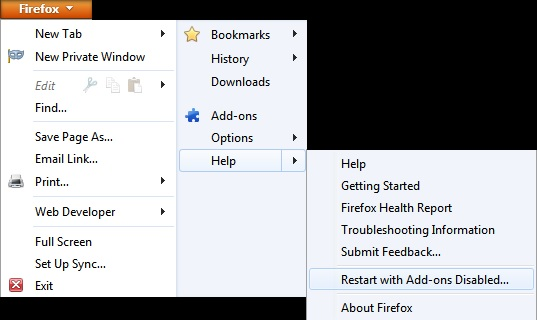
Once you get the pop-up, just select "'Start in Safe Mode"
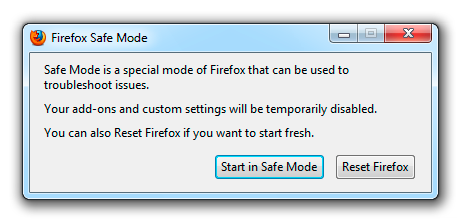
If the issue is not present in Firefox Safe Mode, your problem is probably caused by an extension, and you need to figure out which one. Please follow the Troubleshoot extensions, themes and hardware acceleration issues to solve common Firefox problems article for that.
To exit the Firefox Safe Mode, just close Firefox and wait a few seconds before opening Firefox for normal use again.
When you figure out what's causing your issues, please let us know. It might help other users who have the same problem.
Report if this helped !
Thank you.
Hello,
Try Firefox Safe Mode to see if the problem goes away. Safe Mode is a troubleshooting mode, which disables most add-ons.
(If you're not using it, switch to the Default theme.)
- On Windows you can open Firefox 4.0+ in Safe Mode by holding the Shift key when you open the Firefox desktop or Start menu shortcut.
- On Mac you can open Firefox 4.0+ in Safe Mode by holding the option key while starting Firefox.
- On Linux you can open Firefox 4.0+ in Safe Mode by quitting Firefox and then going to your Terminal and running: firefox -safe-mode (you may need to specify the Firefox installation path e.g. /usr/lib/firefox)
- Or open the Help menu and click on the Restart with Add-ons Disabled... menu item while Firefox is running.
Once you get the pop-up, just select "'Start in Safe Mode"
If the issue is not present in Firefox Safe Mode, your problem is probably caused by an extension, and you need to figure out which one. Please follow the Troubleshoot extensions, themes and hardware acceleration issues to solve common Firefox problems article for that.
To exit the Firefox Safe Mode, just close Firefox and wait a few seconds before opening Firefox for normal use again.
When you figure out what's causing your issues, please let us know. It might help other users who have the same problem.
Report if this helped !
Thank you.
Looks that you have set the browser.tabs.onTop pref to false on the about:config page to have the tabs below the toolbars.
When the screen is maximized then the Firefox menu button may be drawn in the toolbar area.
You can try to set the browser.tabs.drawInTitlebar pref to false on the about:config page to see if that helps.
ویرایش شده توسط cor-el
That did the job beautifully!! Thanks cor-el.
بخشها
Thank you so much! I had this same issue. I prefer to have my tabs on the very top, in-line with the orange. For some reason an add-on reset my "browser.tabs.drawInTitlebar" to false, which looked horrible and wasted an entire bar of space by having a big empty space on the top of my screen. This fixed my problem!