How do I remove icons from the bookmark toolbar? FF 69.0 broke my previous solution
Prior to upgrading to FF 69.0 I had my chrome file configured to hide icons in my bookmark toolbar. With the update to FF 69.0, the icons have reappeared. How do I fix this again? Previously I had utilized this method:
"Yes, you can paste the full code posted above including the @namespace line. The :not([container]) selector means that you still have the folder icons with bookmarks folders. If you want to hide the icons for folders as well then leave out this selector."
@namespace url("http://www.mozilla.org/keymaster/gatekeeper/there.is.only.xul"); /* only needed once */

#personal-bookmarks .bookmark-item .toolbarbutton-icon {
display:none!important;Upravil uživatel cor-el dne
Zvolené řešení
You need to use browser.xhtml instead of browser.xul
@-moz-document url(chrome://browser/content/browser.xhtml){
#personal-bookmarks .bookmark-item:not([container]) .toolbarbutton-icon { display: none !important; }
}
Přečíst dotaz v kontextu
👍 1
Všechny odpovědi (18)
Note that your code is missing a closing curly bracket (}) That code in userChrome.css should still be working.
Firefox 69 blocks userChrome.css and userContent.css by default. You can check this pref on the about:config page to see if it is set to true.
- toolkit.legacyUserProfileCustomizations.stylesheets = true
You can open the about:config page via the location/address bar. You can accept the warning and click "I accept the risk!" to continue.
@namespace url("http://www.mozilla.org/keymaster/gatekeeper/there.is.only.xul"); /* only needed once */

/* leave icon for folders */
#personal-bookmarks .bookmark-item:not([container=true]) .toolbarbutton-icon {
 display:none!important;
}
Toggled it to false with no change. Any other suggestions?
It was originally set to true. Toggled it to false and then back with no change.
What is the totality of your userChrome.css file? Since this site isn't good for posting code, if you don't mind sharing, you can create an anonymous paste on Pastebin: https://pastebin.com/
Select CSS for the Syntax Highlighting to make it easier to read.
Did you verify that the userChrome.css is still in the chrome folder in the current profile folder as it is possible that a new profile has been created.
Also make sure that the file doesn't have a hidden extra .txt or .css file extension (userChrome.css.txt, userChrome.css.css).
You can use the button on the "Help -> Troubleshooting Information" (about:support) page to go to the current Firefox profile folder or use the about:profiles page.
- Help -> Troubleshooting Information -> Profile Directory:
Windows: Show Folder; Linux: Open Directory; Mac: Show in Finder - http://kb.mozillazine.org/Profile_folder_-_Firefox
userChrome.css is in the current profile folder and there are no hidden files. i created a paste file per jscher2000's suggestion.
lgsasso said
i created a paste file per jscher2000's suggestion.
Sorry, forgot to mention, you need to give us a link to it.
Zvolené řešení
You need to use browser.xhtml instead of browser.xul
@-moz-document url(chrome://browser/content/browser.xhtml){
#personal-bookmarks .bookmark-item:not([container]) .toolbarbutton-icon { display: none !important; }
}
Thanks Cor-el, that worked. I very much appreciate your help!

I like Firefox, except for this annoying handicap --- wondering why? Many of us want to remove Bookmark Toolbar Icons (they consume valuable space).
Hi bhs67, were you able to use the userChrome.css workaround in the first reply? If you aren't familiar with userChrome.css, I have a website with more information here: https://www.userchrome.org/
I have Mac Pro 10.15.2 w/ Firefox 71.0 64 bit.
I've burnt hours trying to rid my toolbar icons leaving single letter descriptions like "c" = Chase Bank - I've created a userChrome.css w/ TextEdit, place it into my profile found via 3 upper right bars, Help, Troubleshooting Information, Profile Folder, Show in finder, I've created an alias on my desktop to continue my bench testing to no avail = ugh, I've copied raw below into it, reopened FF & still have my icons - please help. What am I doing wrong? I'm a Layer 1 installer - where is my hammer?
--
@namespace url("http://www.mozilla.org/keymaster/gatekeeper/there.is.only.xul");
@-moz-document url(chrome://browser/content/browser.xul){
- personal-bookmarks .bookmark-item:not([container]) .toolbarbutton-icon { display: none !important; }
}
What is wrong is that browser.xul has been replaced by browser.xhtml for the main browser window
@-moz-document url(chrome://browser/content/browser.xhtml){ .... }
Actually you do not need to be that specific:
@namespace url("http://www.mozilla.org/keymaster/gatekeeper/there.is.only.xul");

#personal-bookmarks .bookmark-item:not([container]) .toolbarbutton-icon {
 display: none !important;
}
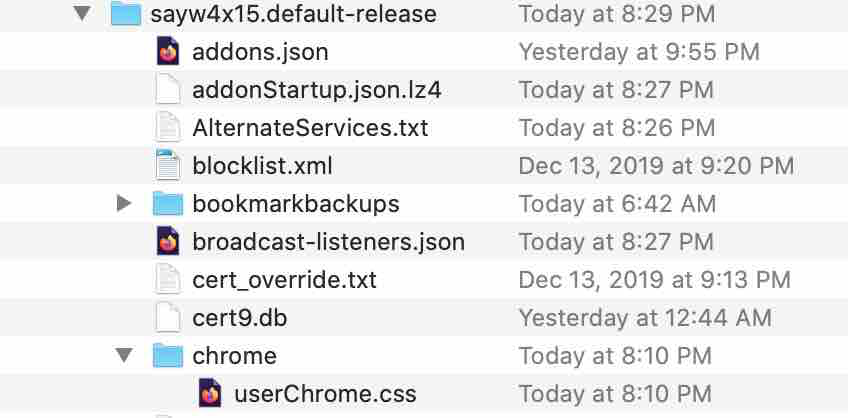
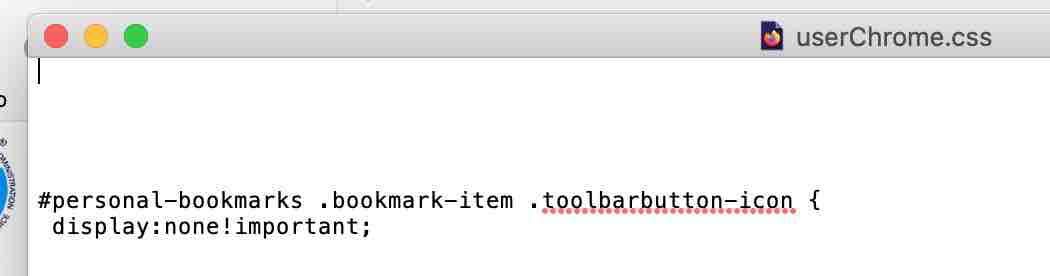
cor-el, might you be so kind to paste below what exactly needs to be in my userChrome.css text file? Maybe userChrome.css lives in the wrong place buried in the seemingly obscure "sayw4..." folder seen below?? Just want to remove the toolbar icons and keep text descriptions. I saved several different syntax strings into userChrome.css this morning & opening FF - no joy, the icons were still there after repeat tries - I'm going to crack this nut. --
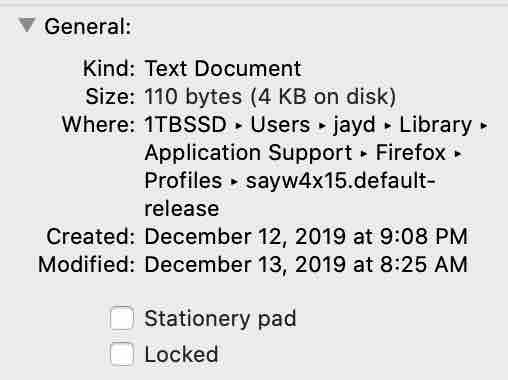
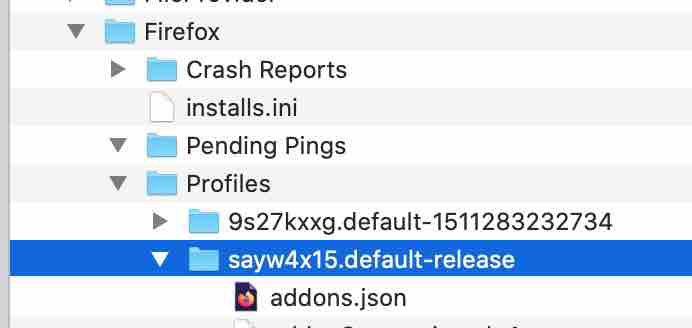
Firstly, userChrome.css needs to be in the chrome folder (case sensitive; xxxxxxxx.default-release\chrome\userChrome.css) and not in the main profile folder if that is what the first screenshot shows. Secondly, userChrome.css is shown as a "Text Document" and not as a CSS Document what suggests that the filename has a .txt file extension and not only .css
Success!
I did as you stated above, first had to create my "chrome" folder to contain my userChrome.css, then changed the about:config to true, lastly I pasted working syntax into userChrome.css. Now seen below is my single letter descriptions on favs, & on a few folders, however I'm now wondering if the real fix came when changing the "...legacy..." to true - could be past syntax is really removing the icons? .... none the less - icons are gone!