


thunderbird mail works on my mobile and laptop but I can't get it to work on a new laptop.

I used Thunderbirds email on my Motorola phone, it also works on an old Lenovo laptop. I have recently purchased a new Asus Zenbook, I cannot get Thunderbirds email to install. I have copied the settings and password exactly from the settings in my old laptop into the installation wizard. I get green ticks for imap and smtp but then it says I have a problem with the settings or password. I hope you can help. Vickie
All Replies (15)
Hello there Vickie
Good news: the connection and ports for IMAP and SMTP are working, as shown by the green ticks during setup. However, your email provider is blocking the login on your new laptop because most providers no longer accept a standard password for new setups in desktop email apps.
To fix this in the Thunderbird desktop app on your new Asus Zenbook, please follow these steps:
1. In the setup wizard, click Manual config and change the Authentication method from Normal password to OAuth2 for both Incoming (IMAP) and Outgoing (SMTP), then click Re-test and Done.
2. If the account is already added in the Thunderbird desktop app, go to Account Settings (via the menu icon ≡ in the top right) and change the Authentication method to OAuth2 under both Server Settings (IMAP) and Outgoing Server (SMTP).
3. Restart Thunderbird. A browser pop-up will appear asking you to log in and grant Thunderbird permission.
If your email provider (such as iCloud or a local internet provider) does not support OAuth2, log in to your webmail in your browser, generate a dedicated App Password in your security settings, and use that password in Thunderbird instead.

Hello. I have followed point 1 but there is no option to retest. The message says - This dialog will be closed and an account with the current settings will be created, even if the configuration is incorrect. Do you want to proceed? I am not sure if I do.
Point 2 in the server setting OAuth2 is not an option
How do I restart Thunderbird. It just opens when I click on the icon.
I thought Thunderbird was my email provider. How do I find out who is?
I hope this makes more sense to you than it does to me. Vickie
Hello there
Please don't worry, we will gladly look into this together. By following the steps below in Thunderbird on your laptop, you can see which email provider you are using.
I may have explained it a bit too complicatedly in my previous message.
Please go now to your old Lenovo laptop where this mail does work.
Open the account settings.
Click in thunderbird top right on the three stripes. Choose here for account settings.
View the incoming server. Click on the left side on server settings. Look what is written behind the server name , username and authentication method and take a photo of this or a note.
Also of the following information :
The outgoing server click on the outgoing server information left or right click on your E-Mail address and do you take a photo of that too and send this to us if it is possible?
Use
https://support.mozilla.org/en-US/kb/how-to-make-screenshots
Question
Which antivirus software is currently installed on the new laptop? Sometimes, antivirus programs can interfere with or block certain email processes. Could you please try temporarily disabling it to see if that resolves the issue?
Modified by Googlethunderbird.
Hello there
Sometimes, major email providers require the use of OAuth2. While Thunderbird does have an option to enable OAuth2 after the account is created, we do not know which provider you are using yet, so it might not be possible to simply turn it on for your account.
If that is not supported, an app-specific (one-time) password generator must be used instead, and that generated password needs to be entered for both incoming and outgoing settings.
If neither is required, a regular new password will work if needed. First, we need to determine which email provider is involved here, or whether your antivirus or VPN is blocking access with your current settings.
My apologies for mistakenly sending you a message meant for a setup wizard earlier. Please feel free to follow the standard instructions below whenever it is convenient for you.
Modified by Googlethunderbird.
Hello again, thank you for your patience. I think we are misunderstanding each others terminology. Following your instructions the name I see is Hostinger, I understand them be my domain provider, the part of my email address after the '@' symbol. I can't send you a screenshot. I have tried attaching a word doc or a pdf, this system says both are invalid. I do not seem to have paint. I have Norton 360 on both laptops, I do not understand why it would block one and not the other. You final sentence is confusing. Why do you think it is a mistake to send set-up wizard instructions. It is the only way I know to set up a new app. Also you say follow the standard instructions 'below', where is below. Vickie
Found paint, here are the screen shots.
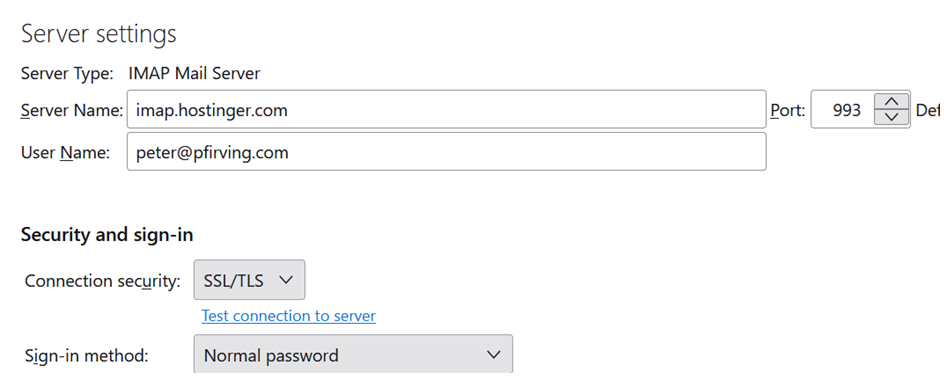
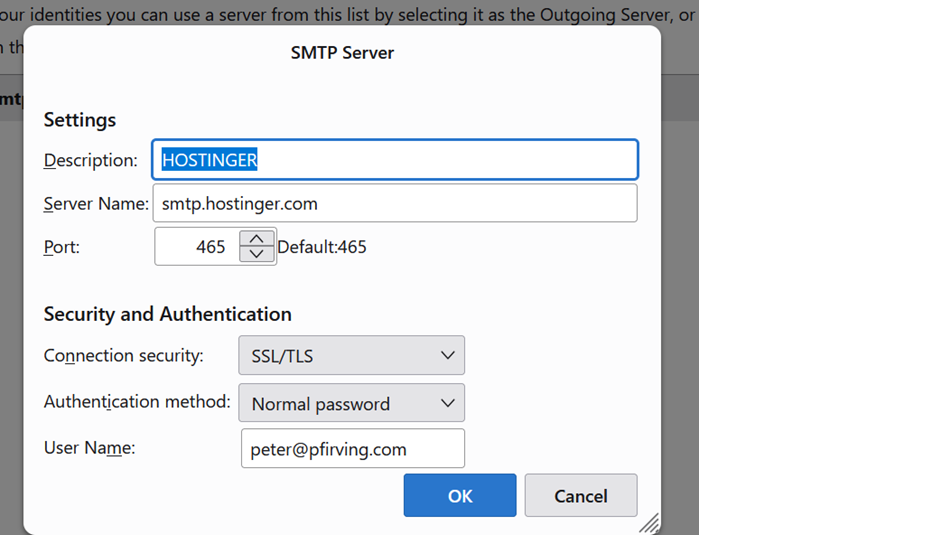
Hello there
Since your settings are correct, things are fine.
What to do: you do not need to reset or change your password. Your domain name provider clearly does not have an OAuth2 option, but you are using an LFA2 system for this.
Go to your old laptop (the Lenovo ThinkPad) and check the passwords you have saved there. See which password is listed for this specific situation. Go to Settings -> Privacy & Security -> Saved Passwords.
Click on Show Passwords to see which saved password is stored there; it might be an older password that was saved there previously.
Copy this exact password and transfer it to your new laptop in this manner, if possible. Next, you will generate a new two-step password on the Hostinger platform by logging in there. You can ask for permission to do this from the system administrator of the company you work for, or do it together with them if you are able.
In practice, because these passwords are active on your old laptop and you are transferring to a new device—specifically your brand-new Asus laptop—the system automatically blocks the password on the new device.
Go to: Emails -> Mailboxes -> App Passwords and generate a new password specifically for the new laptop in order to obtain it.
After this, you can copy the profile folder from your old Lenovo ThinkPad and paste it into the exact same location on your new Asus laptop.
If logging in still keeps failing or refusing, go to the old laptop in Thunderbird and go to Help -> More Troubleshooting Information, choose Open Profile Folder, and then copy it using a good USB stick.
Hello there
Why transferring via a good USB stick is the best option in this situation: Copying the Thunderbird profile folder using a reliable USB stick ensures that everything is transferred in one go.
This includes not only your emails, but also your folder structure, contacts, calendars, message filters, signatures, and local server settings.
It is much faster and more stable than downloading everything again from the server, prevents data loss or missing settings, and immediately gives you a safe backup during the transition to your new Asus laptop.
Please follow the steps below :
• Complete transfer: The profile folder on the USB stick contains the files logins.json and key4.db. These store your old password and all server settings in an encrypted format.
• No new configuration needed: Once the profile folder is placed on the new Asus laptop, Thunderbird immediately recognizes your entire account. You do not need to go through the entire sign-in setup process again.
When the new app password is required
• Security block on a new device: Because you are switching to a new laptop, the Hostinger mail server detects a new device. This often causes the old saved password to be automatically blocked on the new laptop.
• One-time update: If Thunderbird displays an error message or asks for a password when you open it on the Asus laptop, simply enter the new app password you generated in Hostinger. Thunderbird will then save it, and you are all set.
Please let me know if we are on the same page regarding the next steps.
Modified by Googlethunderbird.

I have Norton 360
To rule out Norton is causing the problem when setting up your account on the new device, try to start Windows 11 in safe mode with networking enabled.
Does the problem go away?
Windows safe mode disables anti-virus software. This is a troubleshooting step, not a solution.
Note, Windows safe mode also disables WiFi. So you'd need a wired LAN connection for it.
Hello there
Googlethunderbird wrote > :
Question
Which antivirus software is currently installed on the new laptop? Sometimes, antivirus programs can interfere with or block certain email processes. Could you please try temporarily disabling it to see if that resolves the issue?
Modified by Googlethunderbird.
Hello there
As the moderator also mentioned to you, it is quite possible that your antivirus software is causing this issue.
When you install the new software on your new Asus laptop, the antivirus scanner may see this as unknown data and block the program. Most antivirus software reacts the same way in this situation.
Your previous laptop (likely the Lenovo ThinkPad) already has this software registered within Norton as a known item.
Are you using the exact same antivirus software on your new Asus laptop as you did on your Lenovo ThinkPad?
Note
If your account has limited permissions due to an active, protected antivirus system, please contact IT Administration to request permission to disable it.
Tip
Following the moderator's advice sounds like a great idea. Please give that a try.
Modified by Googlethunderbird.
Hello everyone, thank you for patience. I think I am getting confusing answers to my questions because I have not explained the problem clearly enough for you to help me. I have now uninstalled Thunderbirds. Over the weekend when I have more time; I will try to re-install it and then take screen shots of every step I take so you can see exactly at what point in the install it is getting stuck. I think if there is an issue between security software and Thunderbirds then Thunderbirds need to build that message into their install wizard rather than just giving a sweeping statement such as there is a problem with settings or password. Once again thank you for your time.
Hello there Vickie
Apologies for the overly technical replies earlier—please ignore the advice about USB sticks, profile folders, and Safe Mode.
Also, just to clarify: when people mention the "Setup Wizard", they simply mean Thunderbird's normal Account Setup screen that automatically pops up when you add your email address (you don't need to look for a separate tool).
First, a quick note on your setup: If you are working on a managed virtual workstation / company server, some actions (like pausing Norton or changing security settings) affect the entire department and require permission from your IT / Network Administrator.
If this is just your personal laptop, simply follow the normal steps below:
1. Check your existing password in Thunderbird (on your old Lenovo laptop):
• Go to ≡ (Menu) > Settings > Privacy & Security > Saved Passwords > Show Passwords to verify the exact password Thunderbird was using.
2. Reset the password at Hostinger (if needed):
• Because your email is hosted by Hostinger, you cannot view the password there, nor change it inside Thunderbird. • Reset the password in your Hostinger account (hPanel) and then enter that exact same password into Thunderbird.
3. Set up on your new Asus laptop:
• Right-click the Norton icon near your Windows clock and select Disable Auto-Protect (for 15 minutes) so it doesn't block the connection (unless you are on a managed work server, in which case ask IT/Network Admin to allow Thunderbird).
• Enter your email address and the exact password from step 1 or 2. If it still fails, just post your screenshot here and we'll look at that single step.
Screenshot
https://support.mozilla.org/en-US/kb/how-to-make-screenshots
https://www.thunderbird.net/en-US/thunderbird/all/
https://support.mozilla.org/en-US/kb/troubleshoot-mode-thunderbird
Modified by Googlethunderbird.
peter11 said
Hello. I have followed point 1 but there is no option to retest. The message says - This dialog will be closed and an account with the current settings will be created, even if the configuration is incorrect. Do you want to proceed? I am not sure if I do. Point 2 in the server setting OAuth2 is not an option How do I restart Thunderbird. It just opens when I click on the icon. I thought Thunderbird was my email provider. How do I find out who is? I hope this makes more sense to you than it does to me. Vickie
It looks like you also submitted questions using peter11? https://support.mozilla.org/en-US/user/peter11/questions
Hello there
Okay understood Moderator Wayne.
Greetings Googlethunderbird
Modified by Googlethunderbird.