


In Windows 11, Firefox shows only a black image on Google Maps and some other web sites

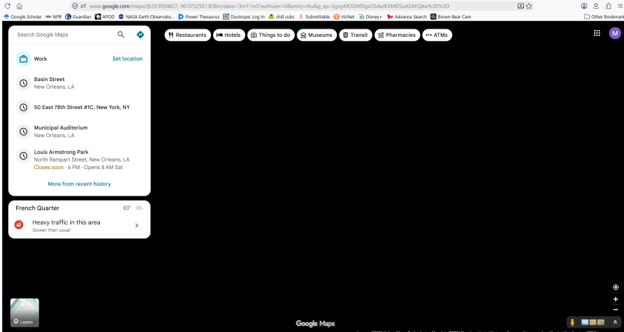
The problem is illustrated in the first image attached: Google Maps shows no image, just solid black. This does not occur in browsers other than Firefox.
After restarting my laptop, the same problem persists, but on first going to the Google Maps website the usual image of my neighborhood flashes, then disappears to be replaced by the black.
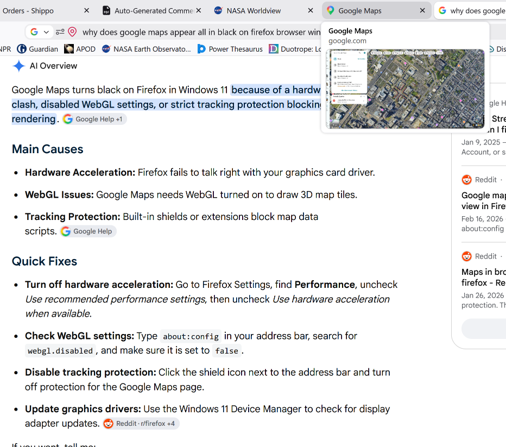
The second attached image shows four possible causes and fixes offered by Google AI. I tried them all, and nothing made any difference. This image also shows that the thumbnail image appears when my cursor hovers over the tab in which Maps is open.
The only thing out of the ordinary I did before this problem occurred was browsing the Firefox Extensions on advice of Google AI to turn off the intrusive "Genius" AI pop-ups, but I didn't discover anything relevant and I don't think I made any changes.
I'd welcome any suggestions for what to try next,
所有回复 (8)
Hello,
Digging deeper into WebGL, search about:support and go to graphics, and check if WebGL 1 Driver and WebGL 2 Driver are active or disabled.
Next, you can try going into troubleshoot mode (pressing shift while launching Firefox). If it works, then it is an extension conflict (unlikely)
After that, check if your graphics drivers are up to date. (win + X, Device manager>display adapters> [YOUR GPU/iGPU], rightclick, and select update. After that, select automatically search for drivers. If it says new driverss were successfully installed, then it was a driver issue.
Lastly, you can go to about:config and search for webgl.force-enabled and reset to default values if you modified them. make sure you know what you are doing in about:config.
Hi dessertdish, Thanks for your reply.
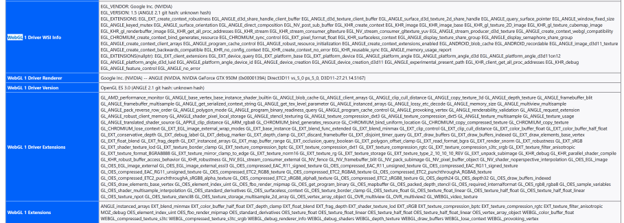
about:support shows a huge amount of info. I've attached an image of everything to do with webgl 1. Maybe you can tell me how this bears on my problem?
First time I tried troubleshooting mode it offered to refresh Firefox, so I did that. This didn't fix the problem. Next time, I opted to go into troubleshooting mode, but that did not happen, so it I read you right this indicates there is no extension conflict.
I have two display drivers, and they both can't be updated, claiming that be best driver is already in use.
What next?
Thanks, Tim
Hi,
Let's start with the basics:
- Try clearing Firefox cache.
- If it does not help, try clearing cookies and data for Google (warning: you will be logged out on this website).
Done it. No effect.

I have this same problem. Everything that was advised here has not had any results. In Troubleshooting Mode Google Maps works fine, but then I can't use my extensions. Firefox reinstalled, without extensions. Still the same problem.
I guess it would be relevant what other web pages have this problem.
It happens with a PDF file displayed in a browser tab: this is a document created by an app that has nothing to do with Google. The URL has the extension "PDF" in it, but if I do a "Save As" the only file type offered is a PNG file.
Another is satellite imagery on worldview.earthdata.nasa.gov - I don't know what the file type is or how to find out. Here's the full URL, is anyone wants to try it: https://worldview.earthdata.nasa.gov/?v=421629.66250913875,-2569919.679639032,1087277.8411261546,-2263290.078840916&p=arctic&t=2026-08-16-T04%3A26%3A26Z
Both of these work perfectly fine in other browsers.
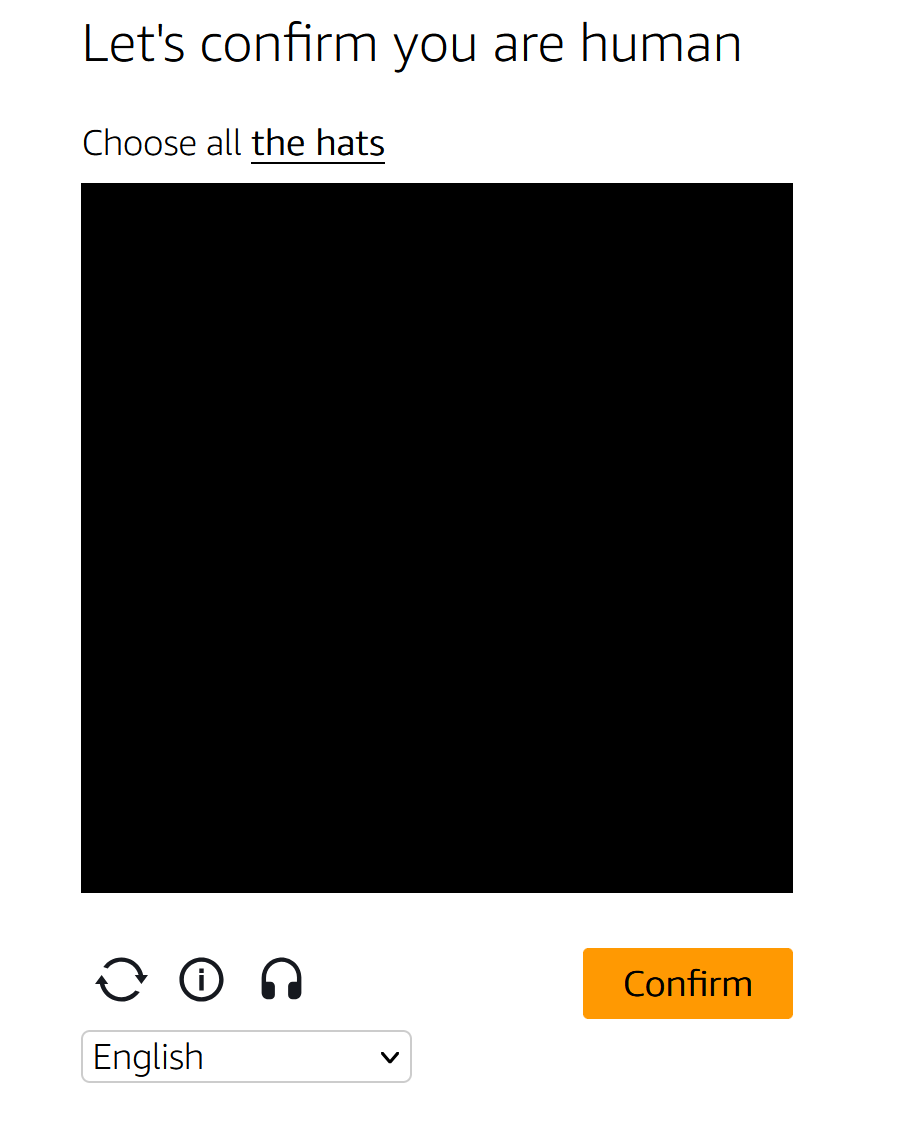
Just found another one, and this time it's potentially a big problem. A CAPCHA-type image appears all in black, to supposedly verify that I'm human. If I "save as", the PNG file looks completely normal, but Firefox won't display it. Moreover, the CAPCHA thing doesn't have a URL, or at least not one that's displayed in the usual place.
Tim, you mentioned following chatbot advice to no avail — could you please specifically follow these steps to rule out things one by one?
- Start with clearing Firefox cache.
- If it does not help, try clearing cookies and data for the website you experience troubles with (warning: you will be logged out on this website).
- If it also does not help, try running Firefox in Troubleshoot Mode. If the problem doesn't persist, please follow the steps from this article to troubleshoot further. — please do make sure you've positively definitely restarted into the special Troubleshoot Mode — as the thread above hints at you might have not successfully managed to enable it…
- Please check if you have Enhanced Tracking Protection (ETP) enabled. You can do that by clicking the shield
 icon in the left part of the address bar. If ETP is enabled, try disabling it.
- If nothing from the above helps, try creating a new Firefox profile and check if the issue persists there. If it doesn't, you can start copying files from your old profile to the new one to identify which one causes the issue. See this article on what files to copy.