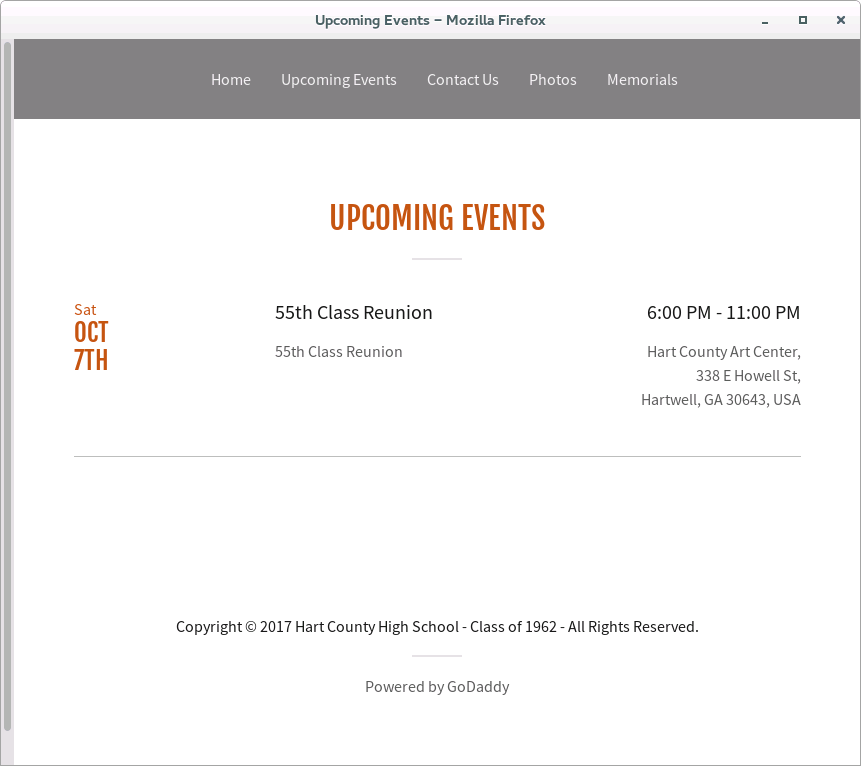
Can't view a linked Google Calendar on www.hchsclassof62.org but can see it when using MS Edge.

I built a web site on GoDaddy which included an ICAL link to a Google Calendar. The calendar, called Upcoming Events, is visible when using Chrome or MS Edge but isn't displayed when using Firefox. I get a message stating " No Upcoming Events" when that tab is selected. The address for this site is http://www.hchsclassof62.org
I appreciate any suggestion you may have to solve this problem.
所有回复 (1)
选择的解决方案
Seems to be fine here.
Firefox 42+ has a Tracking Protection feature that is enabled by default in Private Browsing mode. When you are in private browsing mode then Firefox can show a shield icon at the left end of the location/address bar that some content is blocked.
You can disable this feature in "Options/Preferences -> Privacy" or via the about:privatebrowsing page that get when you open a New Private Window.
- Options/Preferences -> Privacy: "Use Tracking Protection in Private Windows"
Web Console:
The resource at “https://calendar.apps.godaddy.com/v1/events/0b303373-c2c6-4341-8d94-fc7321d39525/b63a8372-511c-4e16-b961-46f4acca4ec2/b3565f72-b9a8-4138-9837-42e1e3e9b198” was blocked because tracking protection is enabled.
You can try these steps in case of issues with web pages:
You can reload web page(s) and bypass the cache to refresh possibly outdated or corrupted files.
- hold down the Shift key and left-click the Reload button
- press "Ctrl + F5" or press "Ctrl + Shift + R" (Windows,Linux)
- press "Command + Shift + R" (Mac)
Clear the cache and remove the cookies from websites that cause problems via the "3-bar" Firefox menu button (Options/Preferences).
"Clear the cache":
- Firefox/Options/Preferences -> Advanced -> Network -> Cached Web Content: "Clear Now"
"Remove the cookies" from websites that cause problems.
- Firefox/Options/Preferences -> Privacy -> "Use custom settings for history" -> Cookies: "Show Cookies"
Start Firefox in Safe Mode to check if one of the extensions ("3-bar" menu button or Tools -> Add-ons -> Extensions) or if hardware acceleration is causing the problem.
- switch to the DEFAULT theme: "3-bar" menu button or Tools -> Add-ons -> Appearance
- do NOT click the "Refresh Firefox" button on the Safe Mode start window