


Viewing Mails in Classic View Mode
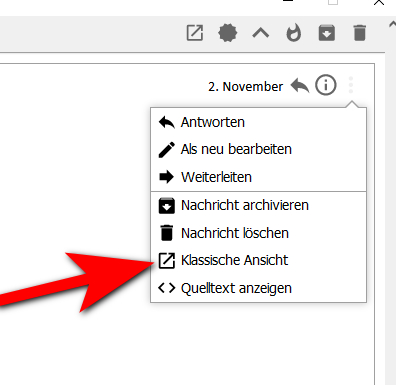
Since TB 91.x, double-clicking on a mail calls up a new, simplified view. To see the mail in the classic view, I have to select the menu item in the menu of this window. Where can I set that the classic view appears immediately after a double click? I would also like to do this under advanced settings.
Ọ̀nà àbáyọ tí a yàn
You are using the Conversations add-on, which imposes its own, simplified, view by default, and offers the classic view in the menu. I think you would have to disable the add-on to have classic the default.
There might be more information here.
Ka ìdáhùn ni ìṣètò kíkà 👍 1All Replies (2)
Ọ̀nà àbáyọ Tí a Yàn
You are using the Conversations add-on, which imposes its own, simplified, view by default, and offers the classic view in the menu. I think you would have to disable the add-on to have classic the default.
There might be more information here.
Hello and thank you for the quick reply. The problem is solved, I have now deactivated exactly the addon.
Best regards Manfred