


Unable to send emails from any of my or my wife's accounts (5).

It's been like this for over three weeks. see image

All Replies (5)
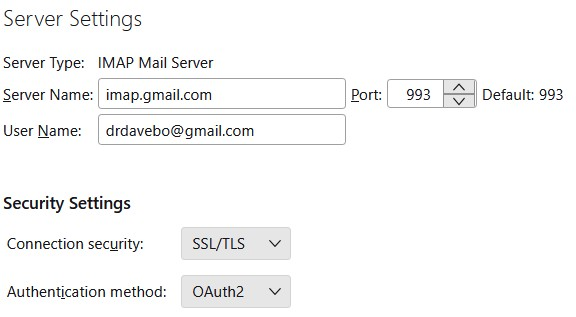
The message you posted indicates possible errors in the account settings. Posting screenshots of the incoming server settings pane and the SMTP server settings pane may generate some suggestions to fix the issue. Thank you
See server settings. Thanks for your help.


unable to sent outgoing SMTP getting server timing out check with ISP the say everything is set up properly ( road runner)
You are mixing two different accounts. For the gmail account, you must use a gmail server. And to use the outlook server you need to use a compatible account (such as outlook or hotmail).
It's all too easy to have an account using a wrong smtp especially when you have many account. Each account must use it's own smtp.
In the Outgoing Server SMTP list showing 12 smtp servers - do you have 12 mail accounts or are any of those smtp servers not used? If smtp definitly not used then delete it.
As you can see it's impossible to know which is which. As an example you have 4 'Google Mail' smtp servers. They all have 'Google Mail' as the 'Description' which means when you need to select a particular smtp for a particular gmail account, you have no idea which one you are selecting. Same goes for the AT&T smtp there are two and both have identical Description. You must alter those 'Descriptions' so you can instantly tell what email address uses that particular smtp.
For each of those SMTP servers in the list. Select and click on 'Edit' Then edit the 'Description' so it says exactly the same as whatever you have in the 'User Name' field - the full email address. Click on 'OK' Do this for each of those smtp in list.
Then check each account is actually using their own smtp server. In Account Settings - left Pane - select name of account Look bottom right for the 'Outgoing Server SMTP' to see which one it is using. You will now see how editing the 'Description' has helped..if it does not show the same email address as the account you select, then click on the drop down to see options and select the one with correct email address/username. DO NOT click on 'Edit SMTP Server' button as this may cause a problem - you may end up editing the wrong smtp - it might be correct for another account.
Work down the left pane selecting name of account and checking all with issues are actually using the correct smtp.
Then when all is corrected and checked, Exit Thunderbird, wait a few moments for background processes to complete and restart Thunderbird.