


Add-ons install themselves

I had added about 10 add-ons, then slowly started to remove the ones I didn't like.
However every day or so, they all reinstall! Could one of the apps have malware?
I have disabled them, removed them, and even done the Firefox recovery.
Macbook Pro 2011 OS 10.12 (Sierra)
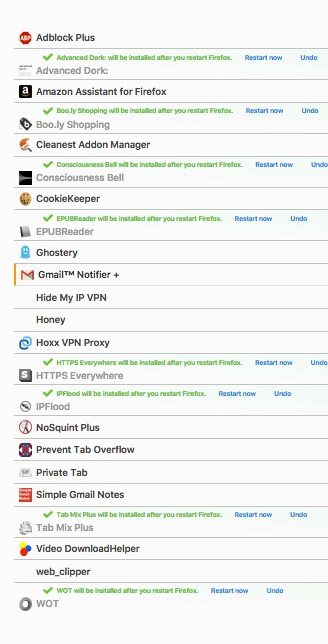
The addons are listed below.
Обране рішення
It is possible that there is a problem with the file(s) that store the extensions registry.
Type about:support in the address bar and press enter.
Under the page logo on the left side, you will see Application Basics. Under this find Profile Folder. To its right press the button Show Folder. This will open your file browser to the current Firefox profile. Now Close Firefox.
Delete all extensions*.* files and compatibility.ini in the Firefox profile folder to reset the extensions registry.
New files will be created when required.
After, restart Firefox.
See "Corrupt extension files":
- http://kb.mozillazine.org/Unable_to_install_themes_or_extensions
- https://support.mozilla.org/kb/Unable+to+install+add-ons
You will have to approve the updating one last time.
Читати цю відповідь у контексті 👍 0Усі відповіді (1)

Вибране рішення
It is possible that there is a problem with the file(s) that store the extensions registry.
Type about:support in the address bar and press enter.
Under the page logo on the left side, you will see Application Basics. Under this find Profile Folder. To its right press the button Show Folder. This will open your file browser to the current Firefox profile. Now Close Firefox.
Delete all extensions*.* files and compatibility.ini in the Firefox profile folder to reset the extensions registry.
New files will be created when required.
After, restart Firefox.
See "Corrupt extension files":
- http://kb.mozillazine.org/Unable_to_install_themes_or_extensions
- https://support.mozilla.org/kb/Unable+to+install+add-ons
You will have to approve the updating one last time.