


New PC Upgrade (Win11) Installation

I have many years and email accounts on my old WIN10 workstation running all POP installations.
I have a new workstation with WIN11. Is it possible to install TB on my new workstation with my accounts installed as IMAP and keep the same folder configuration? I have many email folders and filters setup on the old workstation installation.
I would appreciate any installation recommendations. I've been using TB for years and would like to keep as much of the current configuration as possible.
ప్రత్యుత్తరాలన్నీ (7)
POP accounts cannot be converted to IMAP. Instead, you must set up new accounts. A common approach is to
- set up the POP accounts
- set up the IMAP accounts
- If desired, COPY (not MOVE) messages from the POP folders to the IMAP folders (assuming you want to disable the POP accounts)
- after reviewing that all messages are accounted for, remove the POP accounts
In doing that, this URL will guide you through the initial steps: https://support.mozilla.org/en-US/kb/moving-thunderbird-data-to-a-new-computer

You can install Thunderbird on the new computer, then copy your Profile from the old to the new, which will carry over all your email data, folders, passwords, filters, everything to the new. We can advise you on how to do that. Once that's done and working you can go on to the next step, which is "converting" from POP to IMAP. It's in quotes because its not really a conversion - you have to set up a new IMAP account in parallel to the POP account.
Here's an article about "converting" from POP to IMAP:
Switch from POP to IMAP account https://support.mozilla.org/en-US/kb/switch-pop-imap-account
A big decision for you will be whether you want all of your local POP folders to be accessible on the IMAP server. If so, you will have to manually recreate those folders and upload your local messages to those new IMAP folders. This can be tedious and doesn't always work well, depending on the host system. If you're content for those messages to remain local, you can simply move those folders to Local Folders. Eventually, when everything is working the way you like you can delete the now-unused POP account.
As for filters, there's no automated way to to that. The file "msgFilterRules.dat" is plain text and can be edited with a text editor like Windows Notepad. You can try copying the file from the POP account folder in your Profile to the new IMAP account folder and changing the destination folder names to the new ones. This could also be tedious and prone to error, but maybe or maybe not easier than recreating the filters from scratch.
Thanks for the links and advice. I knew this was going to be a bear, as extensive as my email system has grown over that past 10 years. I really need to reduce its footprint.
Please note: If you choose to upload all your Pop account emails back onto the server, it will use server quota.
IMAP is not the same as Pop. As you have used Pop previously I thought I'd add some basic info about imap.
POP Pop Account accesses only server Inbox and downloads whatever it has not previously downloaded to the pop account Inbox. There is no synchronisation between any pop folder and server folder. Pop accounts cannot access any other folder on the server. All downloaded emails are stored on your computer and they are an independent copy. You can delete emails off the server via webmail to create space and it will not effect anything in a POP account.
IMAP Imap accounts can only display whatever is on the server. Imap account folders synchronise with server folders of same name. Imap is like a mirror copy of whatever is on the server. Emails are stored on the server. You can choose to download full copies or only headers if you need to save space on computer. If you download full copies of emails, you should not regard them as independent copies because the folders synchronise with server. You can download full copies and then use it to create a backup of the Thunderbird folder containing profile data saved to another external hard drive so you do have an independent copy. As Imap accounts have emails stored on server, it means you can access the same data from other computers or phone via Imap. Anything you delete off server via webmail account or any other device will be auto deleted from an Imap account when it synchronises with server.
If you need to increase quota on server, then you can download full copies of emails and use 'COPY TO' option to save independent copies in the 'Local Folders' account before deleting the originals off the server.
I use both Pop and IMAP for different accounts. Both work perfectly ok.
Do you need more help with getting a complete copy of the Thunderbird folder on old computer putting onto the new computer ?
If no and you are ok then the next bit assumes you have already copied the 'Thunderbird' folder containing all the profile etc data to new computer.
If I were you, I would not be trying to upload all those emails back onto the server. It just takes a lot of time as servers have limits on imap uploads and it will also use up quota. You may end up having to get it back off the server to create some space.
I would also do the following to get them into the Local Folders mail account. Why ? Because it's a lot quicker when you have a lot of folders and emails.
Exit Thunderbird - this is important
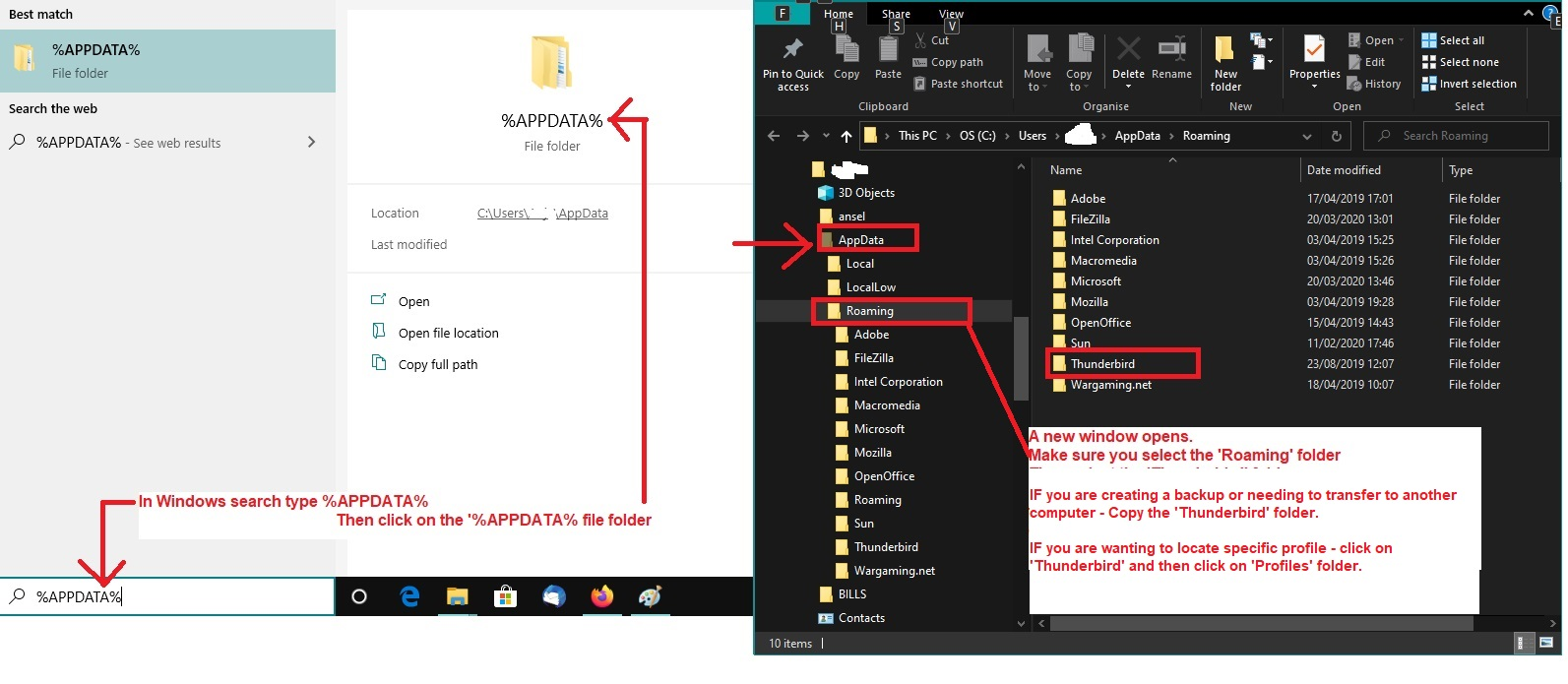
- In windows search type: %Appdata% - see image below as guide
- Select %Appdata% file folder
- Select Roaming
- Select Thunderbird
- Select Profiles
- Select the profile name folder
- Access Profile name folder
- Click on 'Mail' folder
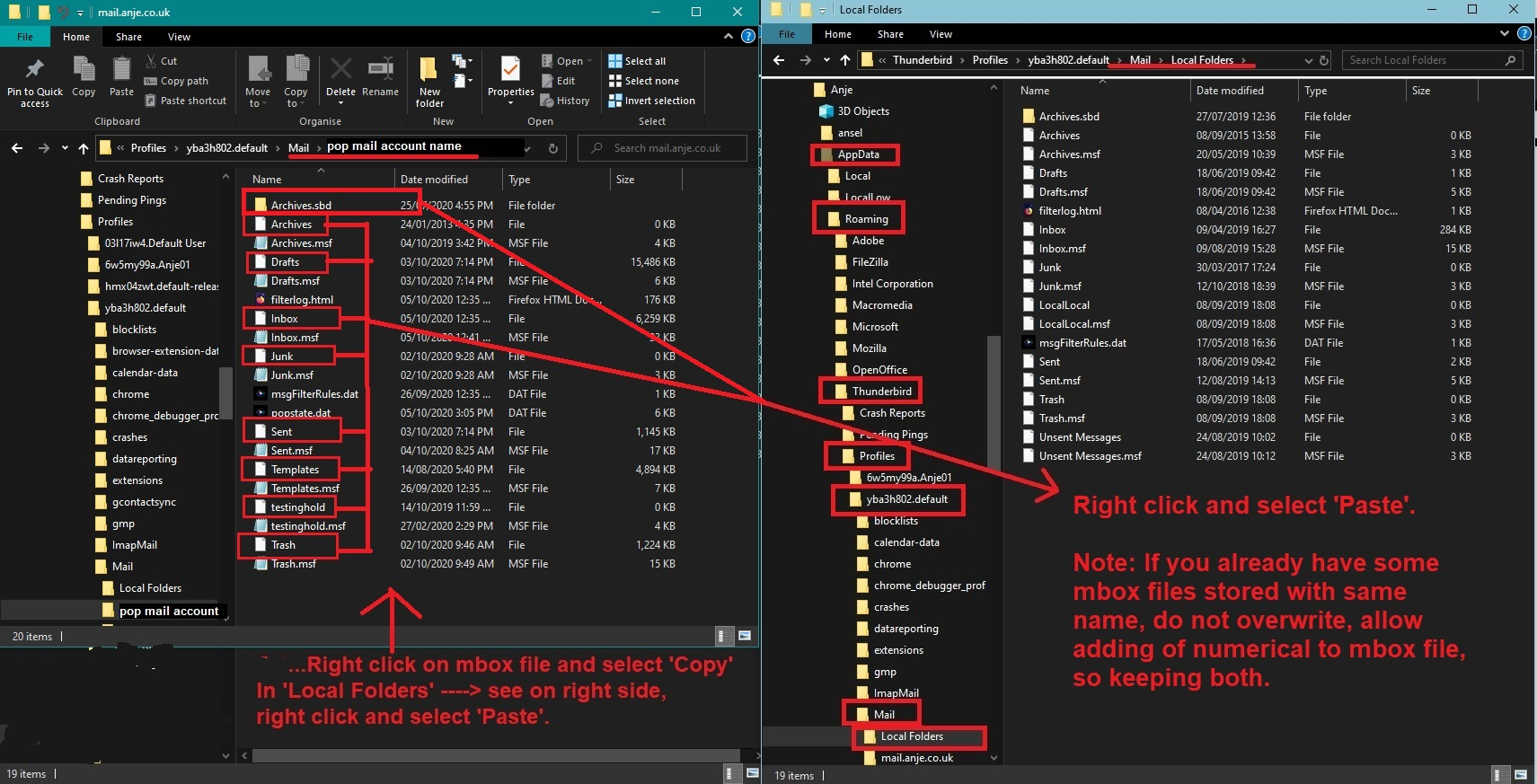
- Right click on 'Local Folders' folder and select to open in a new window and put it to one side ready for incoming files.
- Back in the Mail folder, click on the pop account name folder to see contents.
Assuming you do not already store anything in the Local Folders folder All the following files and folders need to be copied from the pop mail account folder and pasted into the 'Local Folders' folder. If you do have some emails stored in the Local Folders, then when you copy from pop to Local Folders, just make sure to not overwrite anything if the file name happens to be the same. Allow it to add a number to the name. You can always rename a folder later.
- Any folder with a .sbd extension
- Any mbox file - they do not have any extension
I've also posted an example image to act as a guide showing a copy of all mbox files and all folders with .sbd in a Pop account into the Local Folders.
When you start Thunderbird, all your folders and emails that were in the pop account are now in the Local Folders account.
న Toad-Hall చే మార్చబడినది
If any one reading this thinks they would appreciate some additional help moving from old to new computer:
On OLD computer
- Exit Thunderbird
- Access Profile via the following method:
- In windows search type: %Appdata% - see image as guide
- Select %Appdata% file folder
- Click on 'Roaming'
- Copy the 'Thunderbird' folder to an external drive
On New computer
- Exit Thunderbird
- Access Profile via the following method:
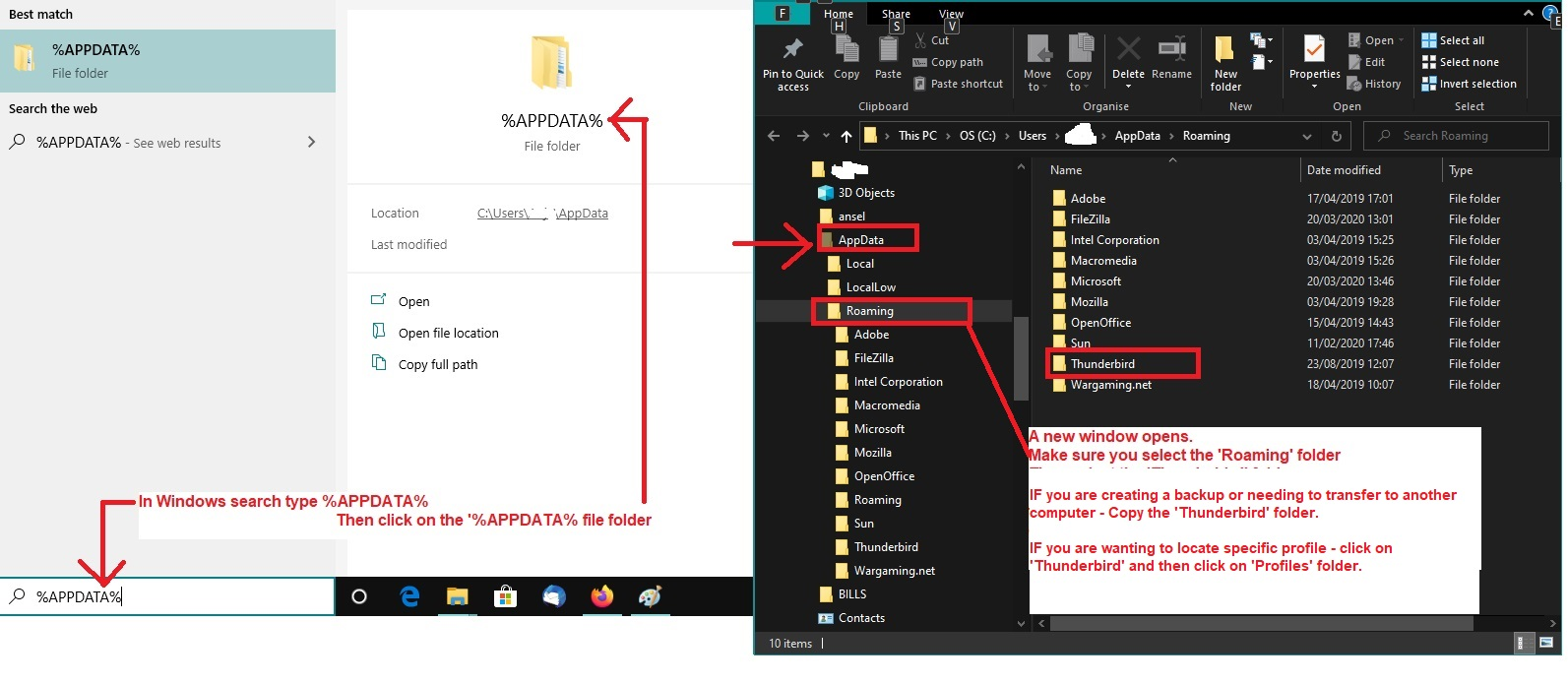
- In windows search type: %Appdata% - see image as guide
- Select %Appdata% file folder
- Click on 'Roaming'
- Delete the 'Thunderbird' folder - it got created by default.
- On external drive - Copy the 'Thunderbird' folder which came from the OLD computer.
- Paste the copied 'Thunderbird' folder into the 'Roaming' Folder.
start Thunderbird.
Please note: This info is assuming you got the Thunderbird program download and installation from the official website at this link: https://www.thunderbird.net/en-US/thunderbird/all/ This would create an initial new profile. Everything to do with Thunderbird profiles is in this Thunderbird folder Basically : C: //Users/Username/Appdata/Roaming/Thunderbird.
If you used the Thunderbird installed from the 'Windows App Store' then it create the default profiles in an entirely different location. If this new computer is the first time you installed Thunderbird from Windows App Store... Personally, I would uninstall it and get download from the link because a lot of help etc information regarding profiles only refers to where Thunderbird would have the profiles stored by default. It's also easier to find.
If you downloaded the Thunderbird app from the 'Windows app Store' then your 'Thunderbird' folder containing profile will be in this location: C:\Users\username\AppData\Local\packages\MozillaThunderbird.MZLA_h5892qc0xkpca\LocalCache\Roaming\Thunderbird
న Toad-Hall చే మార్చబడినది
Thanks for the fine details above. That's what I needed, as I've never used IMAP before, and I'm going from POP to IMAP with my main accounts on AOL (previously Verizon mail).
Your comments: Imap accounts can only display whatever is on the server. Imap account folders synchronize with server folders of same name. Imap is like a mirror copy of whatever is on the server.
This I recognize with the initial account setup, but thereafter, when I create a folder on the server, it is never generated on my TB account.
New folders made on the servers should eventually show up locally, at the latest, when Thunderbird is restarted and it polls server folders. But if they don't, you can force it by right-clicking on the account name in the Folders List pane and choosing "Subscribe" from the context menu, then "Refresh". The new folders should show up with their selection boxes checked.