


when firefox opens facebook I can only page dow 2 or 3 times. In IE and CHrome I can page down infinite times . How do I fix this?

I am using firefox 64bit in windows 10 64bit. when I open facebook page I can only page down a few times then firefox dowsn't load anymore posts. It works fine in IE and in Chrome.
Сви одговори (8)

Many site issues can be caused by corrupt cookies or cache.
- Clear the Cache and
- Remove Cookies
Warning ! ! This will log you out of sites you're logged in to.
Type about:preferences<Enter> in the address bar.
- Cookies; Select Privacy. Under History, select Firefox will Use Custom Settings. Press the button on the right side called Show Cookies. Use the search bar to look for the site. Note; There may be more than one entry. Remove All of them.
- Cache; Select Advanced > Network. Across from Cached Web Content, Press Clear Now.
If there is still a problem, Start Firefox in Safe Mode {web link} While you are in safe mode;
Type about:preferences#advanced<Enter> in the address bar.
Under Advanced, Select General. Look for and turn off Use Hardware Acceleration.
Poke around safe web sites. Are there any problems?
Then restart.
Done all that , same problem
I can't reproduce this in 42.0 on Windows 7 64HP. I get the same (correct) behaviour whether I use a maximised window or not, so the viewport is not a factor for me either - the News Feed scrolls infinitely.
The Facebook Help posts point to clearing cache and cookies. Some fixes for a seriously limited News Feed suggest using a proxy is the problem. You can check proxy settings under about:preferences#advanced in the Network tab by clicking the Settings button. You should also check Windows' proxy settings for WAN and LAN - but I suspect this is just a profile and data issue.
An easy way to check if it's your profile (data) is to create a new profile: https://support.mozilla.org/en-US/kb/profile-manager-create-and-remove-firefox-profiles. If a fresh profile works a-ok, your old profile still needs cleaning; an easy targeted cleanup can be done by searching for all hits with "facebook" in History and selecting Forget about this site.
If you still run into the issue, could you take a screenshot of the view you get when scrolling stalls? It would be important to note if there is a loading icon, further text and images, a message from the page, or nothing at all.
I created a new profile, same problem , here is the screenshot...
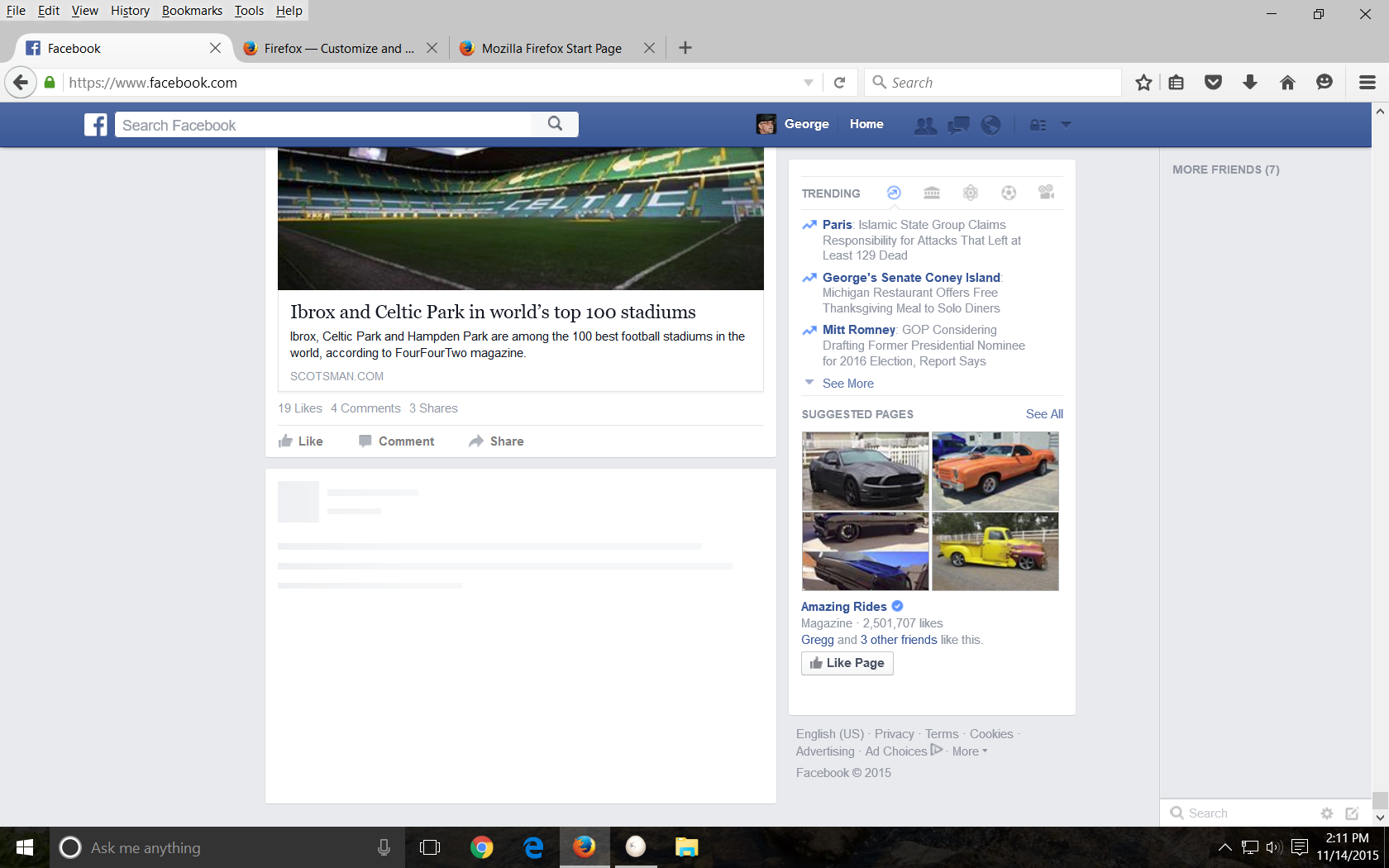
Shouldn't be Firefox profile related then. The page seems to have been loading, but just stopped or got stopped.
I dove into a bunch of Facebook help posts and besides clearing cookies and cache (and disabling proxies and adblockers, which should have happened when you used Safe Mode as suggested by Fred), the only other suggestion that people confirm working is to switch your Feed between Popular Stories and Recent Stories (or your local equivalent), and logging out of Facebook, then logging back in (should have happened when you deleted cookies+cache, plus your new profile should be clean - still, only takes a second).
If the little fixes won't work, it may be time to Refresh Firefox: https://support.mozilla.org/en-US/kb/refresh-firefox-reset-add-ons-and-settings. Among others, this has helped people whose FF got screwed up by the Windows 10 upgrade. This could be a speedy fix, if you don't care to troubleshoot for much longer - it is extremely safe (backups still a good idea), but will require some rebuilding after.
Out of curiosity, what security solution do you use?
Boot the computer in Windows Safe Mode with network support (press F8 on the boot screen) to see if that helps.
- http://www.bleepingcomputer.com/tutorials/how-to-start-windows-in-safe-mode/
- http://www.7tutorials.com/4-ways-boot-safe-mode-windows-10
Do a clean reinstall and delete the Firefox program folder before (re)installing a fresh copy of the current Firefox release.
- Download the Firefox installer and save the file to the desktop
https://www.mozilla.org/en-US/firefox/all/
If possible uninstall your current Firefox version to cleanup the Windows registry and settings in security software.
- Do NOT remove "personal data" when you uninstall your current Firefox version, because this will remove all profile folders and you lose personal data like bookmarks and passwords including data in profiles created by other Firefox versions.
Remove the Firefox program folder before installing that newly downloaded copy of the Firefox installer.
- (32 bit Windows) "C:\Program Files\Mozilla Firefox\"
- (64 bit Windows) "C:\Program Files (x86)\Mozilla Firefox\"
- It is important to delete the Firefox program folder to remove all the files and make sure that there are no problems with files that were leftover after uninstalling.
- http://kb.mozillazine.org/Uninstalling_Firefox
Your personal data like bookmarks is stored in the Firefox profile folder, so you won't lose personal data when you uninstall and (re)install or update Firefox, but make sure NOT to remove personal data when you uninstall Firefox as that will remove all Firefox profile folders and you lose your personal data.
If you keep having problems then create a new profile.
for security I am using windows defender and Malwarebytes, I have tried with no security still same problem. Chrome browser works fine.