


typing messages and reading

I want to enlarge the letters in my account.
Všetky odpovede (2)
You can changes the font size for the entire Thunderbird interface, including the menu, folder list etc.
Click the Menu button in the upper-right corner of Thunderbird.
Look for Font Size in the menu.
Click the + button to increase the font size.
For more info see Thunderbird 115 Supernova FAQ
To increase the overall UI font size:
- Click on the Menu app icon (3 lines) > Font Size
- Click on the + icon to increase, repeat until folder pane and message list displays better for you.
- The number in the middle indicates the current pixel size eg: 14px
If you prefer to increase the size so it's a bit bigger for reading mail or composing or even apply some control to stop silly small fonts:
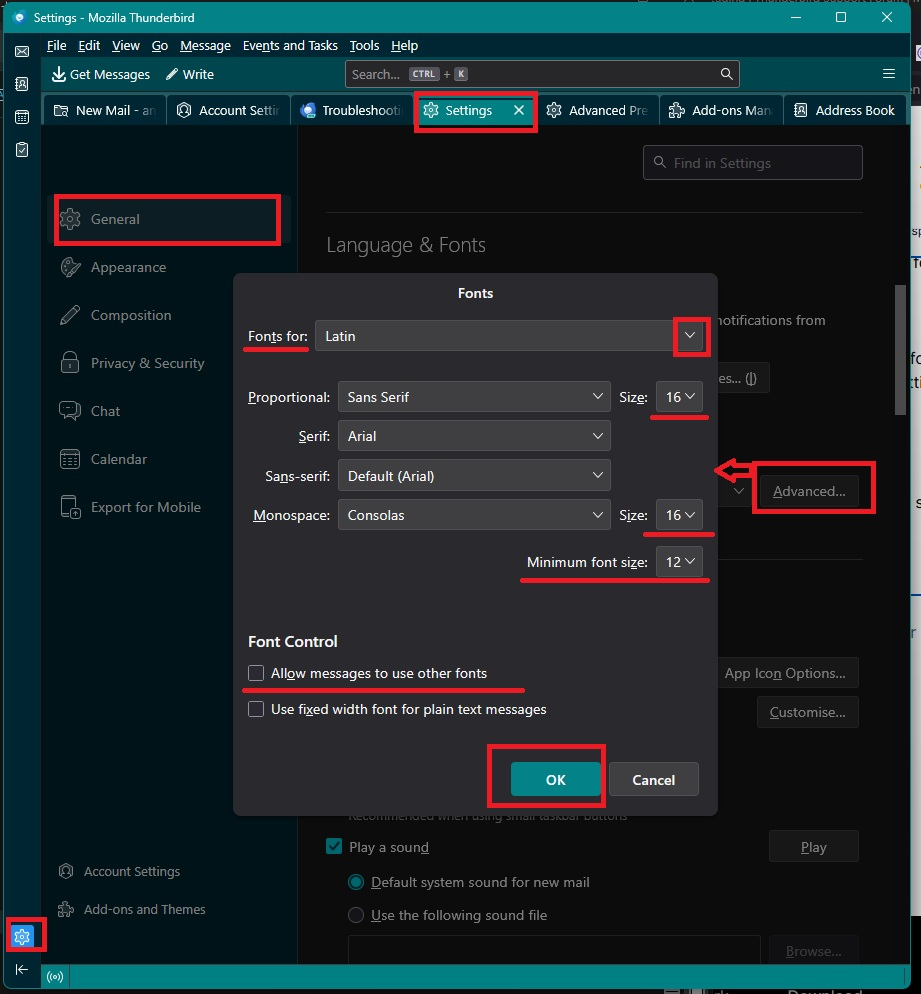
- Settings > General
- Scroll to 'Languages and Fonts'
- Click on 'Advanced' button
The 'Fonts' window opens.
- Fonts for: 'Latin'
- Set the Proportional Size: to say a size slightly larger than you chose for the UI Font Size eg: 16 which means 16px
- Set the 'Minimum font size' to eg: 12px (this must not be greater than the proportional size - it forces tiny fonts to use this as minimum)
- Uncheck 'Allow messages to use other fonts' - I advise this as you have more control.
- Now set up exactly the same for 'Fonts for: 'Other Writing Systems' (usually at bottom of drop down list) - do not omit this as it effects Unicode encoding.
So both 'Latin' and 'Other Writing Systems' are set up identical
- Then click on 'OK'
See example image below.
Please note: whatever size you selected for 'Proportional' eg: 16px that will now be the what Thunderbird calls your 'Medium' setting.
- Settings > Composition
Please use the default which should be:
- Font : Variable width Size: Medium
that means it composes using a prefered setting for you and does not impose it on people who receive your emails.
Upravil(a) Toad-Hall dňa