


Privacy & Security Settings Compromised

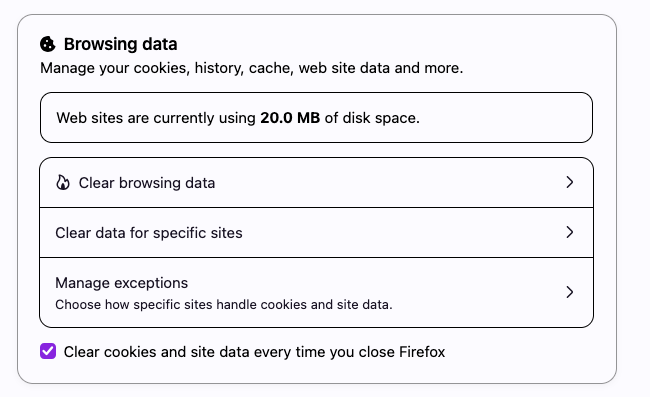
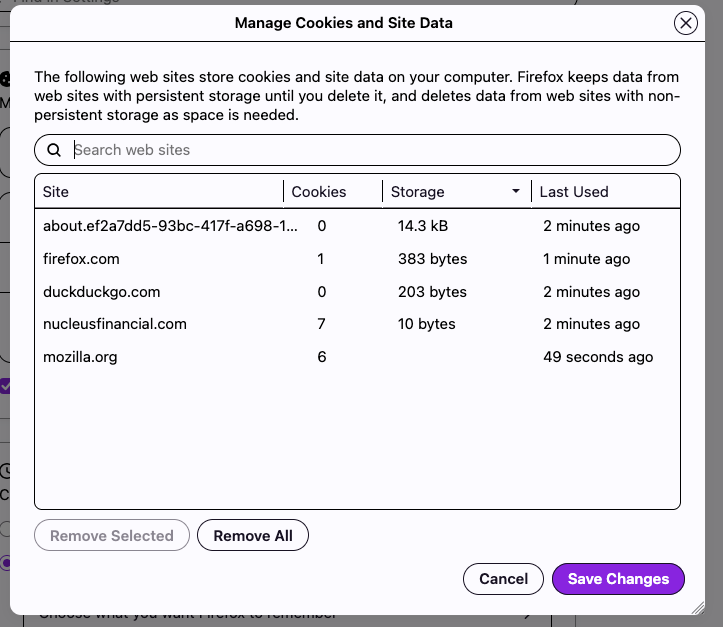
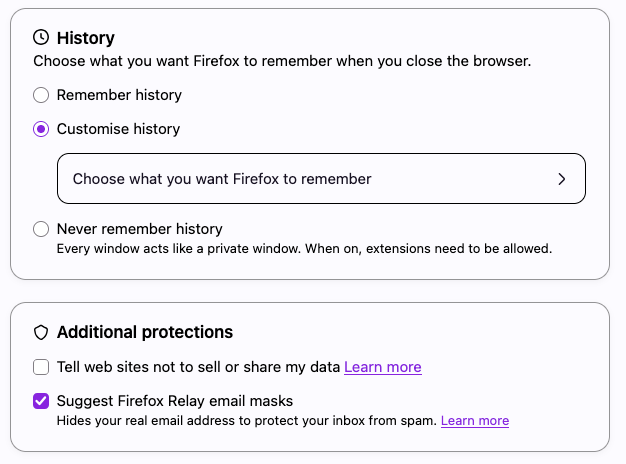
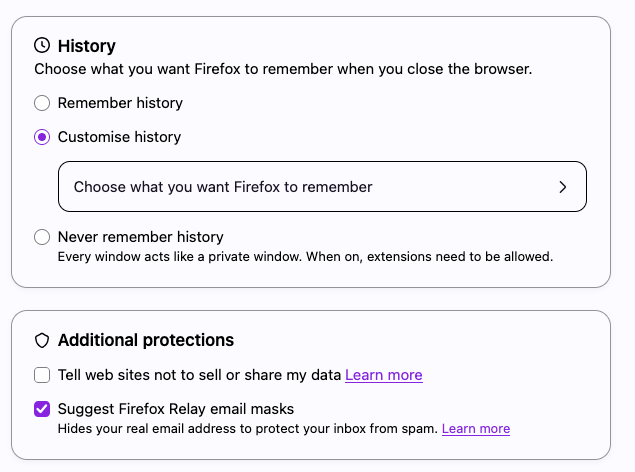
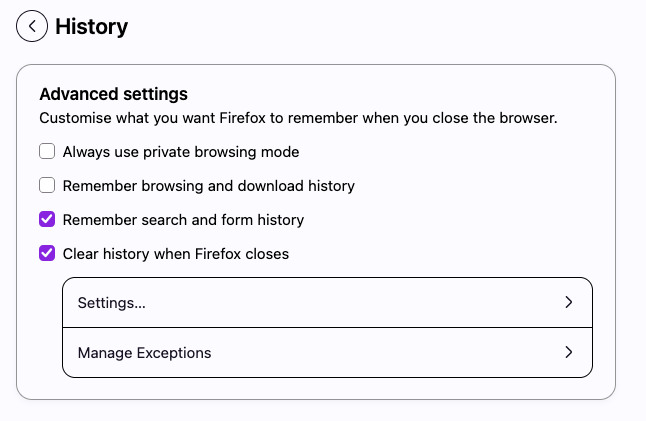
I have been using a financial website recently. I signed out and closed the web pages, Mozilla is set to always clear my History when closing my MacBook or my Windows 11 laptop. When I came back to either laptop some time later and go onto Mozilla and enter the webpage details, when I clicked on the login page my username and password are both in both of the relevant boxes. This should not be happening. Is it a setting I need to change or an issue with the Webpage? Just to confirm I deleted the user & password details from the login page & closed the login page. closed every other Mozilla webpage that was open. I quit Mozilla on the Macbook. Then I opened my Windows 11 laptop. Signed into Windows. Checked my Mozilla Account & cleared all history so there was no Nucleus webpages in history or anything else. My settings are set as shown in the attachments.
Then I found the login page and opened it.and There is were my user details & password. as shown also.
Wszystkie odpowiedzi (1)
Hi, thank you for the screenshots. A couple thoughts:
Browsing Data Settings
You have a checkmark for "Clear cookies and site data every time you close Firefox". That should take care of removing both of the following categories of data at shutdown:
(A) Cookies - a site may be using cookies to repopulate the form. You have set Firefox to clear the cookies during a normal shutdown. Two notes:
- Make sure you Quit Firefox for Mac using the Firefox menu. Simply closing all windows may not shut down your session. On Windows, usually closing the last window does completely quit Firefox. The exception would be if there is a window that isn't visible. I recommend using the menu button > Exit on Windows just in case.
- We'll check for a possible cookie-sparing exception in a minute.
(B) Web content cache - if the site doesn't force a full reload on your next visit, Firefox often will redisplay the page with stored data. The cache should be emptied by your selection of this checkbox when Firefox shuts down normally. I'll describe how to double-check that in a minute.
History Settings
Let's dive into those Advanced settings.
(1) Click the "Settings" button below "Clear history when Firefox closes" and make sure these two boxes are checked:
- "Cookies and site data"
- "Temporary cached files and pages"
Other boxes might be checked. Make sure "Site settings" is NOT checked - that will remove permissions and blocks you saved.
(2) Click the Manage Exceptions button.
Any sites that have an "Allow" here will be exceptions to cookie clearing. Make sure the financial site does NOT have an exception here.
Password Manager
As you probably noticed, Firefox has a built-in password manager that can autofill login fields. If you do not want Firefox to save a login for your financial site - probably wise not to - here are some tips on that:
Password Manager - Remember, delete and edit logins and passwords in Firefox
Zmodyfikowany przez jscher2000 - Support Volunteer w dniu