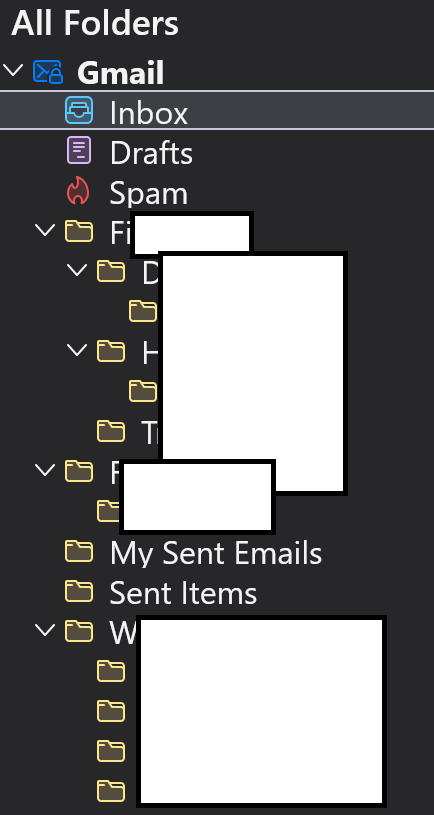
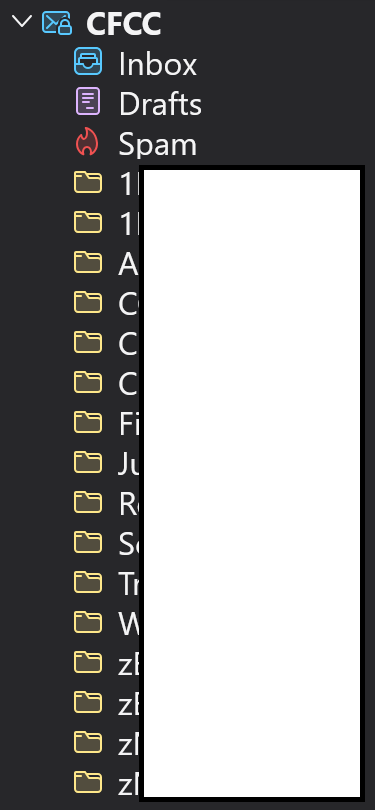
Unified folder listing shows one account but not another?

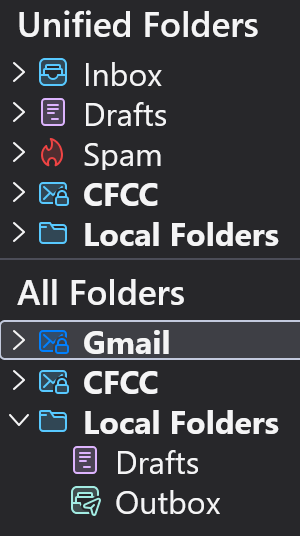
Hi, I have two accounts in my Thunderbird. They are Gmail (regular gmail account) and CFCC (an institutional account). The CFCC shows up in my Unified Folder list but the Gmail does not. Is that normal? The main Inbox is showing all incoming emails from both accounts so no performance issues, just wondering how to get rid of the CFCC (if that's possible) to eliminate clutter. Thank you. GES
All Replies (13)
Unified Folders A setting often used by people who have several mail accounts, but like to see an amalgamated list of eg: all emails in Inbox for all accounts in one unified folder.
Only the default folders display as unified folders. Inbox, Drafts, Templates, Sent. Archives, Spam, Trash
The Unified Inbox will have a chevron > to the left indicating it has separate accounts listed. > Inbox If you click on > then it expands to show the various separate mail account inboxes.
Scenario: If a Unified folder eg: Inbox is expanded and only has one account shown, then you may wish to add the Inbox of the other accounts.
- Right click on Unified Inbox and select 'Properties'
- Click on 'Choose' button
- You can then see list of accounts and you need to select the checkboxes for 'Inbox' for all accounts including 'Local Folders'.
- Click on 'OK'
- Click on 'Update'
Same process for any Unified Folder - if 'Sent' then make sure you only select the 'Sent' folders of all the accounts.
re :The CFCC shows up in my Unified Folder list but the Gmail does not. Is that normal? Below the list of default Unified folders those you will see the separate names of your accounts. Those accounts display if they contain any folders you created or default folders that have not been selected to be displayed in Unified Folders. Local Folders being the last.
If the gmail account has no folders you created and all it's default folders are selected to display in Unified Folders then it has nothing to display, so will not display.
But you may have a gmail Inbox that has sub folders ? Do you want those subfolders to be displayed under that Inbox section in Unified Folders. If you check the 'Unified Inbox' for 'Properties' and click on 'Choose' - any Inbox subfolder may be selected - if you uncheck those subfolders, then they will be forced to display in a separate gmail account folder.
'All Folders' is the default display option which you have also chosen to be displayed. It shows all accounts one after the other and they all have their own set of folders.
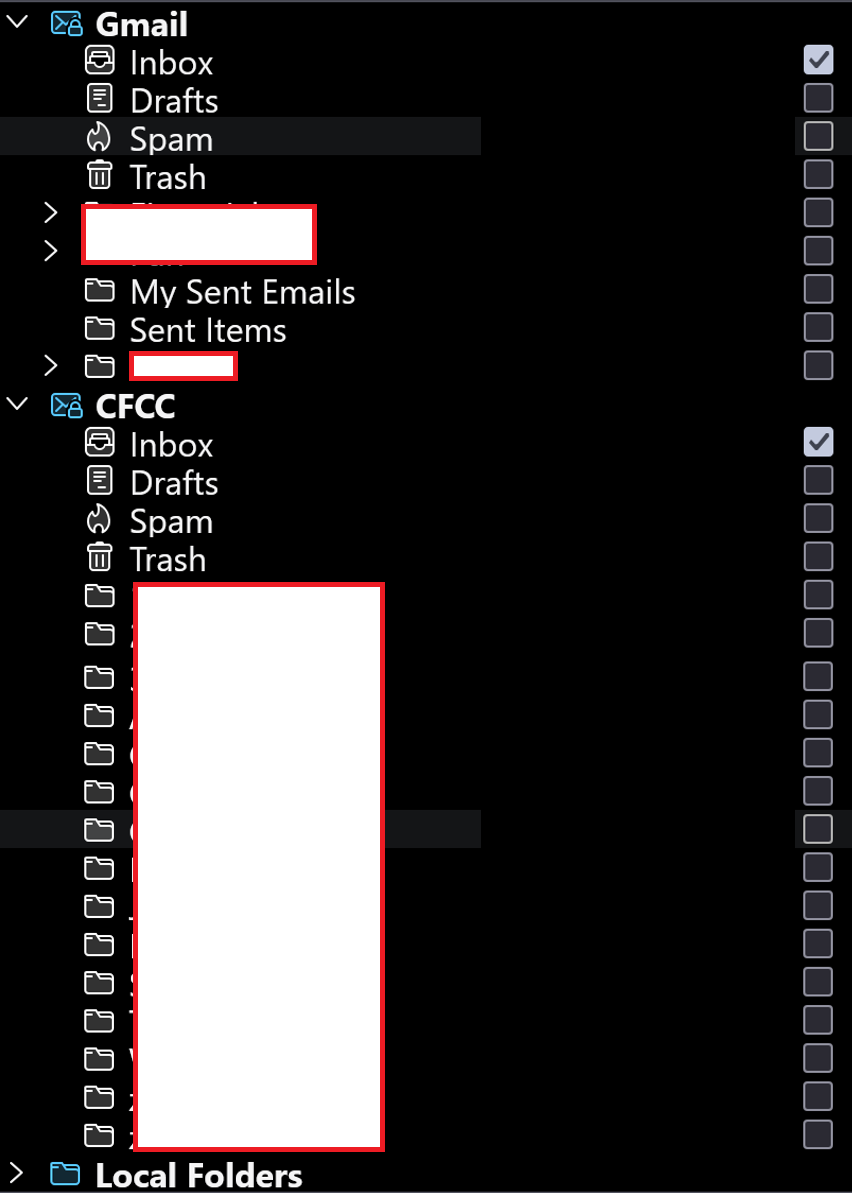
Hmmmm. If I'm following you correctly, neither of these accounts should be showing in the Unified Folder List? Screenshot attached of what's selected and what's not under Properties.
ges74 said
Hmmmm. If I'm following you correctly, neither of these accounts should be showing in the Unified Folder List? Screenshot attached of what's selected and what's not under Properties.
The properties says: Both account Inboxes should be in the Unified Inbox and when you click on the >chevron for Unified Inbox you should see two account names listed.
Image shows CFCC has several folders that are not default folders so you should see the CFCC account listed below the Unified folders and it should contain all those folders you created.
The gmail account - not sure if it has any folders you created are listed - 3 are blanked, but if they are folders you created then the Gmail account should be listed showing those folders. Make sure they are 'subscribed'. They should all display in the 'All Folders'. in respective accounts.
When I click on the chevron next to Inbox, it indeed displays both Gmail and CFCC. Great!
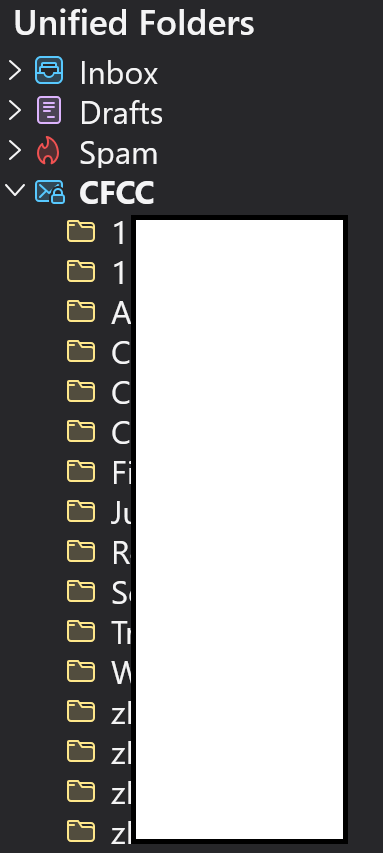
What I'm confused by is why only CFCC shows up below the Spam folder (as in previous screenshot). The 3 blanked folders under Gmail are in fact folders that I created, and each one actually includes multiple layers of subfolders as well.
None of the CFCC's are subscribed, nor are any of the Gmail's subscribed -- so why is Thunderbird treating them differently?
Thank you for your assistance and insights, I really appreciate it.

I have the same issue since I just added an account. I am so frustrated because all of the guidance seems to think I'm having problems with the "Unified Folders" part of the list. Those are working fine, as are yours. But, If I have accounts "1", "2", and "3" for email, I am seeing 1,2,3 in "All Folders", but only 1,2 in the Unified Folders panel, right under Trash. I cannot for the life of me figure out how to add "3" to the Unified FOlders pane. Every piece of guidance tells me to go into Inbox and such and select the Inbox of Account 3, which not only did Tbird do for me when I created the account, but Account 3 shows up there in the Inbox folder chooser for me to select any or all folders in that account. So, Unified Folders knows about the new account, but it WILL NOT show the base account in the pane. I am hoping adding to your thread will cause someone who knows how to do the non UNified Folders part of this to chime in
I hear you! Fingers crossed.
Endret av ges74
re :What I'm confused by is why only CFCC shows up below the Spam folder (as in previous screenshot).
Unified Folders section Below Unified 'Spam' is CFCC account. That CFCC account has a chevron > indicating it has folders click on that chevron to expand what folders are displaying?
You seem to only have Unified Folders for 'Inbox', 'Drafts' and 'Spam'.
Usually, there are more eg: 'Inbox', 'Drafts', 'Templates', 'Sent', 'Archives', 'Spam' and 'Trash'
I also notice in that Unified Inbox offers some information - the Gmail account has normal folders called 'My Sent Emails' and 'Sent Items'. Gmail usually call their sent folder 'Sent Mail' - either way the point is this, they are displayed as normal folders and do not have the icon to indicate which is the server designed default folder as set by the gmail server.
The same goes for the CFCC account - it's not displaying all the correct icons for the server default folders as set by the server.
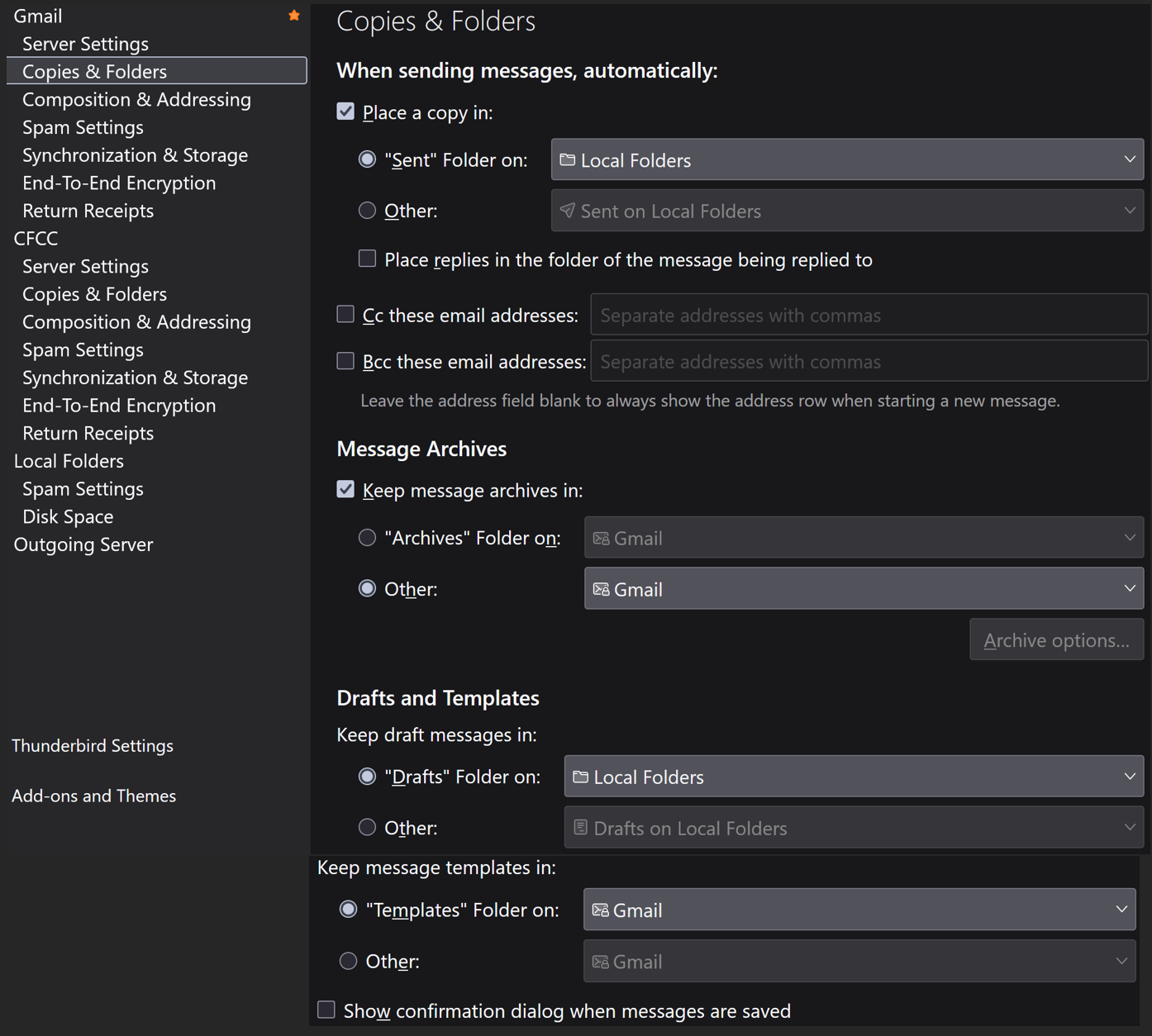
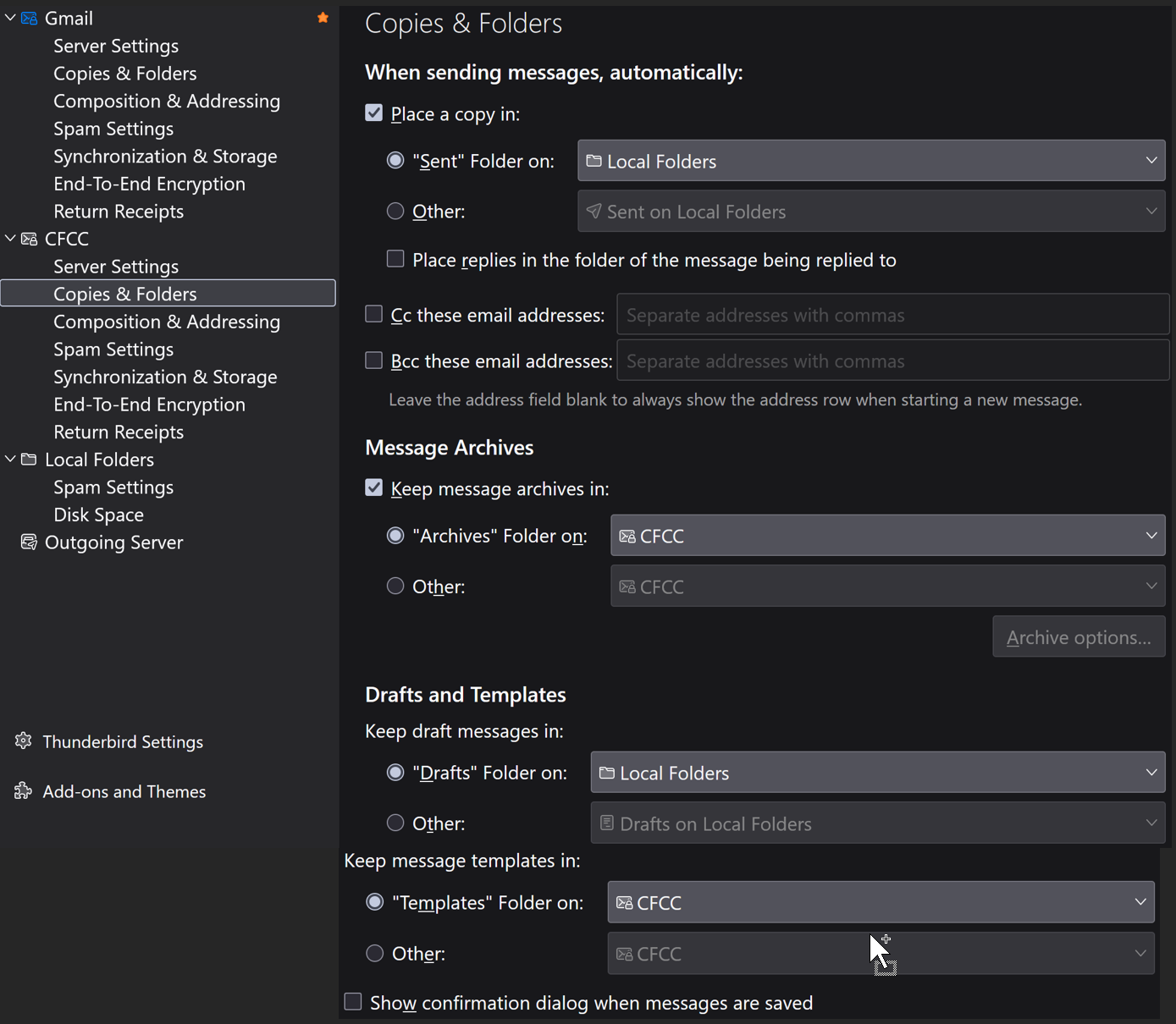
That implies your 'Account Settings' are not as expected. Please post two images showing what you have got selected for gmail and CFCC in : 'Account Settings' > 'Copies & Folders' for each account.
Brain said
......I have accounts "1", "2", and "3" for email, I am seeing 1,2,3 in "All Folders", but only 1,2 in the Unified Folders panel, right under Trash. I cannot for the life of me figure out how to add "3" to the Unified FOlders pane. Every piece of guidance tells me to go into Inbox and such and select the Inbox of Account 3, which not only did Tbird do for me when I created the account, but Account 3 shows up there in the Inbox folder chooser for me to select any or all folders in that account.
All folders are shown in the chooser, but for a Unified Inbox, you would only select the Inbox checkbox in each account. Some people have Inbox subfolders - they can choose to either show them in the Unified Inbox or not. If not then they are shown in the account name just below the set of Unified folders along with any other subscribed folder and also any default server folder that has not been included in a Unified folder. Example: if you had a 'Drafts' folder in 'Local Folders' but did not include it in the Unified Drafts properties chooser, then it will be displayed in the account name Local Folders.
At this point, I'm working on the original issue posted - trying to ascertain what is actually set up in Account settings and what is displayed and subscribed and why the gmail account is not displaying in the Unified section, but CFCC is displaying.
In original image showing 'Unified Folders' at top and 'All folders' below.
in the 'All Folders' section Both gmail and CFCC are listed and both have > chevrons. Please expand those accounts by clicking on the chevrons, this is indicate what folders are actually available and subscribed in each account.
I can then compare with Account Settings > Copies & Folders and also with Unified section.
Toad-Hall said
re :What I'm confused by is why only CFCC shows up below the Spam folder (as in previous screenshot). Unified Folders section Below Unified 'Spam' is CFCC account. That CFCC account has a chevron > indicating it has folders click on that chevron to expand what folders are displaying?
Attaching screenshot. I blocked out the names for privacy but they are all folders that I created manually, not any of the system folders.
Toad-Hall said
You seem to only have Unified Folders for 'Inbox', 'Drafts' and 'Spam'. Usually, there are more eg: 'Inbox', 'Drafts', 'Templates', 'Sent', 'Archives', 'Spam' and 'Trash' I also notice in that Unified Inbox offers some information - the Gmail account has normal folders called 'My Sent Emails' and 'Sent Items'. Gmail usually call their sent folder 'Sent Mail' - either way the point is this, they are displayed as normal folders and do not have the icon to indicate which is the server designed default folder as set by the gmail server. The same goes for the CFCC account - it's not displaying all the correct icons for the server default folders as set by the server. That implies your 'Account Settings' are not as expected. Please post two images showing what you have got selected for gmail and CFCC in : 'Account Settings' > 'Copies & Folders' for each account.
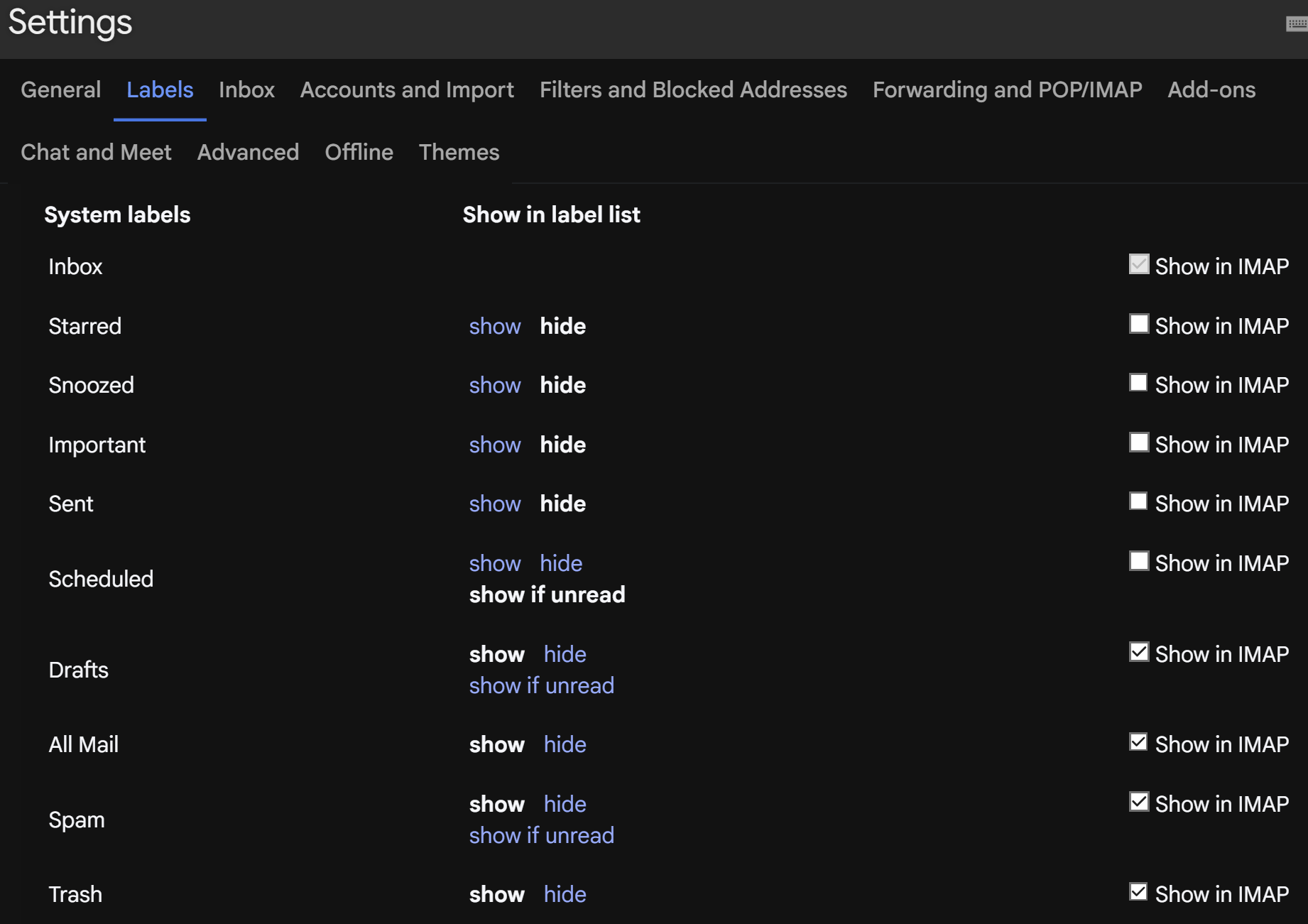
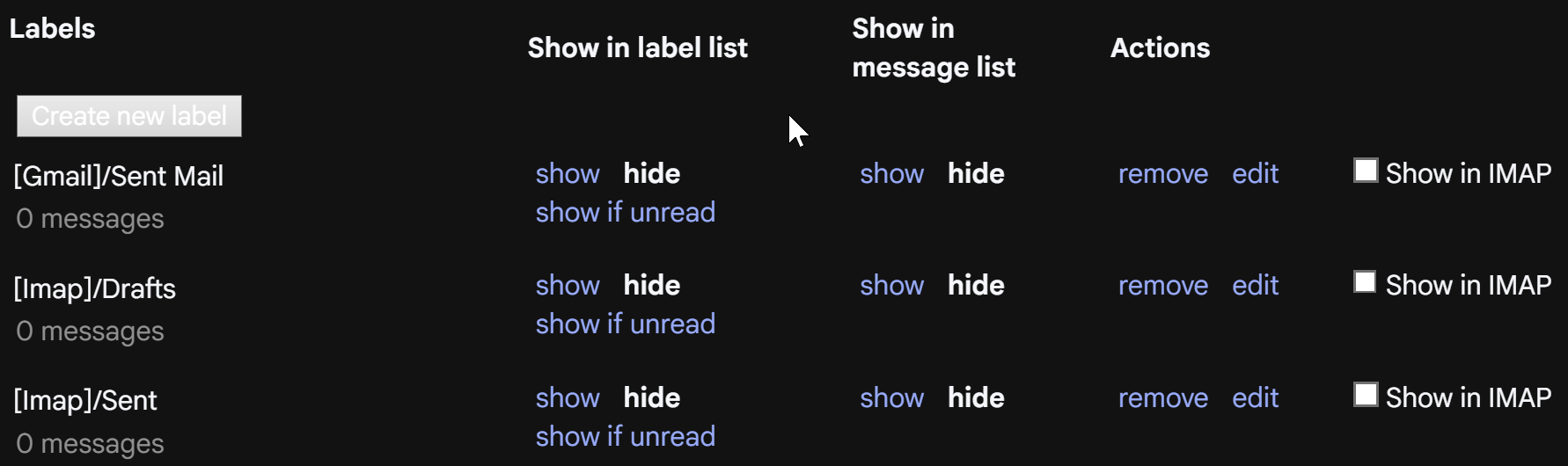
I am attaching the two screenshots you suggested. BTW, re "My Sent Emails" -- this is a folder to which I copy all my sent items because I am old school and don't like using Gmail's "keep everything and just use search to find things" approach. In this folder, I delete all resolved messages and keep only those awaiting disposition. Re: the other folders, I hid them from view in Gmail (3rd and 4th screenshots attached -- I've never been able to figure out what the ones in the 4th screenshot are for).
Thank you!
Toad-Hall said
In original image showing 'Unified Folders' at top and 'All folders' below. in the 'All Folders' section Both gmail and CFCC are listed and both have > chevrons. Please expand those accounts by clicking on the chevrons, this is indicate what folders are actually available and subscribed in each account. I can then compare with Account Settings > Copies & Folders and also with Unified section.
2 more screenshots. I have left all system type folders visible. Again, thank you!