


Picture in Picture video DISABLE

FF 87.0 Win10
Tried with about:config and that didn't work. Tried disabling in General - Browsing.
The videos I watch do not have a settings option.
How do I disable this bloody annoyance?
Thank you.
Gekozen oplossing
Once you have clicked play then the video is started and the website will show the mini player if you scroll the main player out of view. There is no way to prevent this mini player from getting opened as this is done by the website and not under control of Firefox.
Dit antwoord in context lezen 👍 0Alle antwoorden (11)
Some websites have their own floating player that is shown automatically via JavaScript when the actual player is scrolled out of view. Other like YouTube can open a mini player if you click its button on the player. The Firefox PiP window only opens in you click the blue PiP button that appears if you hover the player. If autoplay is blocked then such a floating player shouldn't appear automatically.
You can look at these prefs on the the about:config page to see what settings work for you to block autoplay.
- media.autoplay.default = 5 [0:allow;1:blockAudible;2:Prompt;5:blockAll]
- media.autoplay.blocking_policy = 2
- media.autoplay.allow-extension-background-pages = false
- media.autoplay.block-event.enabled = true
You can open the about:config page via the location/address bar. You can accept the warning and click "I accept the risk!" to continue.
I tried all of them and none work. Note: I did not try them one at a time, though. I block ALL autoplays, anyway.
I think this is the accurate description: floating player that is shown automatically via JavaScript when the actual player is scrolled out of view.
Here is a video from Washington Post. All the videos I open are like this: https://www.washingtonpost.com/local/virginia-politics/northam-nazario-windsor-police/2021/04/11/fb147f88-9b05-11eb-9d05-ae06f4529ece_story.html
Thank you, cor-el.
I'm not seeing a pop-out video player on that page unless I click the play button to start the video (i.e. the video doesn't auto-play with the pref settings I posted above).
You can check the Autoplay setting in "Tools -> Page Info -> Permissions".
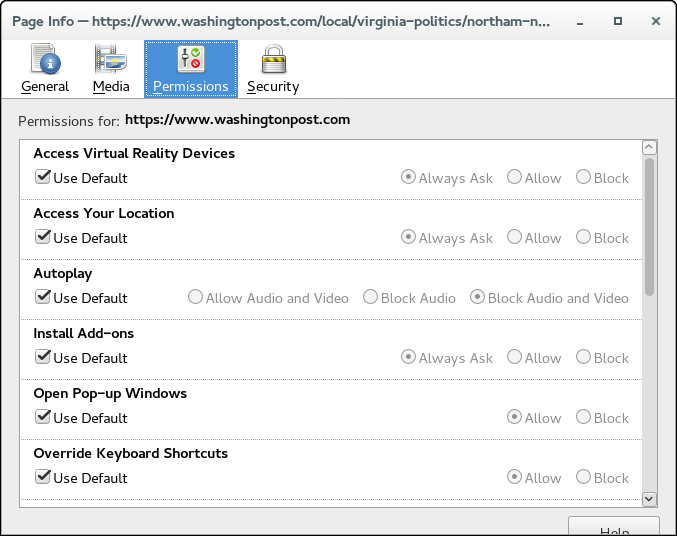
Once you hit play and scroll down the page, the video appears in the lower right corner.
I am trying to remove the video in the lower right corner.
Mine don't play, either, as I have autoplay disabled.
Can we see what you are seeing?

Gekozen oplossing
Once you have clicked play then the video is started and the website will show the mini player if you scroll the main player out of view. There is no way to prevent this mini player from getting opened as this is done by the website and not under control of Firefox.
JonZn,
Cor-el clarified that there is nothing that I (we) can do.
Thank you.
Bewerkt door CiaoBella1 op
There is a way to hide this player with code in userContent.css (not userChrome.css) via opacity:0 or visibility:hidden (display:none doesn't seem to work properly).
- https://www.userchrome.org/what-is-userchrome-css.html
- https://www.userchrome.org/how-create-userchrome-css.html
In Firefox 69 and later you need to set this pref to true on the about:config page to enable userChrome.css and userContent.css in the chrome folder.
- toolkit.legacyUserProfileCustomizations.stylesheets = true
See:
@-moz-document domain(washingtonpost.com){
  .powa-sticky-stuck.powa-sticky { visibility:hidden !important; }
}
Bewerkt door cor-el op
cor-el,
I have no idea what userchrome.css is, but I will check it out.
Use v87 on laptop, which is where I get this *issue.*
Thank you.
Keep in mind that you must not place this code in userChrome.css, but in userContent.css.
- userChrome.css is for styling the Firefox user interfaces
- userContent.css is for styling web pages including builtin about pages
It is not that difficult to create userContent.css if you have never used it.
The first step is to open the "Help -> Troubleshooting Information" page and find the button to access the profile folder.
You can find this button under the "Application Basics" section as "Profile Folder -> Open Folder". If you click this button then you open the profile folder in the Windows File Explorer. You need to create a folder with the name chrome in this folder (name is all lowercase). In the chrome folder you need to create a plain text file with the name userContent.css (name is case sensitive). In this userContent.css text file you paste the text posted. On Mac you can use the TextEdit utility to create the userContent.css file as a plain text file.
In Windows saving the file is usually the only time things get more complicated because Windows can silently add a .txt file extension and you end up with a file named userContent.css.txt. To avoid this you need to make sure to select "All files" in the dialog to save the file in the text editor using "Save File as".
You need to close (Quit/Exit) and restart Firefox when you create or modify the userContent.css file.
See also:
- https://www.userchrome.org/what-is-userchrome-css.html
- https://www.userchrome.org/how-create-userchrome-css.html
In Firefox 69 and later you need to set this pref to true on the about:config page to enable userChrome.css and userContent.css in the chrome folder.
- toolkit.legacyUserProfileCustomizations.stylesheets = true
See:
I grasp/note the difference.
Your notes look easy enough to follow. When I get a chance, I will look into this.
Will let you know after I have achieved success.
Thank you very much, cor-el.