Mulongo oyo etiyamaki na archive.
Tuna motuna mosusu soki osengeli na lisalisi

Eza archivé
Install Firefox 22 silently using ini file with the "Automatically install updates" option set to "Never install updates"

Using the command: "Firefox Setup 22.0.exe" /ini="c:\IT\firefox\disupdate.ini"
Installs firefox without installing the Maintenance Service which is ok. However I also want to disable firefox checking for the updates. Which switch do I use or what do I add the the INI file?
Using the command:
"Firefox Setup 22.0.exe" /ini="c:\IT\firefox\disupdate.ini"
Installs firefox without installing the Maintenance Service which is ok. However I also want to disable firefox checking for the updates. Which switch do I use or what do I add the the INI file?
All Replies (1)
Here is my current INI file:
[Install]
- Remove the semicolon (;) to un-comment a line.
- The name of the directory where the application will be installed in the
- system's program files directory. The security
- context the installer is running in must have write access to the
- installation directory. Also, the directory must not exist or if it exists
- it must be a directory and not a file. If any of these conditions are not met
- the installer will abort the installation with an error level of 2. If this
- value is specified then InstallDirectoryPath will be ignored.
- InstallDirectoryName=Mozilla Firefox
- The full path to the directory to install the application. The security
- context the installer is running in must have write access to the
- installation directory. Also, the directory must not exist or if it exists
- it must be a directory and not a file. If any of these conditions are not met
- the installer will abort the installation with an error level of 2.
- InstallDirectoryPath=c:\firefox\
- By default all of the following shortcuts are created. To prevent the
- creation of a shortcut specify false for the shortcut you don't want created.
- Create a shortcut for the application in the current user's QuickLaunch
- directory.
- QuickLaunchShortcut=false
- Create a shortcut for the application on the desktop. This will create the
- shortcut in the All Users Desktop directory and if that fails this will
- attempt to create the shortcuts in the current user's Start Menu directory.
- DesktopShortcut=false
- Create shortcuts for the application in the Start Menu. This will create the
- shortcuts in the All Users Start Menu directory and if that fails this will
- attempt to create the shortcuts in the current user's Start Menu directory.
- StartMenuShortcuts=false
- The directory name to use for the StartMenu folder (not available with
- Firefox 4.0 and above - see note below).
- note: if StartMenuShortcuts=false is specified then this will be ignored.
- StartMenuDirectoryName=Mozilla Firefox
- The MozillaMaintenance service is used for silent updates and may be used
- for other maintenance related tasks. It is an optional component.
- This option can be used in Firefox 16 or later to skip installing the service.
MaintenanceService=false
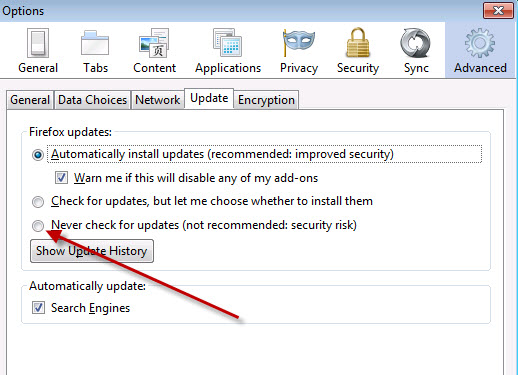
Attached is the desired result with "never check for updates"