Clean install of thunderbird but no profile found in usual location. I put in some old profiles, but still doesn't recognize them. Multiple tries.

I've used thunderbird for years. Now I can't get it back. I tried a clean uninstall/reinstall. Downloaded from the thunderbird site. Seems to install fine, but then says no profile recognized. I put some old profiles in the appdata\roaming\thunderbird\profiles in desperation, but still no luck. My clean uninstall did involve registry entries (Revo-Uninstall). So I'd like to get a clean start with Thunderbird, but it won't let me. Any suggestions greatly appreciated. I dread the idea of using another email after all these years!
Solution eye eponami
If you have the explicit profile you used, not the Thunderbird folder, but the actual profile folder, this should be easy. Your old profiles.ini file will have its name. When you open that old profile in windows file explorer, you will several files, one of which is abook.sqlite and probably an imapmail folder and a mail folder. You are getting a no profiles found message because whatever you are placing there has its own problems. Here are my suggested steps:
- delete any appdata\roaming\thunderbird folder while thunderbird isn't running
- restart thunderbird so it can create a default profile
- bypass the prompt to setup an account and click help>troubleshootinginformation
- scroll to 'profile folder' and click 'open folder'
- exit thunderbird
- you are now in the profile. delete everything
- now, copy your saved profile and paste it in here.
- restart thunderbird and it should see it.
All Replies (6)

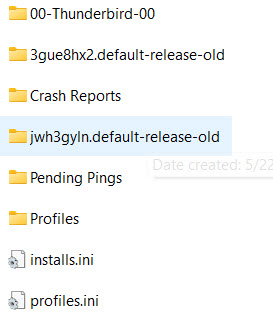
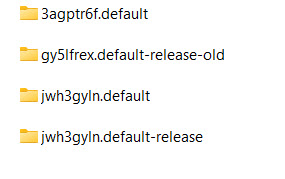
Please show us a listing of the contents of both the Profiles folder (appdata\roaming\thunderbird\profiles) and the Thunderbird folder (appdata\roaming\thunderbird). Screen shots will do.
Also post the contents of your PROFILES.INI file, which is normally found in the Thunderbird folder.
I'm wondering if I should just delete all of the profiles in the profiles subfolder and let the new install create its own profile. But what I was trying to do.... maybe foolishly...was to install a new thunderbird program but retain the configuration I have on my current one.....Many thanks for your offer to help! Images added.
Solution eye oponami
If you have the explicit profile you used, not the Thunderbird folder, but the actual profile folder, this should be easy. Your old profiles.ini file will have its name. When you open that old profile in windows file explorer, you will several files, one of which is abook.sqlite and probably an imapmail folder and a mail folder. You are getting a no profiles found message because whatever you are placing there has its own problems. Here are my suggested steps:
- delete any appdata\roaming\thunderbird folder while thunderbird isn't running
- restart thunderbird so it can create a default profile
- bypass the prompt to setup an account and click help>troubleshootinginformation
- scroll to 'profile folder' and click 'open folder'
- exit thunderbird
- you are now in the profile. delete everything
- now, copy your saved profile and paste it in here.
- restart thunderbird and it should see it.
John Clarke said
I'm wondering if I should just delete all of the profiles in the profiles subfolder and let the new install create its own profile. But what I was trying to do.... maybe foolishly...was to install a new thunderbird program but retain the configuration I have on my current one.....Many thanks for your offer to help! Images added.
Well, I was hoping to see the file dates and sizes in your screen shots, but they're not there, and you didn't post the content of the PROFILES.INI file. I was going to try to repair your incomplete attempt to restore your profile, but now I think it will be less complicated for you to start over by following david's method.
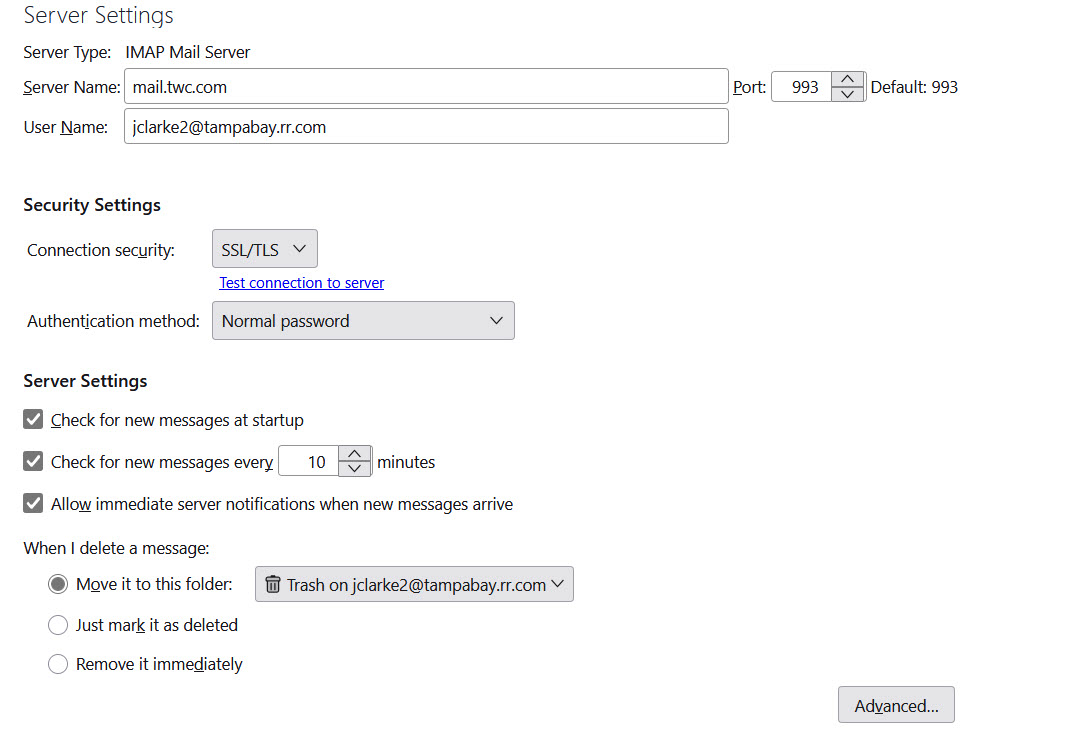
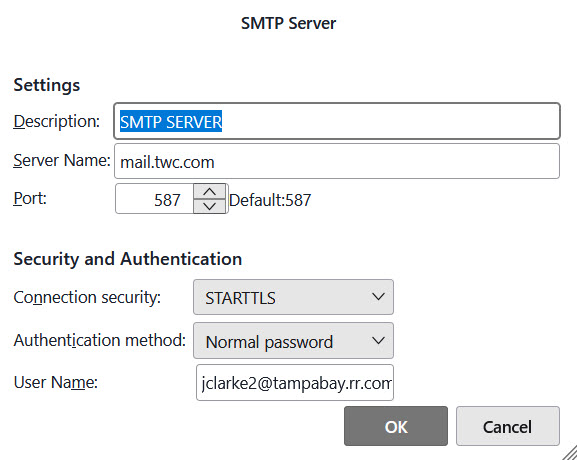
Lin and David. Many thanks for help. I had to jump through some hoops, but I eventually got it working. I didn't realize that you had to establish your account with TB before it would create a profile! So I wasted a lot of time on that one, copying profiles to the appdata\thunderbird\profiles folder. Also there were some issues with the Outgoing and incoming server settings. Spectrum wasn't much help, and I got most of the help from internet sources for the server settings, but i have it set up now.
Now I need t decide if I want to try to recapture the layout I've been using for years or not. I'm finding that the new setting (for me) is pretty good, with the contents of the new mails showing up on the right pane. Anyway, I have a functional email now and I'm grateful for the help! If anybody wants it, I have copies of the incoming and outgoing server settings which work for me and will post them. Jack (Also, I had to go to Google to find out how to get rid of the "donate" nag screen. I had already contributed but couldn't close it.)