


HELP I have asked for help with this problem and no one seems to know

I made a folder and called it April. One day the folder just disappeared. No one seems to help me recover the folder and i need it. Once I moved emails into that folder they are no longer available in my inbox. SO if you know how to recover my folder help, or if you know how to recover emails that were sent to a folder, that would work also. I use Windows 11 and I have the most recent release of Thunderbird. I use Charter.net as my isp which is pop. Thanks,Charles
All Replies (15)

Is the folder present in webmail on Charter's website?
Is the folder in the trash?
See if the folder is still on your drive:
- Help menu > Troubleshooting information > Profile Folder > Show in [...].
- Drill down in the active profile to the "Mail" folder.
- Open the folder of the the relevant account. Is "April" there?
Do you have a back-up copy of your Thunderbird profile or of all the important data on your drive?
I did what you said and I get to the Profile Folder but there is no Show in... in that folder.
I see the entry, Profile Folder, and then it only has an option to 'open". When I open it there are entries but nothing like 'show in...' The folder that is opened is otgoegd.default-release No, I do not have a backup. I never thought Thunderbird would just remove my folders. Does Thunderbird have a backup? Maybe I do not understand the step to go to 'Show in..'?
When I follow your steps it leads me to here C:\Users\radio\AppData\Roaming\Mozilla\Firefox\Profiles\otgoegtp.default-release
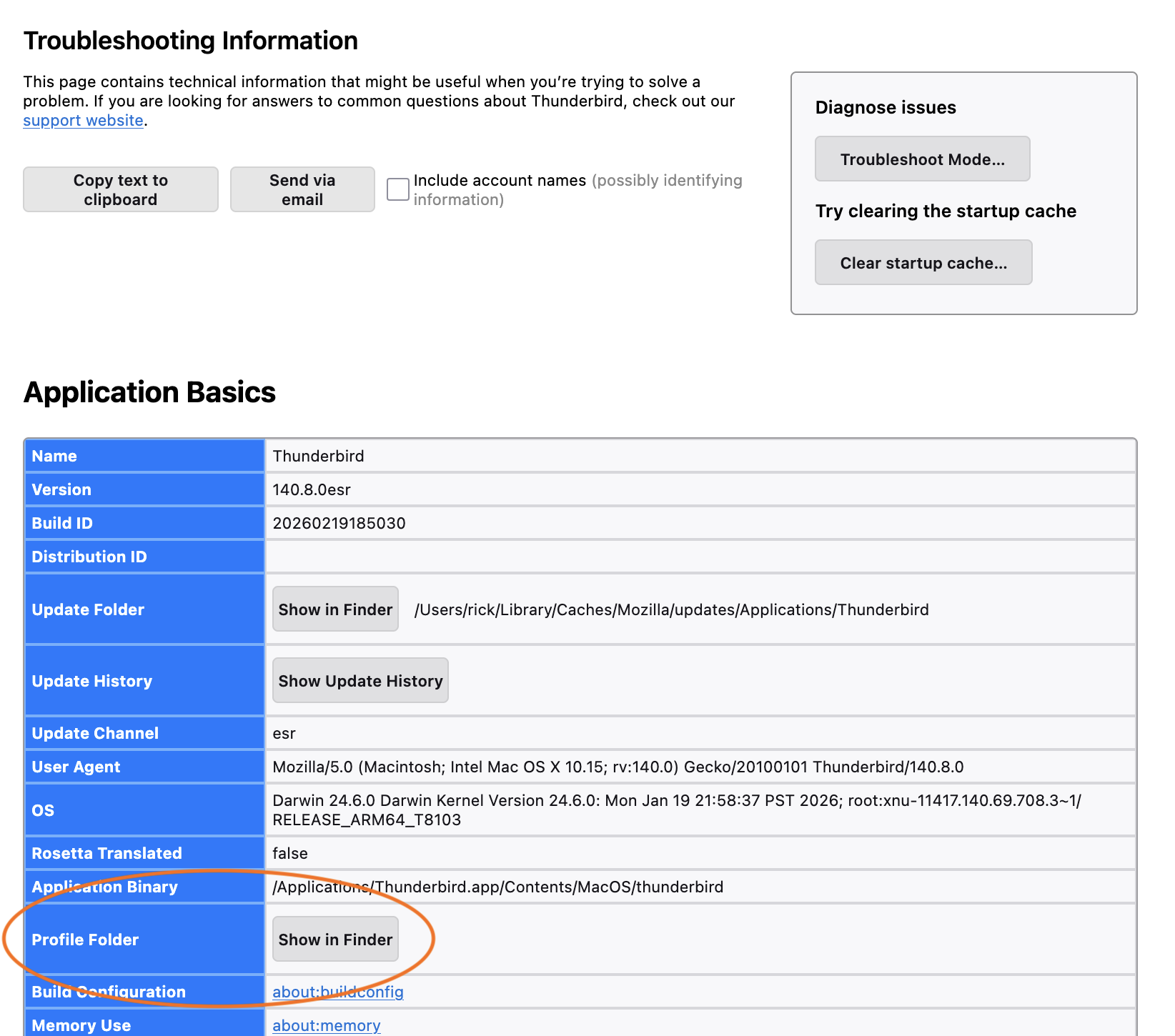
See the attached image for where the "Show in [...]" button is. If you are not using a Mac, your button will say something other than "Show in Finder".
I don't know how my directions led you to the profile folder if you didn't click on the "Show in [...]" button, but you found it. So now continue with the directions:
- Drill down in the active profile to the "Mail" folder.
- Open the folder of the the relevant account. Is "April" there?
I am sorry to be a little lost, I followed this Help menu > Troubleshooting information > Profile Folder > Show in [...]. I find the Profile Folder, but the only thing in there is "open". When I open it I get a list of things but no mail folder. I use a Microsoft 11 PC.
radios said
I am sorry to be a little lost, I followed this Help menu > Troubleshooting information > Profile Folder > Show in [...]. I find the Profile Folder, but the only thing in there is "open". When I open it I get a list of things but no mail folder. I use a Microsoft 11 PC.
Did you click on the button that I circled in my image?
When you do, you will see the top level of your profile folder in the file system, that is, you will see C:\Users\radio\AppData\Roaming\Mozilla\Firefox\Profiles\otgoegtp.default-release and you will be able to open that directory and drill down into its contents.
Or what is this only thing of "open" that you see? What kind of thing is that? Please show a screen image.
Would you please post a screen image of the things that you see when you open your profile folder?
I found "opne folder" in the Prifile folder. I opened it and found the mail folder. There are two entries in the mail folder: Open Folders and Smart Mailboxes, and there is nothing in those folders
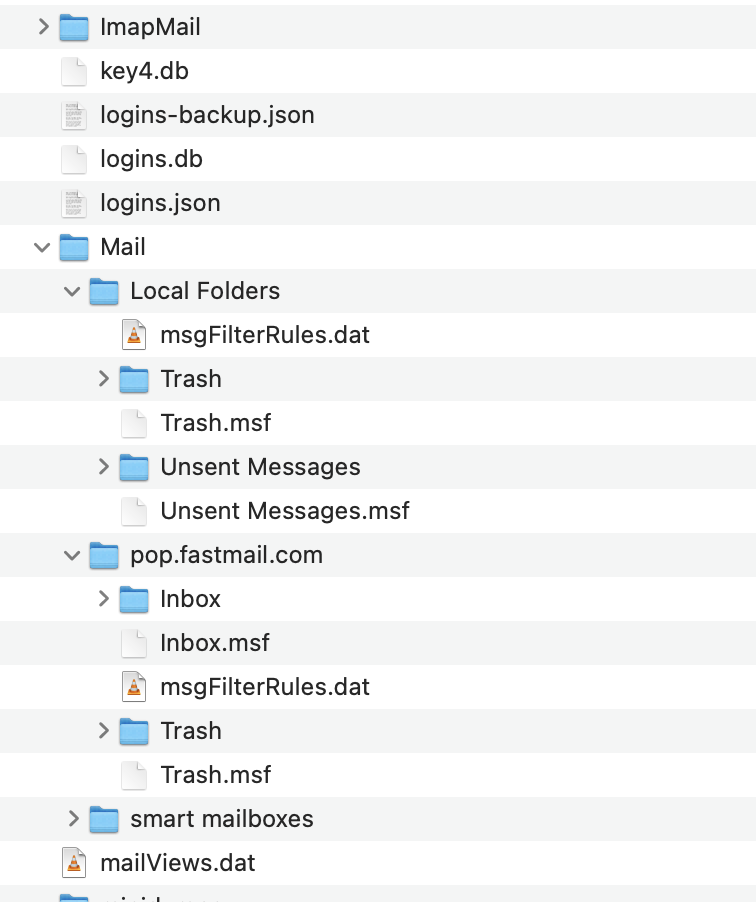
It is hard to know what you are looking at. "Open folder" and "open folders" are commands for operating on folders, not contents of folders. If you have a POP account, as you wrote that you do, there should be a POP account in the mail folder. There must also be a local folders account. Would you please post a screen image? It should look like my attached image.
Is Thunderbird working? Can you send and receive messages?
Are you sure that your account is a POP account? If you are not sure, you can check by going to account settings, selecting "Server Settings", and noting the server type at top right.
Create a screenshot on Windows Once you have the screen presented the way you want for the screenshot:
- Press the Print Screen or Prnt Scrn or Prt Sc key (depending on your keyboard). This key is usually found in the upper right section of your keyboard. To capture only the active window, hold down the Alt key at the same time.
- Go to the Windows Start menu Windows Icon and open up the Microsoft Paint program from the Programs list (look under Accessories).
- Once Paint is open, click Paste and your screenshot will appear.
- Save your image as a PNG file, in an easy-to-find location, such as your desktop.
- You now have a screenshot that you can add to your forum post by clicking the Browse button below the Post a Reply box.
I tried to do a copy and that didn't work,so I tried to do a screen shot, it took but will not post here.
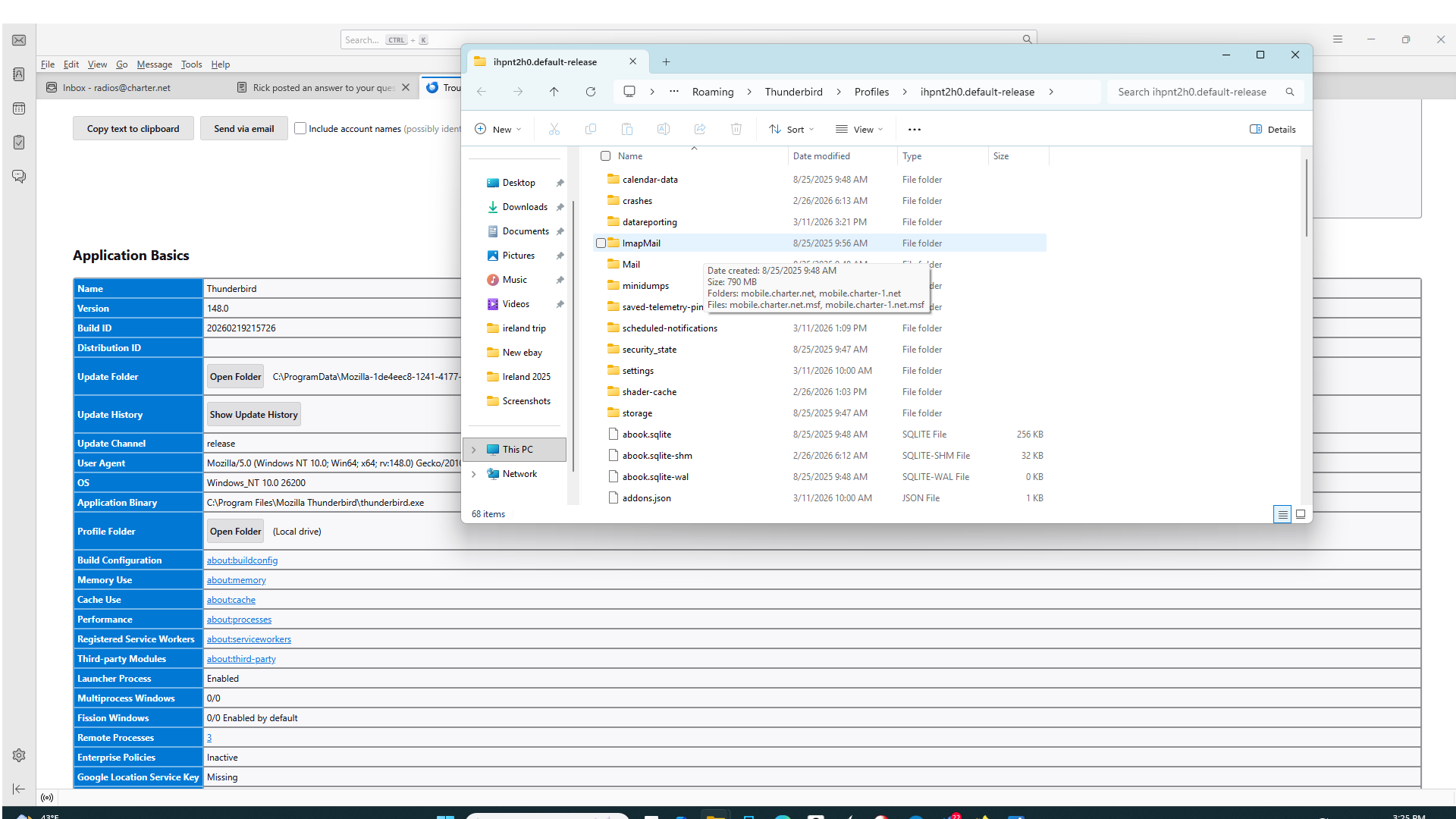
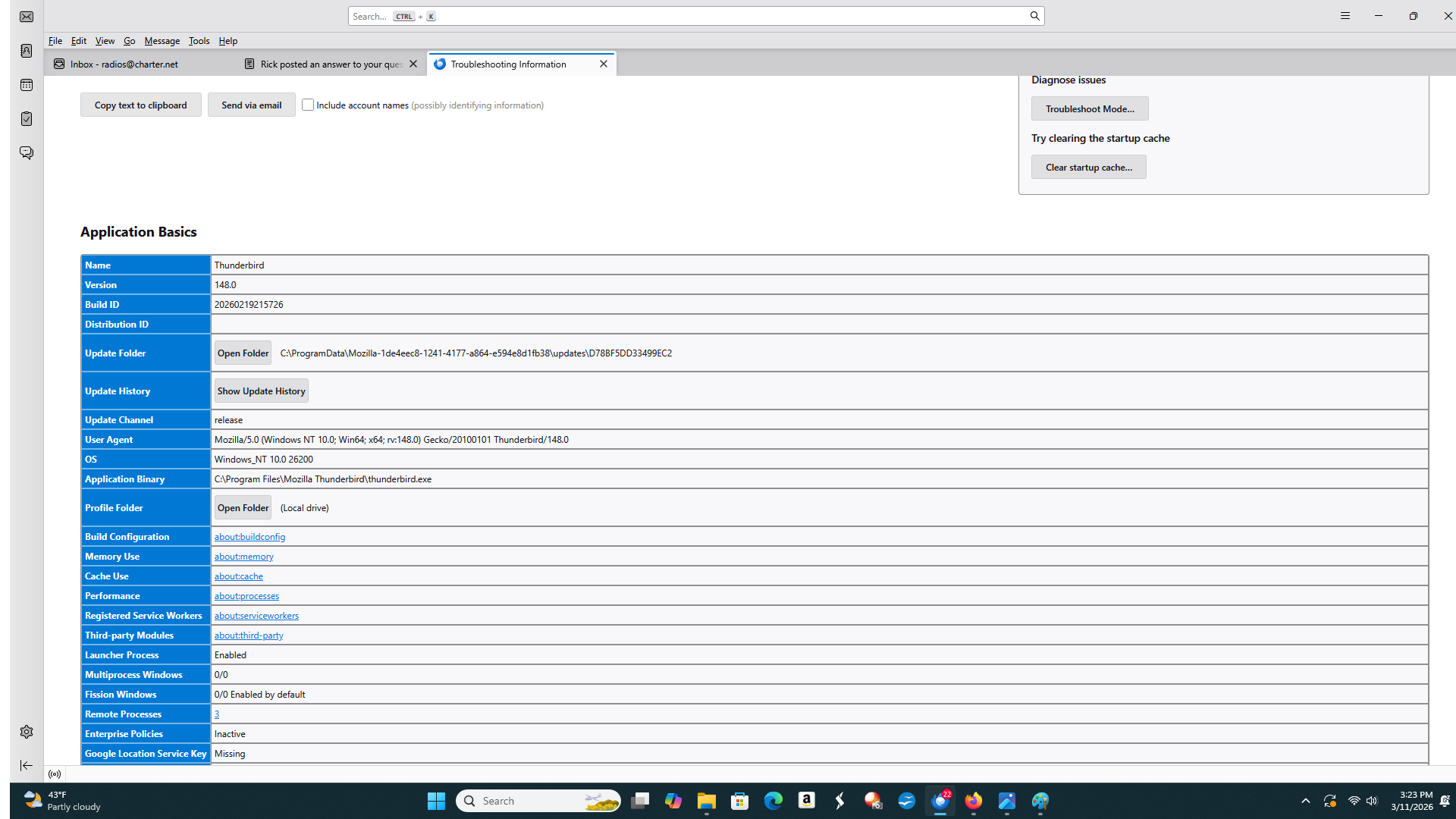
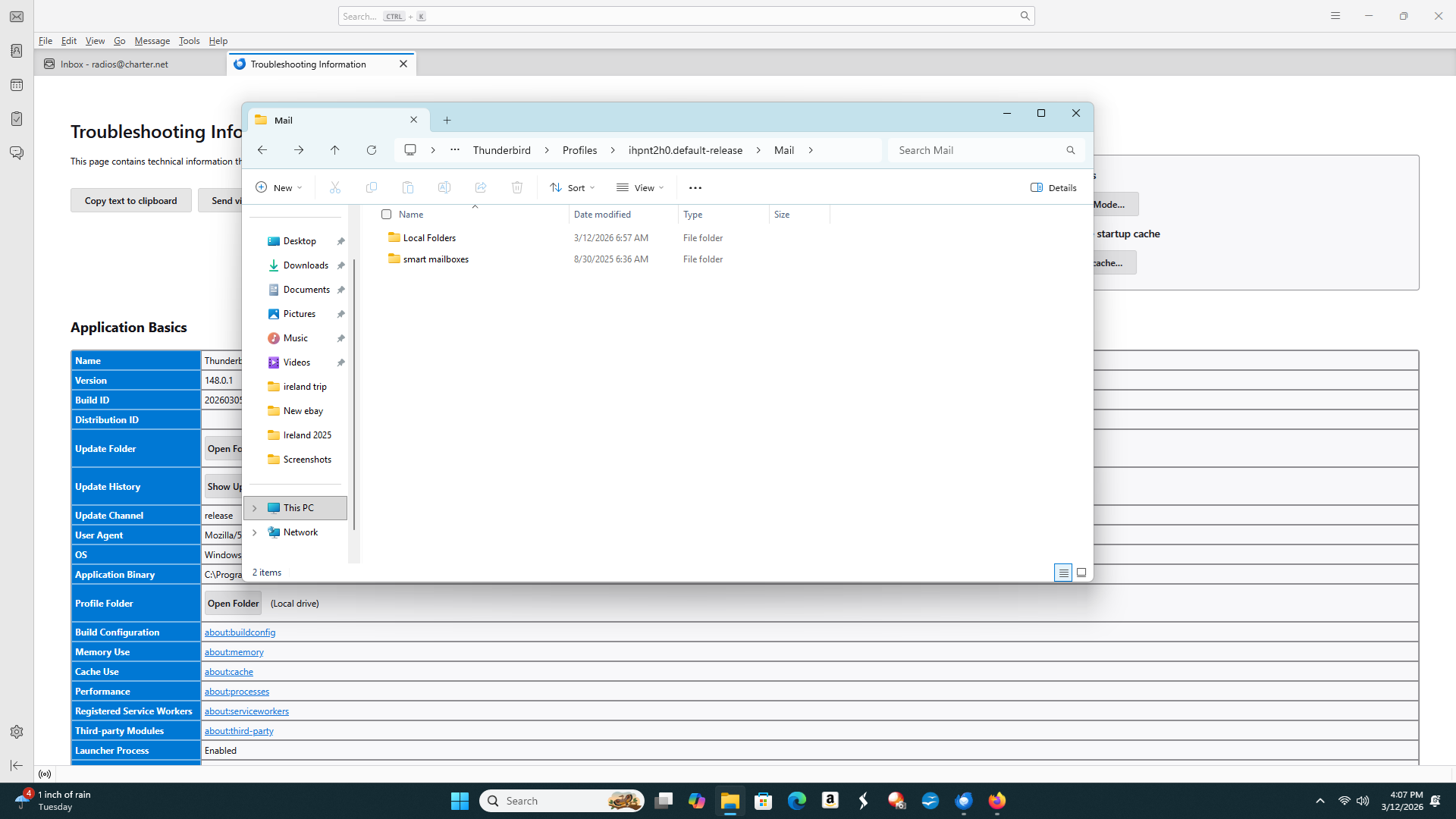
There is also no sign of a POP account. As I wrote before: Is Thunderbird working? Can you send and receive messages? Are you sure that your account is a POP account? If you are not sure, you can check by going to account settings, selecting "Server Settings", and noting the server type at top right. (Access account settings by clicking on the three-lined button at top right of the Thunderbird window, then selecting "Account settings".)
Would you please go up a level in the folder hierarchy from what is in your last screen image, find the ImapMail folder, open it, take a screen image of its contents, and post the screen image?