Import fails to import mail folders

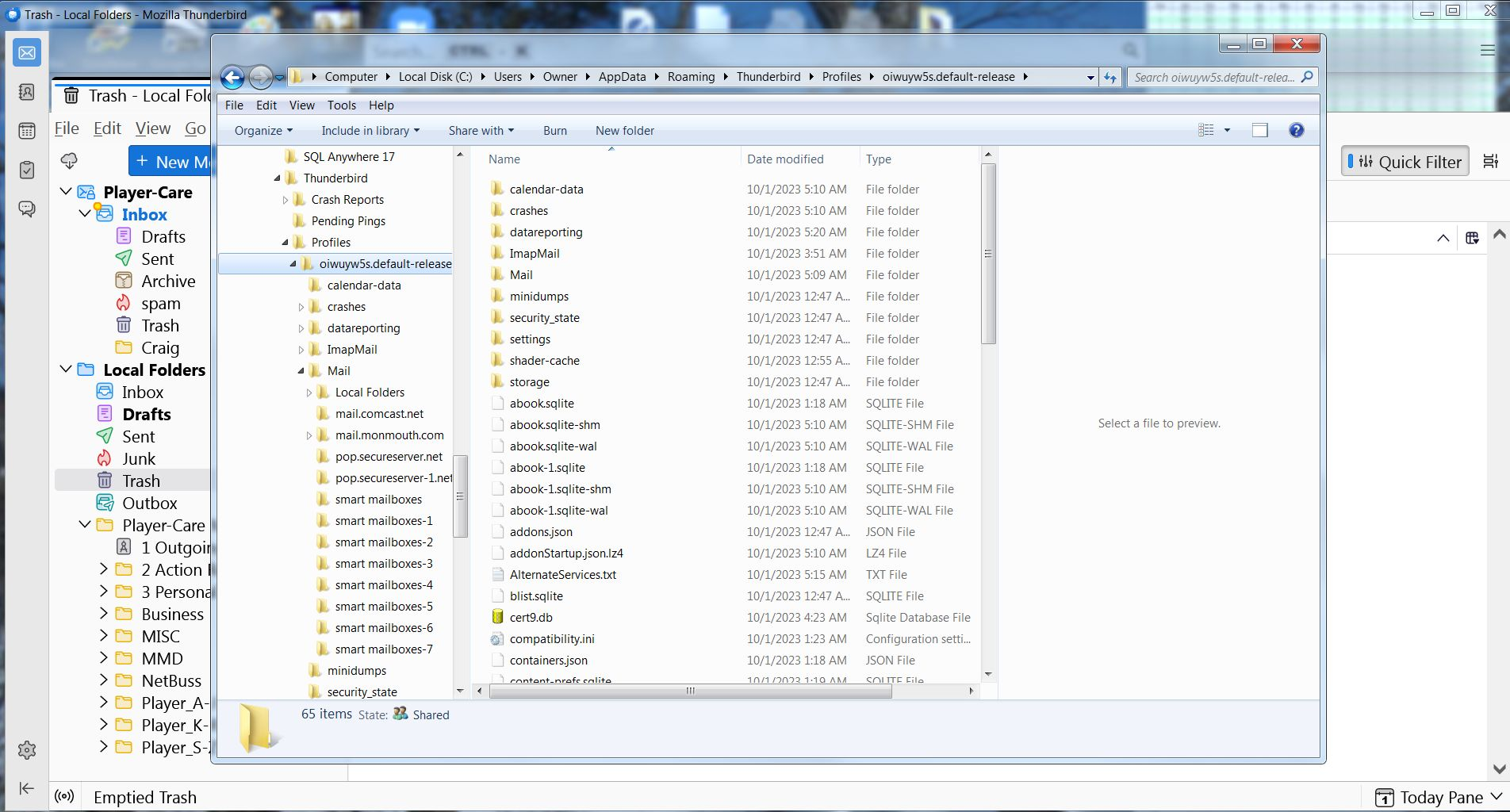
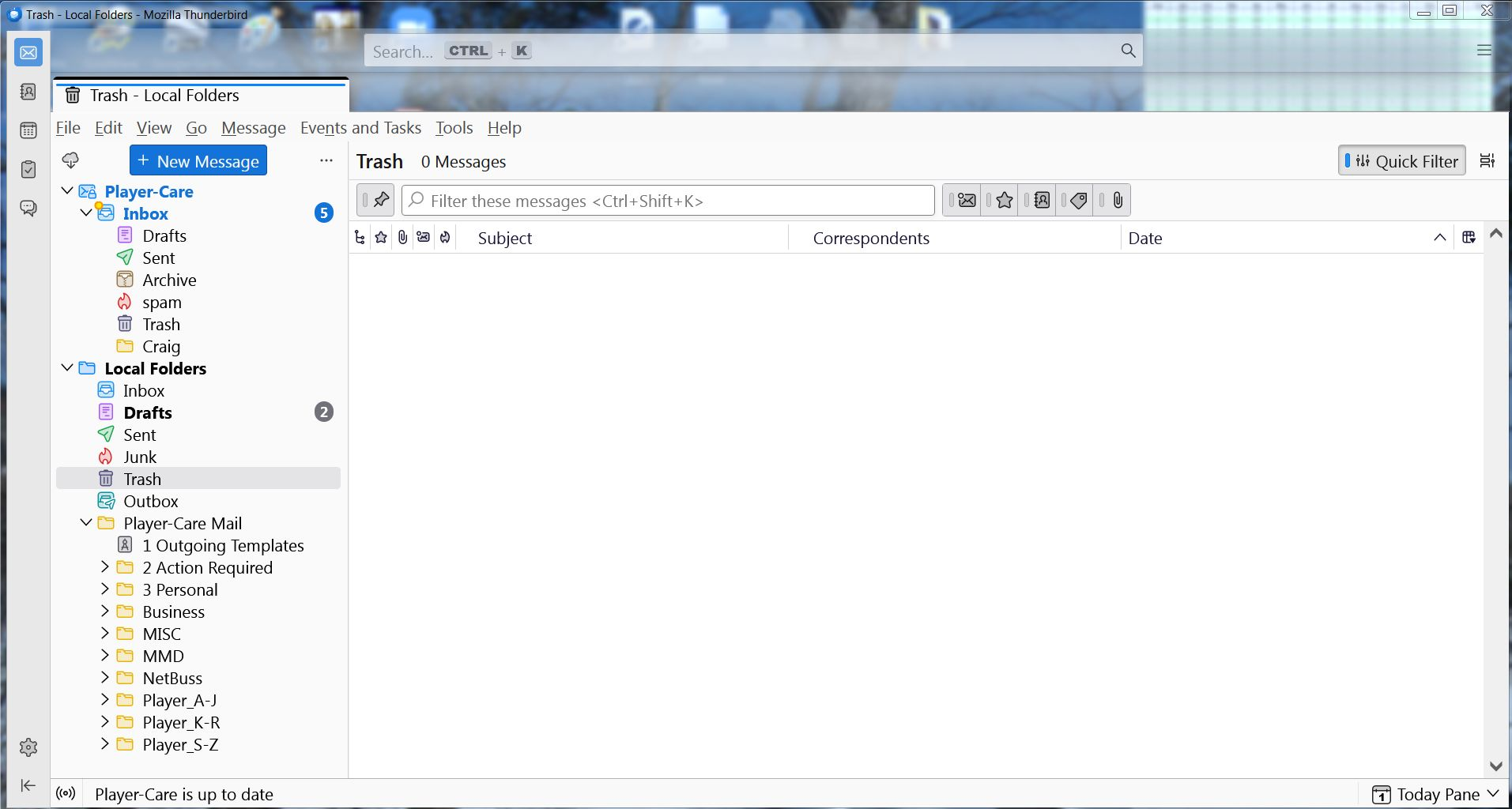
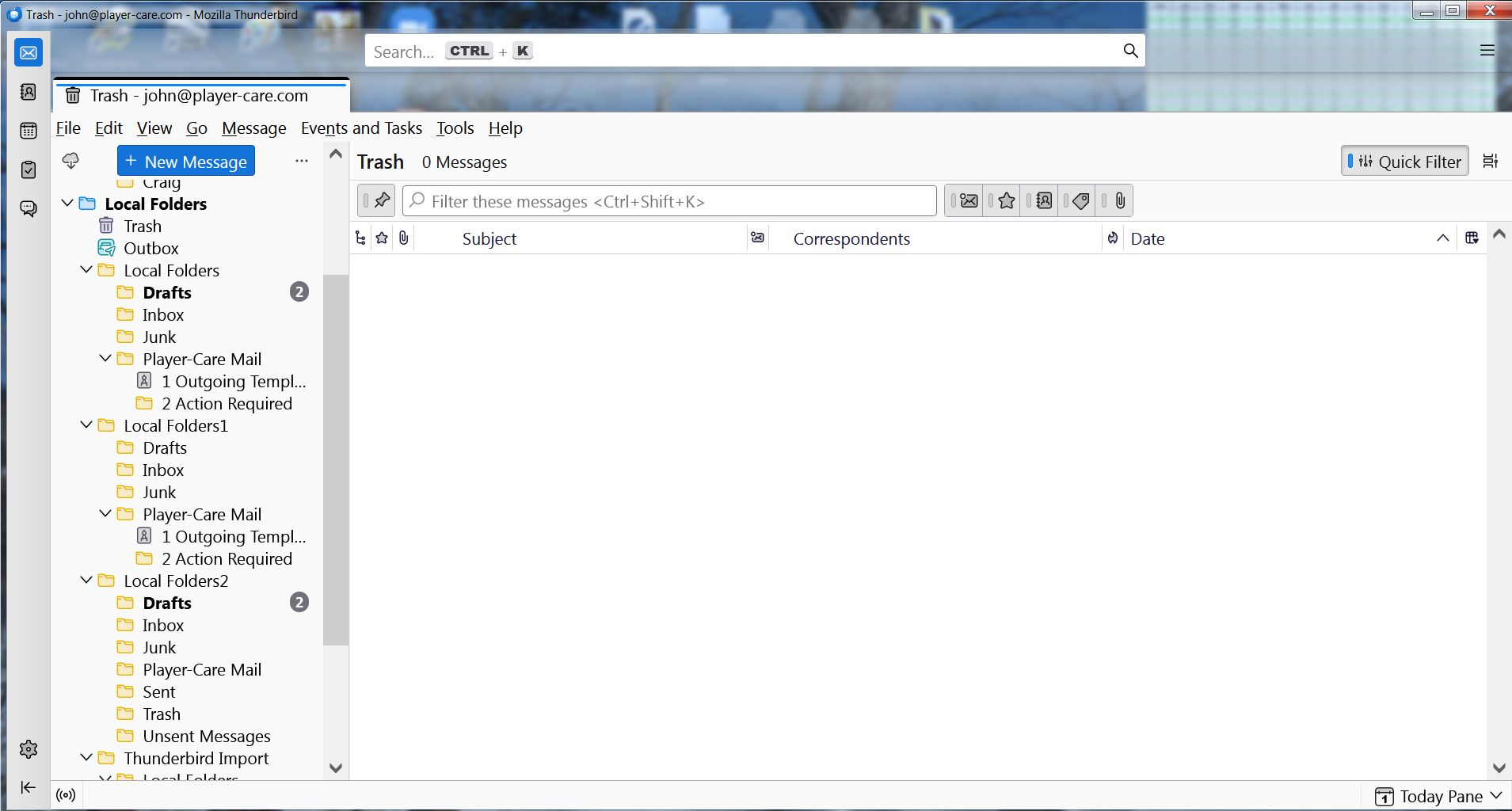
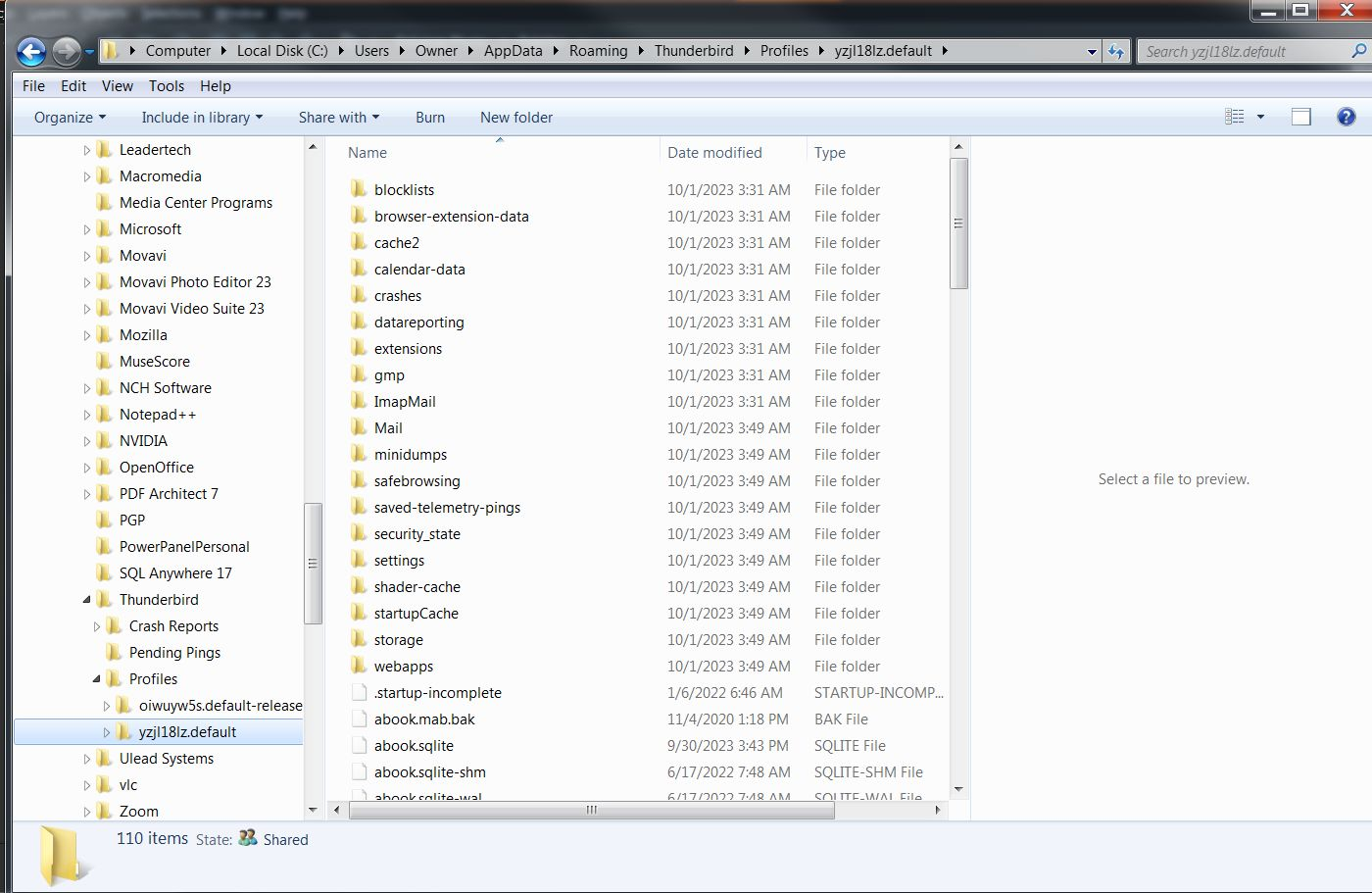
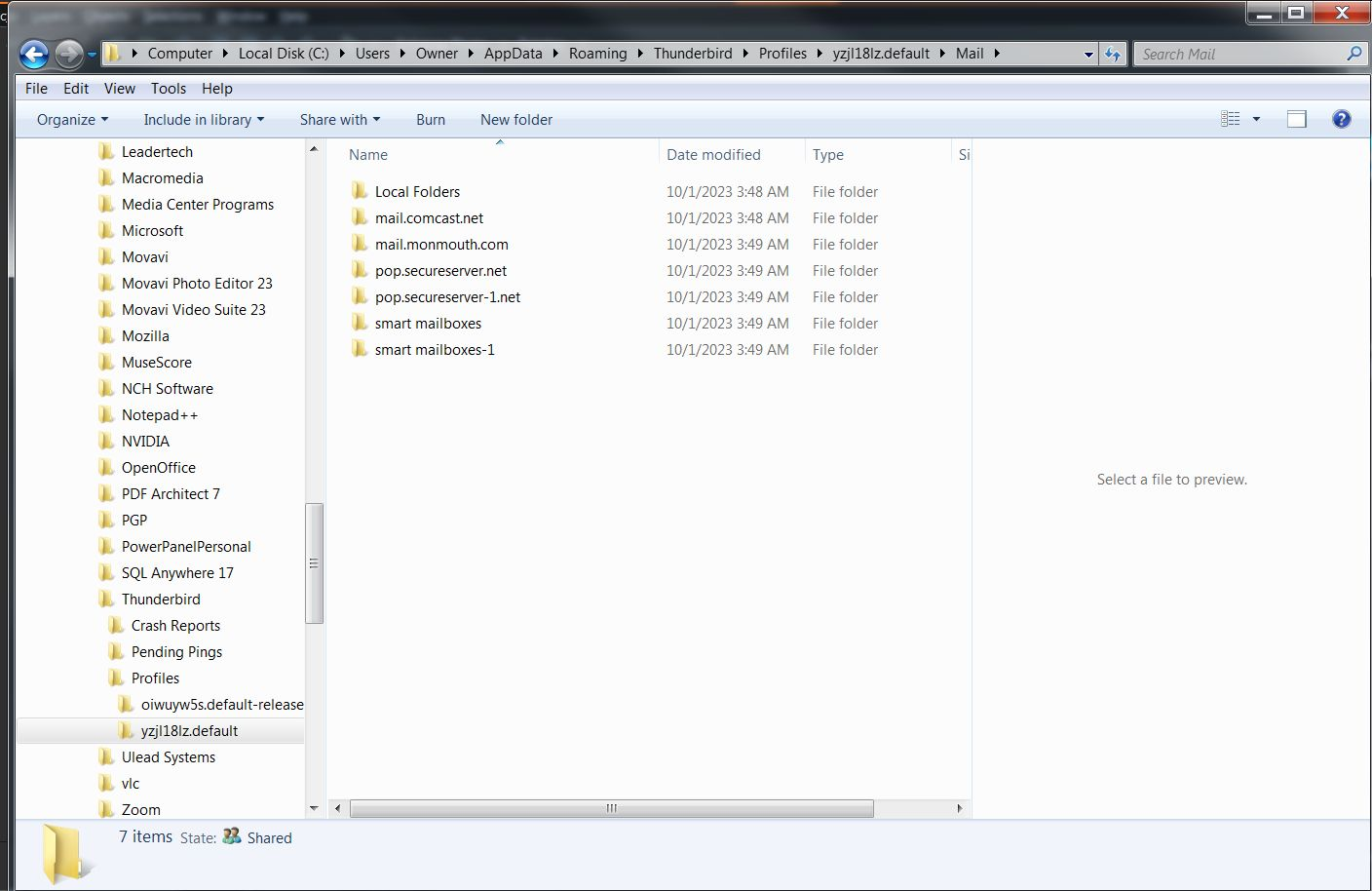
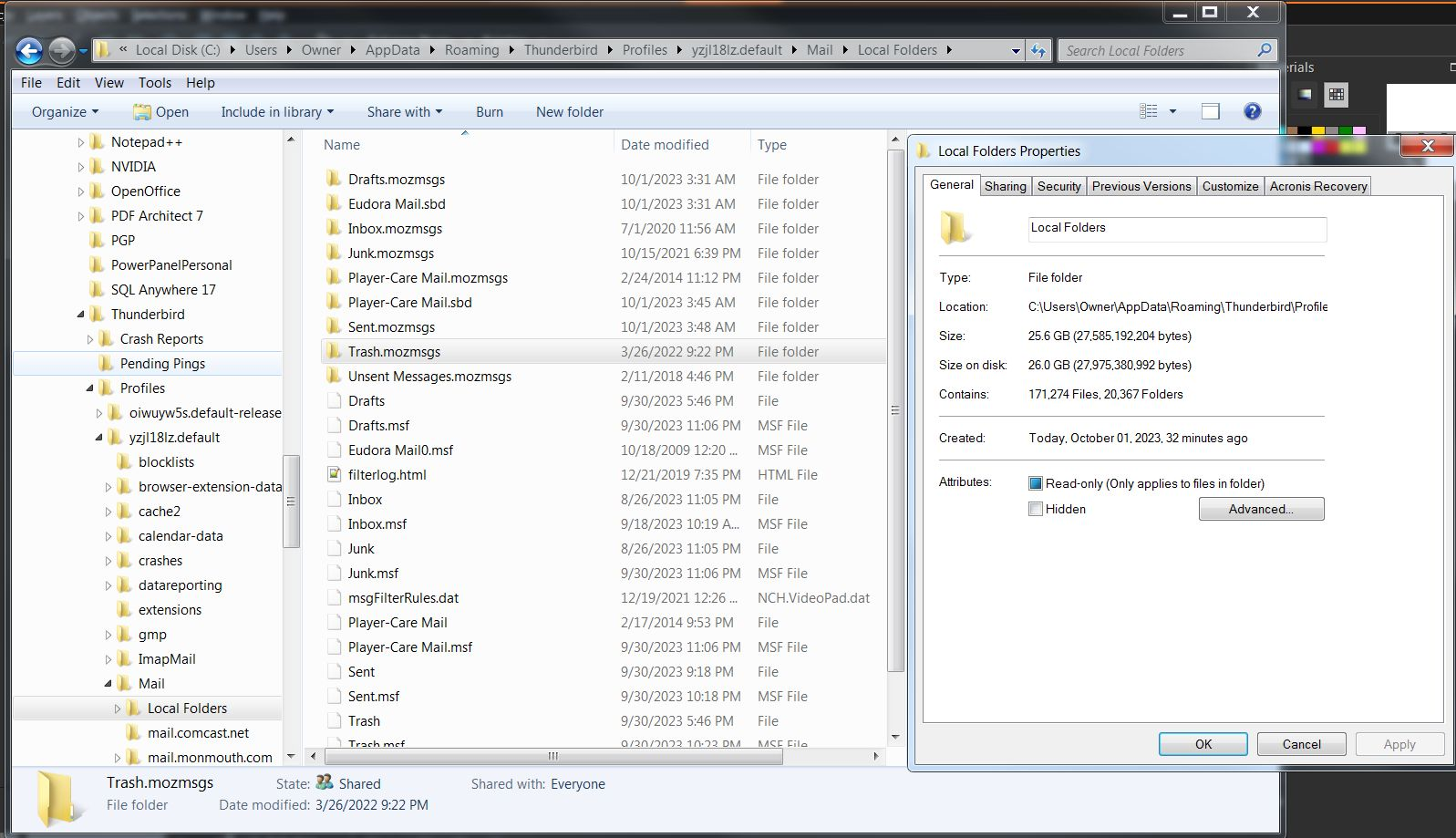
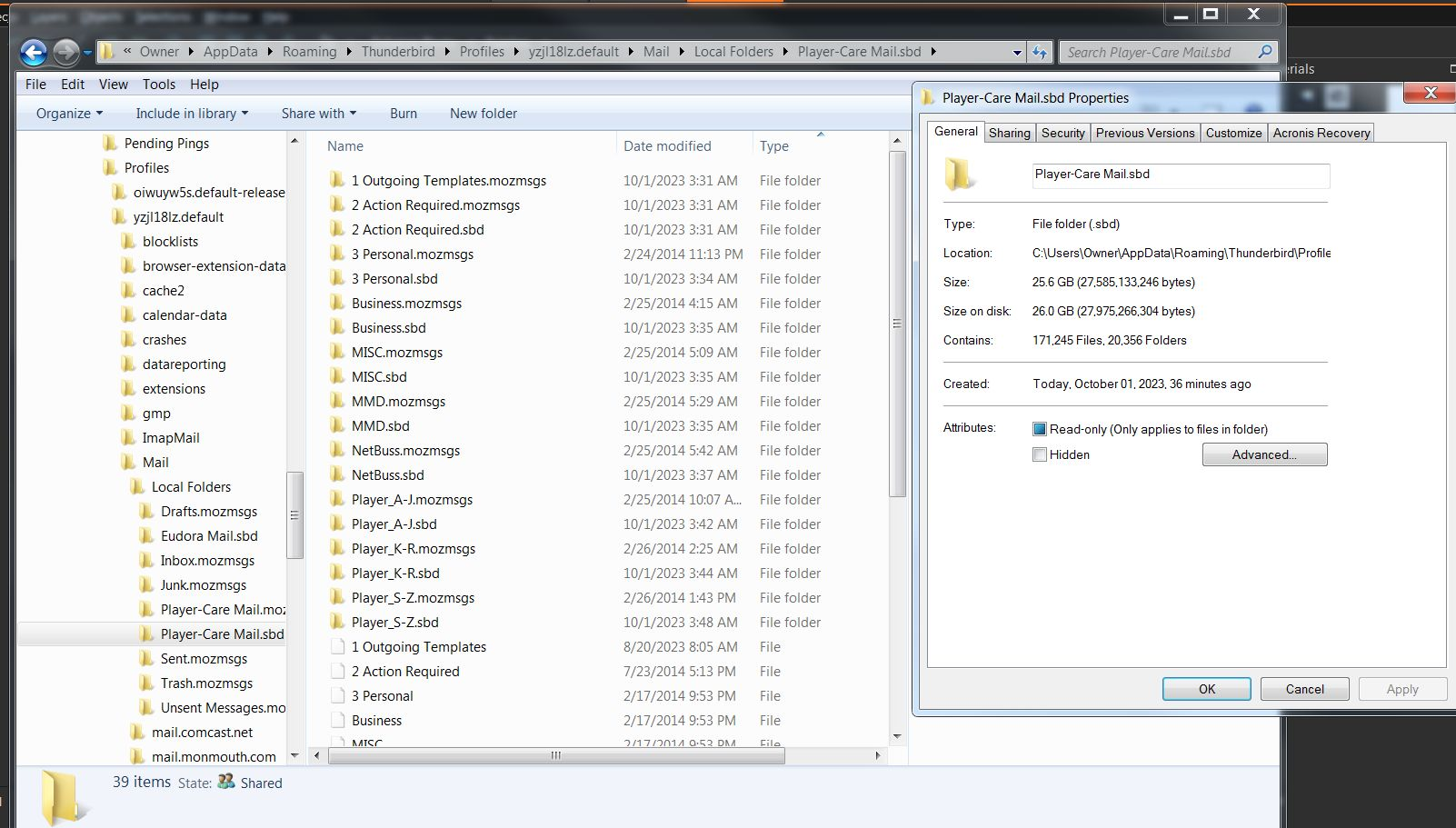
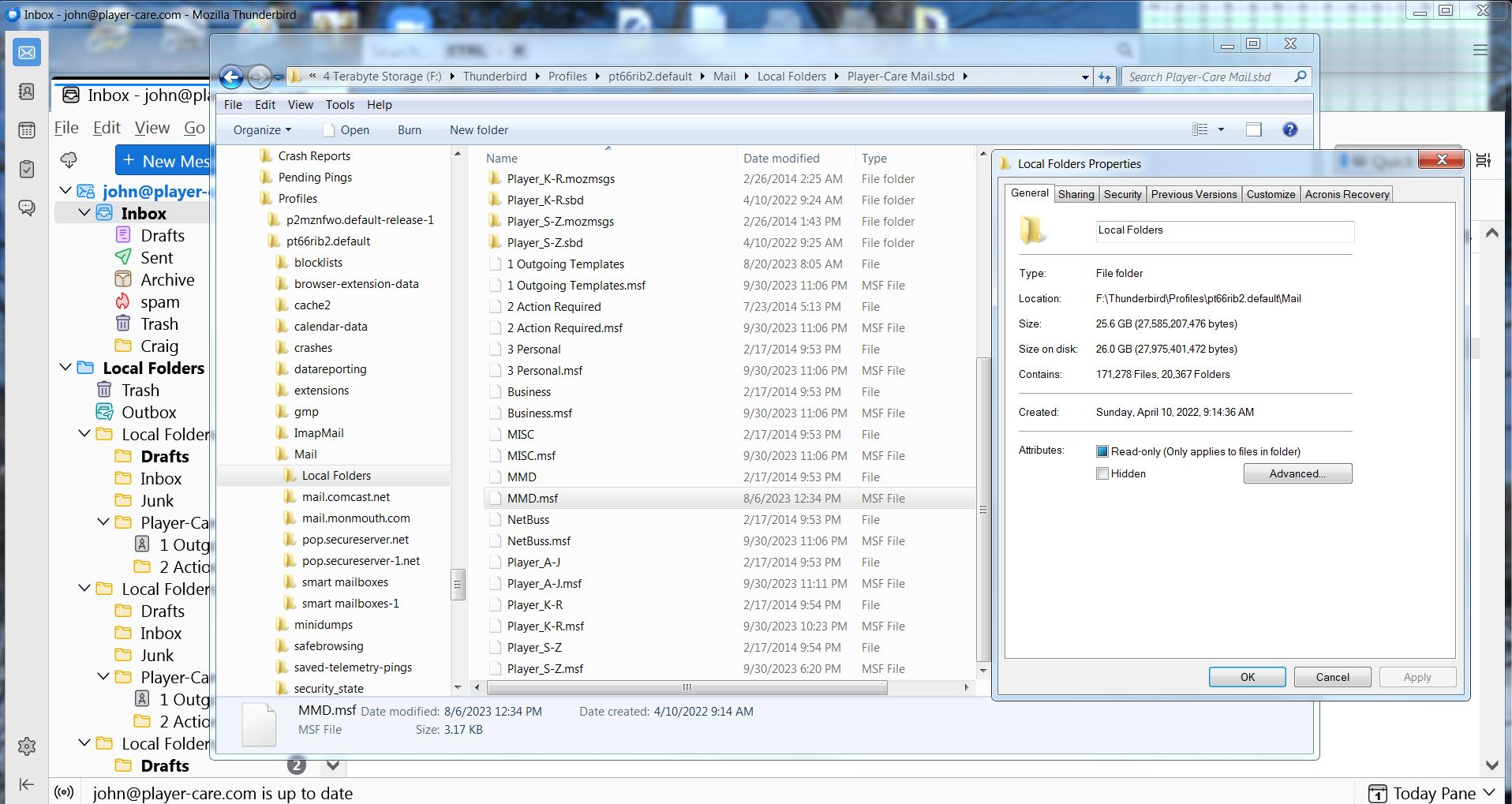
Please excuse me if I don't have all the terminologies right. After repeated failures to import my Mail folders to Supernova, I copied my entire profile from the previous version, the one just before 115.3.1 (64-bit), to another hard drive. Then I uninstalled Thunderbird and deleted the remaining files in AppData\Local and AppData\Roaming. Then I got a fresh copy of Supernova and copied the old files into AppData\Roaming. Next, I used the Import feature, selecting 'Import from another Thunderbird installation'. Under the 'Choose what to import', I initially selected all four options, but that didn't work at all. Next I selected just 'Accounts and Settings'. That worked. So, next I selected 'Mail Messages'. That seemed to be working for a couple of minutes before an Error Message appeared which read 'Import failed unexpectedly, more information may be available in the Error Console'. So, I closed the program and then opened it again. Oddly enough, a few of the Local Folders showed up. The other 16 folder did not. I've supplied six screenshots so you can see what's still missing. What am I missing?
All Replies (1)
I solved the problem!!! In the screenshot, just below the ImapMail folder is the Mail folder. HOWEVER, that's not the way the directory looked ten minutes ago. Ten minutes ago, there was another Mail folder and it had the Local Folder under it. BUT, just below the Local Folder (in the tree) was the Mail folder you see in the screenshot. AND, it had all of my 20+ gigs of mail folders. So, I simply dragged that Mail folder to the 'oiwuy5s.default-release' folder. When I did that, the computer asked if I wanted to merge the files, and I said YES. Then when I opened Thunderbird again, all of my mail folders (over 9000) were there. (There was lots of other Local Folders and Imported folders, but I deleted all of them until all I had left were the right ones.
Now the only thing I'm wondering is, Can I get rid of some of those 'smart mailboxes'? I'm guessing there's only suppose to be ONE.