


Use Thunderbird to archive emails

Hello, I retired in June. I asked my employer to allow me to archive my emails before they deactivated my work account. The Director of IT has been very helpful in recommending various apps that can do that. One was enormously expensive. One archived all my emails together (29K) and it is very difficult to locate one separately. The IT Director has also recommended Thunderbird. I have downloaded it but am having difficulty using it. I have saved all my emails using Google Takeout and the emails are saved in an mbox format. If you could help me get started with making sure the Thunderbird default settings are correct, placing the emails into Thunderbird and showing me how to access certain emails (and delete ones I don't need to save), I would greatly appreciate it.
Thank you, Susan Hook
모든 댓글 (1)
I will attempt to assist:
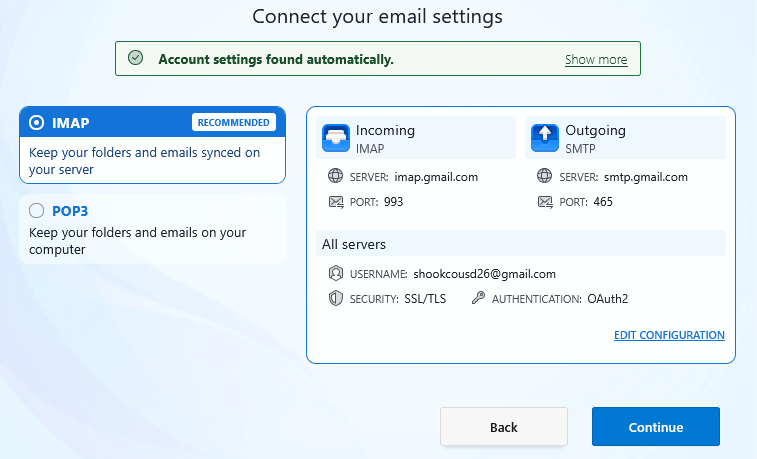
- first, you need a working account before you can import those mbox files. Any email account will suffice.
- then, click the menu icon in upper right (three short horizontal bars) and click 'addons and themes'
- there, search for and install the addon 'importexporttools NG'
- now, highlight 'Local Folders' in left side of screen
- then, rightclick and select the importexport option to import mbox file, that drops you to Windows File Explorer where you can select one of the mbox files you created from google takeout
- repeat the above process for all of the desired mbox files
- check that content is good
- you're now done.
BUT, I encourage you to do a backup.. Here are steps for that:
BACKUP
- ensure thunderbird is not running
- enter %appdata% in search window on task bar and press Enter key
- this should open windows file explorer in Appdata\roaming folder
- highlight the Thunderbird folder and copy to external media for backup
Should your PC ever crash, you can restore with these steps:
RESTORE
- ensure thunderbird is installed, run once, and NOT running
- enter %appdata% in search window on task bar and press Enter key
- delete the thunderbird folder
- you should be in Appdata\roaming folder , copy&paste the exported Thunderbird folder there.
- start thunderbird and all should be there
If the above is a tad too much, please save it, but let me know questions. Thank you