


How to filter all incoming emails to copy to another folder?
How to filter all incoming emails to copy to another folder?
Filter has no "on incoming" criteria, only
Subject
From
Date
Size
I want "upon arrival", copy to ... Archive will probably do.
Alternatively, is there a setting for ALL Subjects, ALL Froms, ALL Dates, ALL sizes?
Thanks.
모든 댓글 (4)

선택된 해결법
I haven't tried it yet, but seems to me that this would be effective:
Apply filter when: GETTING NEW MAIL
Match the following: Subject ISN'T: XOifdpjksdOnLKNiUfnjawe0ujncd09uu9u32n (or any nonsense string of your choice)
Perform these actions: COPY MESSAGE TO (the folder of your choice)
Worth a try?
P.S. - I tried it and it does work. Best to uncheck the "Run Manually" option box so you don't accidentally do that, which will copy everything in the Inbox to your chosen folder.
Wow, thank you, Lin, that is so blitheringly backward, I would never have thought about it.
I just ran it manually and - viola - it copies the entire folder of already received emails.
Het new emails still don't get copied, in fact, I can't receive new emails - whaaa?!?
However, I just figured out how to do what I want:
First:
Left-click/select the folder I want to auto-duplicate.
Then, from the main menu:
 Tools
   Message Filters
 Apply filter when:
   Getting new mail
     Filter after junk classification
       O Match all messages
 Perform these actions:
   Copy Message To
     [my new folder copy]  on local folders
.
Oy, it took a dozen iterations to test and figure out what to turn on and off.
Thanks for the trick, though - you've obviously been in places like this before, and now I'm smarter and have a new tool to try whenever I need an all-match via reverse thinking.
Thanks.
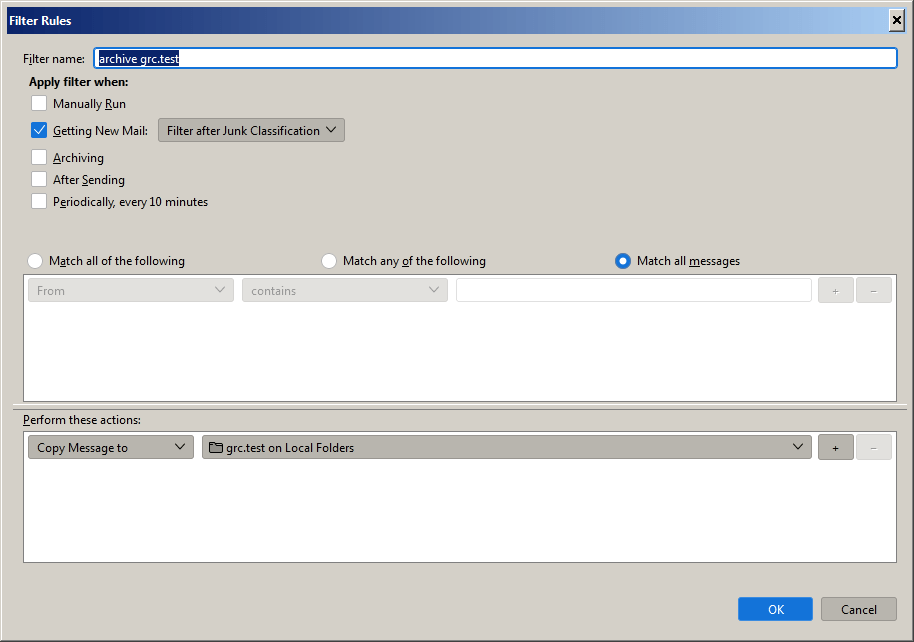

Just hunting around because I had the same question. I wonder if using "when getting new mail" in conjunction with "match all messages" would do the trick rather than using "match all..." or "match any..." I'm not clear on what "match all messages" means, exactly. Whether is means match all the messages in the inbox (eeks!) or just the new messages, as implied in "when getting new mail." I am not brave enough to try it, because I don't want to inadvertantly duplicate 10zillion messages!