


Clearing Broswer cache

When I click on Privacy & Settings and then Cookies and Site Data and select Clear Browsing Data and the select everything. It does not seem to clear the cache when I select Clear
This is what shows up: Your stored cookies, history, site data, and cache are currently using 108 MB of disk space.
I had expected it to be close to zero.
What's the scoop?
모든 댓글 (1)
Hello
After your actions.
About, cache. A trick for verify. Type about:cache in the address bar. And click on List Cache Entries.
Profiles – where Firefox stores your bookmarks, passwords, and other user data. What information is stored in my profile? https://support.mozilla.org/en-US/kb/profiles-where-firefox-stores-user-data#w_what-information-is-stored-in-my-profile
cookies.sqlite
You can try. https://support.mozilla.org/en-US/questions/1260268 Firefox browser closed, remove cookies.sqlite
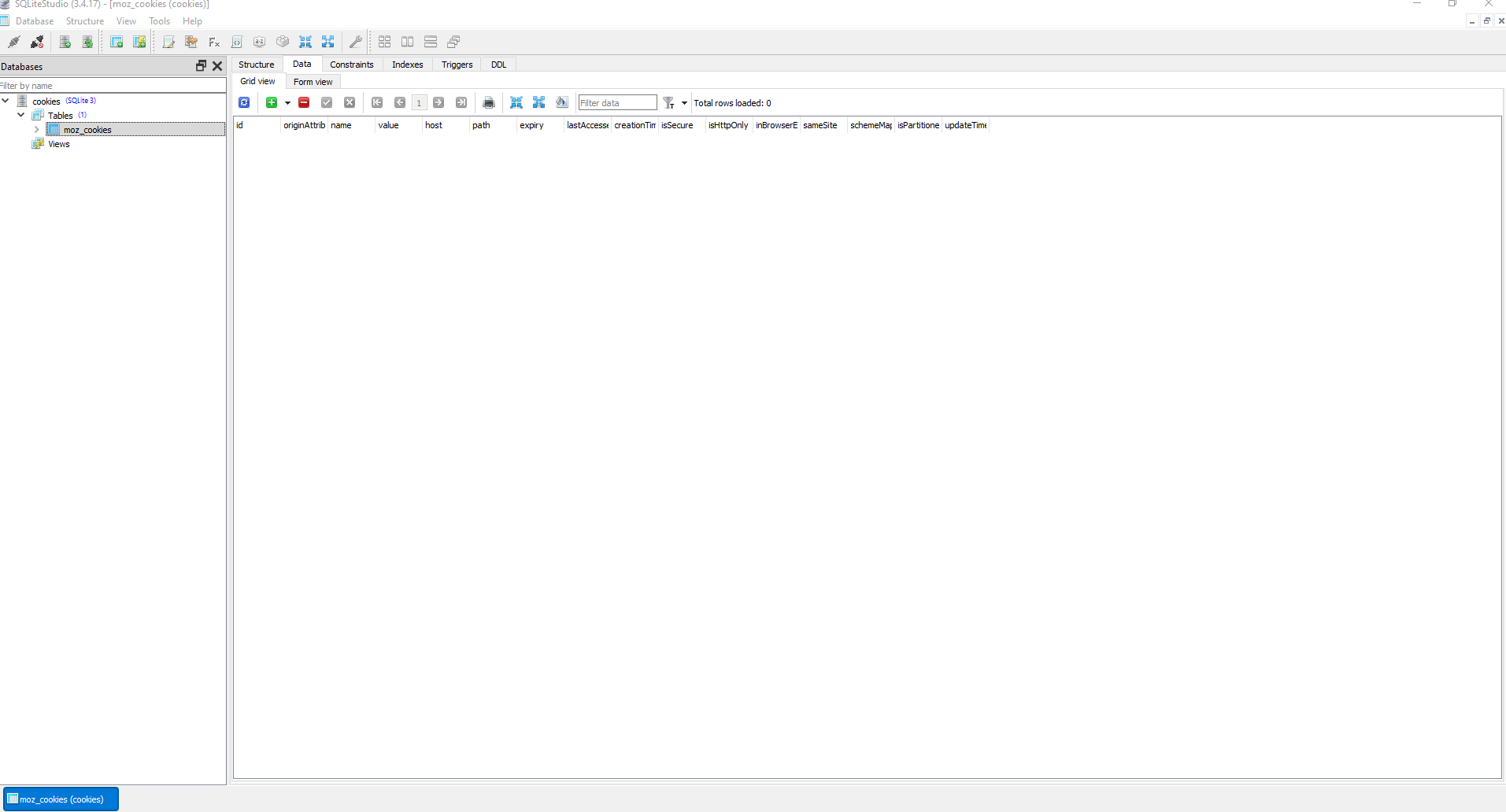
About, cookies.sqlite. To see, you can try, SQLiteStudio. By way of illustration https://support.mozilla.org/en-US/questions/1521409
Click on the file cookies.sqlite
Below, a illustration.
글쓴이 Agent virtuel 수정일시