


Unable to full screen

For a while now firefox has been unable to enter fullscreen when pressing F11. Instead all it does is move the "Scroll forwards", "Open a new tab", and "List all tabs" button over slightly (The buttons on the top right, next to the minimize and close buttons).
I don't know what's going on with firefox.
Firefox Version 142.0.1 (64-bit)
선택된 해결법
Could you check your toolbar auto-hide setting. There are two places to access it:
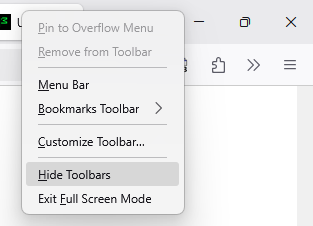
(1) After pressing F11, right-click any of the 3 Windows buttons on the right. If there isn't a checkmark next to Hide Toolbars, click Hide Toolbars. (Screenshot attached.)
(2) If you are not able to summon that menu, here's how to access the setting through the back door:
(a) In a new tab, type or paste about:config in the address bar and press Enter/Return. Click the button accepting the risk. More info on about:config: Configuration Editor for Firefox. The moderators would like us to remind you that changes made through this back door aren't fully supported and aren't guaranteed to continue working in the future. (b) In the search box in the page, type or paste browser.fullscreen.autohide and pause while the list is filtered (c) If the preference is bolded and has a value of false, double-click it (or click the Toggle button or Reset button at the right end of the row) to restore the default value of true
모든 댓글 (7)
I can replicate that if the cursor is in the address bar. If I click the page, F11 works normally. Is that a change?
jscher2000 - Support Volunteer said
I can replicate that if the cursor is in the address bar. If I click the page, F11 works normally. Is that a change?
I don't know what you're saying. Are you saying that what happens to me also happens to you but only when your cursor is in the address bar and you press F11?
Yes, if I click on the page before pressing F11, it works normally. Or if the cursor was in the address bar when I press F11, if I click the page, the toolbars roll up.
jscher2000 - Support Volunteer said
Yes, if I click on the page before pressing F11, it works normally. Or if the cursor was in the address bar when I press F11, if I click the page, the toolbars roll up.
None of that works for me. I'm on Windows 11. Restarting the PC doesn't help either. Fullscreen mode used to work months ago, now it's broken.
선택된 해결법
Could you check your toolbar auto-hide setting. There are two places to access it:
(1) After pressing F11, right-click any of the 3 Windows buttons on the right. If there isn't a checkmark next to Hide Toolbars, click Hide Toolbars. (Screenshot attached.)
(2) If you are not able to summon that menu, here's how to access the setting through the back door:
(a) In a new tab, type or paste about:config in the address bar and press Enter/Return. Click the button accepting the risk. More info on about:config: Configuration Editor for Firefox. The moderators would like us to remind you that changes made through this back door aren't fully supported and aren't guaranteed to continue working in the future. (b) In the search box in the page, type or paste browser.fullscreen.autohide and pause while the list is filtered (c) If the preference is bolded and has a value of false, double-click it (or click the Toggle button or Reset button at the right end of the row) to restore the default value of true
jscher2000 - Support Volunteer said
Could you check your toolbar auto-hide setting. There are two places to access it: (1) After pressing F11, right-click any of the 3 Windows buttons on the right. If there isn't a checkmark next to Hide Toolbars, click Hide Toolbars. (Screenshot attached.)(2) If you are not able to summon that menu, here's how to access the setting through the back door:
(a) In a new tab, type or paste about:config in the address bar and press Enter/Return. Click the button accepting the risk. More info on about:config: Configuration Editor for Firefox. The moderators would like us to remind you that changes made through this back door aren't fully supported and aren't guaranteed to continue working in the future. (b) In the search box in the page, type or paste browser.fullscreen.autohide and pause while the list is filtered (c) If the preference is bolded and has a value of false, double-click it (or click the Toggle button or Reset button at the right end of the row) to restore the default value of true
=O You Solved it! Thanks. I'll remember that when ever firefox updates and I can't fullscreen.
Hello,
I am glad to hear that your problem has been resolved. If you haven't already, please select the answer that solves the problem. This will help other users with similar problems find the solution.
Thank you for contacting Mozilla Support.