


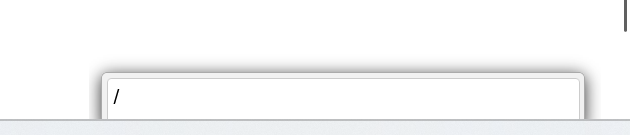
Quick Find(/) disable setting
Can we get a setting that disable the Quick Find feature or at least its keyboard shortcut.
It breaks keyboard shortcuts on multiple sites, as it is often used to select the search bar(Youtube, Github, ...)
모든 댓글 (2)
Usually websites can override this shortcut because their key interception scripts run first before Firefox handles whatever they allow to pass through. To make sure that Github or other trusted sites have this permission, you can use the following method:
While you are on a page on the site, call up the Page Info dialog using one of these methods:
- Ctrl+i (for Mac, Command+i)
- (menu bar) Tools > Page Info
- click the lock icon in the address bar, on the drop-down click the > button, then at the bottom click "More Information"
When the dialog comes up, click the Permission icon at the top to show that panel.
Scroll down to "Override Shortcut Keys" and uncheck the "Use default" box, and then select Allow to let the site override the / key (and most but not all other built-in shortcuts).
You also can disable the / key globally using the following setting:
(1) In a new tab, type or paste about:config in the address bar and press Enter/Return. Click the button accepting the risk.
More info on about:config: Configuration Editor for Firefox. The moderators would like us to remind you that changes made through this back door aren't fully supported and aren't guaranteed to continue working in the future.
(2) In the search box in the page, type or paste accessibility.typeaheadfind.manual and pause while the list is filtered
(3) Double-click the preference to switch the value from true to false
(Since we have had this setting for a long time and I use it myself, I feel comfortable mentioning it.)
Thanks for the detailed post. I had already found these suggestions in other posts and they did not fix my problem.
Currently with these settings in Troubleshooting mode, not all pages work. - Google: slash selects search OK - YouTube: slash does not select search (Does work in Chrome) - GitHub: slash does not select search (Does work in Chrome)
글쓴이 NoahSUMO 수정일시