Migration to new PC

After transfer all my data from a Win10 Thunderbird installation to a new Win11 PC with copy - paste procedure of the profiles from Local and Roaming sub folders of the old PC to the new one, I noticed the following problem (both Thunderbird installations are similar last updates etc.) All the accounts, calendars, etc are ok in the new PC, but for folders with Greek letters there are no emails inside them through Thunderbird (emails and subfolders are shown on File explorer) and also all the subfolders of these folders are not shown. After close and re-activate Thunderbird these folders with Greek spelling are double still without mails and subfolders. I made the same procedure of transferring all data from old PC to new one with no result. Any idea?
모든 댓글 (1)
Not sure exactly what you did but this is what you needed to do.
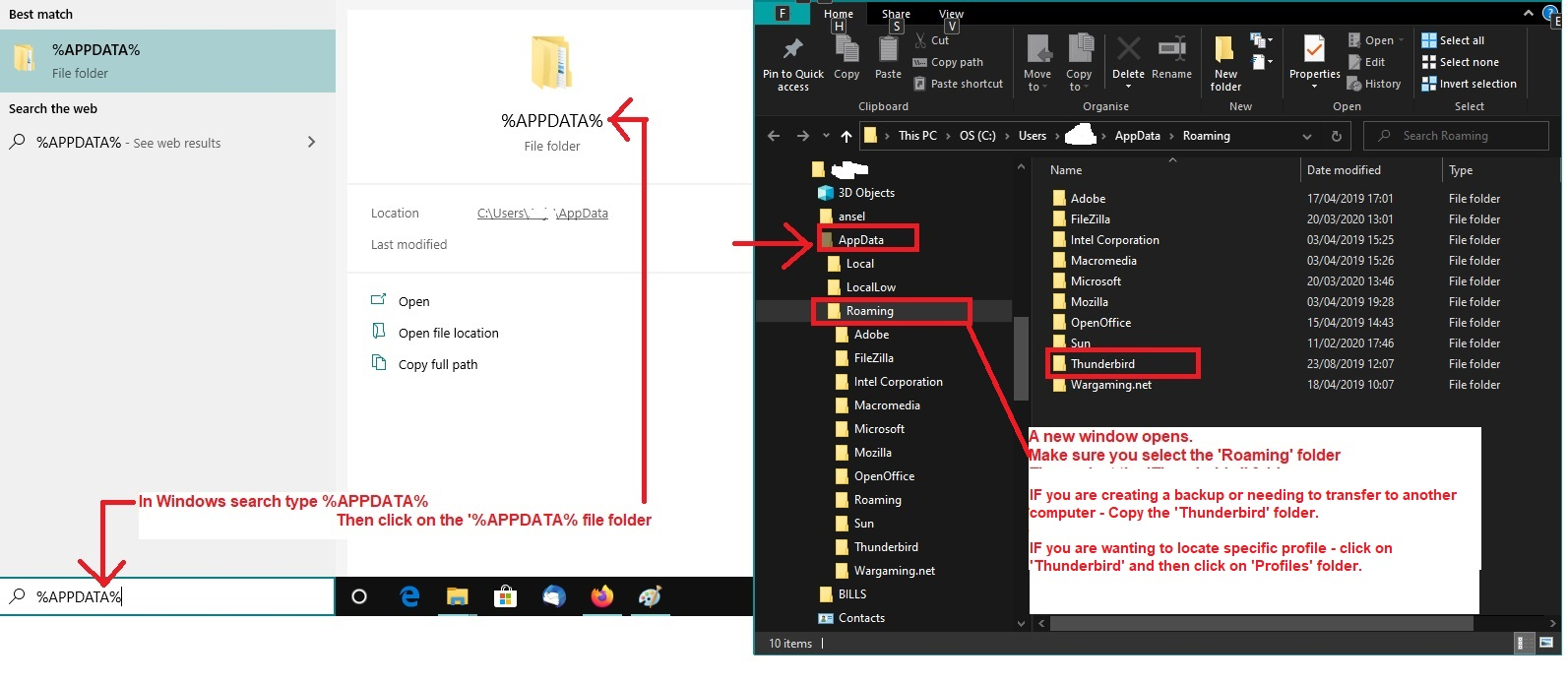
Firstly you only need to copy paste one 'Thunderbird' folder and it's in the 'Roaming' folder Do not bother with the 'Local' as it's not required and may effect results. W11 will generate a new and accurate Local Thunderbird folder.
You need to have the same version installed on both W10 and W11 computers. This is important.
W 10
- Exit Thunderbird
- In windows search type: %Appdata% - see image below as guide
- Select '%Appdata% file folder
- Select 'Roaming' folder
- Copy the 'Thunderbird' folder to external device
W 11
- Exit Thunderbird
- In windows search type: %Appdata% - see image below as guide
- Select '%Appdata% file folder
- Select 'Roaming' folder
- Delete the 'Thunderbird' folder
- Paste the copied 'Thunderbird' folder into the 'Roaming' folder
- Start Thunderbird