Thunderbird 115.0 64bit - change background colors

was recently forced to upgrade to winblows 11.. in the previous version of Thunderbird, 102.2 64 bit, I could follow these instructions to background colors in the various panes .
https://support.mozilla.org/en-US/questions/1389364
Now with version 115.0, I am having issues getting it to work.
the CSS file I am using is
- threadTree > treechildren {
 font-size: 16pt !important;
 font-family: Times !important;
 background-color: lightgrey !important;
 color: navy !important;
}
- folderTree > treechildren {
 font-size: 16pt !important;
 font-family: Times !important;
 background-color: lightgrey !important;
 color: navy !important;
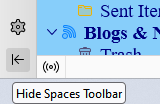
} after I follow the instructions, carefully, nothing happens. see screenshot attached...
I have 2 questions:
1 - what am i doing wrong? 2 - In the attached screenshot, how can I get rid of that toolbar in green on the left?
선택된 해결법
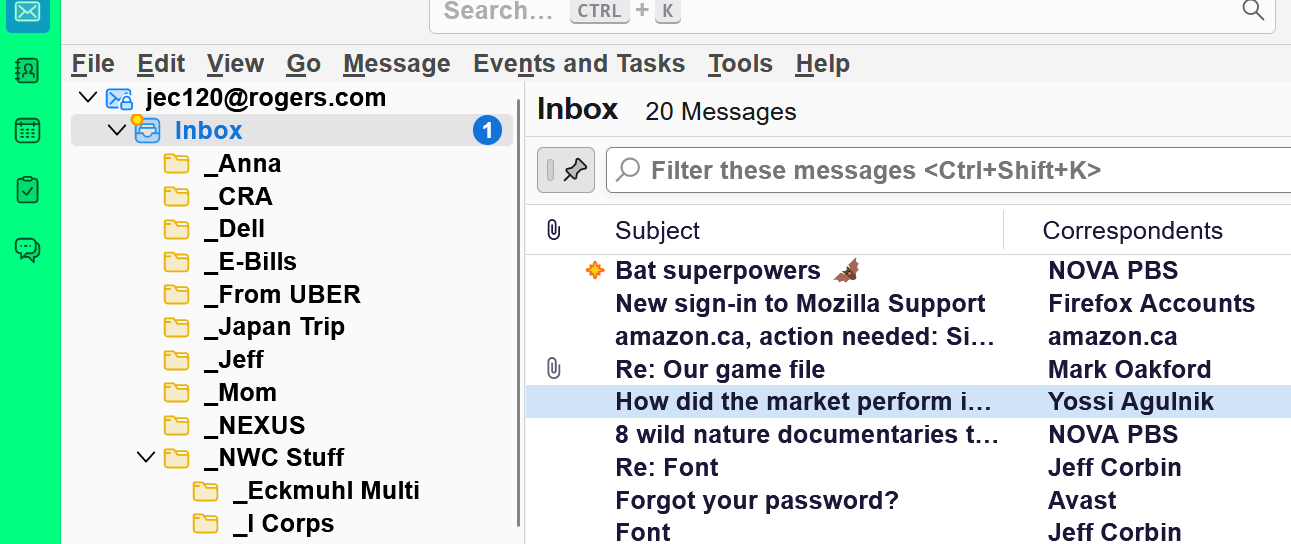
To hide the Spaces toolbar, click the arrow icon in the attached picture.
문맥에 따라 이 답변을 읽어주세요 👍 0모든 댓글 (2)
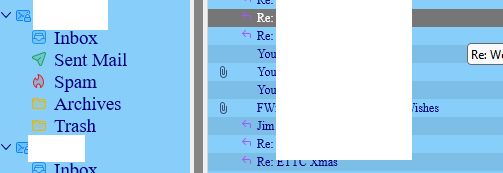
Try this.
Folder pane:
@namespace html url("http://www.w3.org/1999/xhtml");

#folderPane {
background-color: #87CEFA !important;
font-family: Times !important;
color: navy !important;
}
Threads pane:
@namespace html url("http://www.w3.org/1999/xhtml");

table[is="tree-view-table"]{
background: #87CEFA !important;
font-family: Times !important;
color: navy !important;
}
To change the font size, use View/Font Size.
To have the font-family applied, 'Allow messages to use other fonts' must be checked in Settings/General/Fonts & Colors, Advanced.
Code supplied by users here.
Help/More Troubleshooting, Profile Folder, Open Folder, close TB, create a new folder named chrome, create a new document in chrome with a text editor, name it userChrome.css (userContent.css), Save as type: All files *.*, copy in the above code, change the numbers and colours as desired. Double-click toolkit.legacyUserProfileCustomizations.stylesheets to true in Settings/General/Config. editor, restart TB.
글쓴이 sfhowes 수정일시
선택된 해결법
To hide the Spaces toolbar, click the arrow icon in the attached picture.