


Dark Mode in TB 78 - message pane is white by default - how do I get that to be dark as well?

Hi folks,
Just updated TB and I see version 78 is a very large update - congrats to all involved - excited to explore and learn new features, and fingers crossed that some of my add-ons will soon be upgraded!
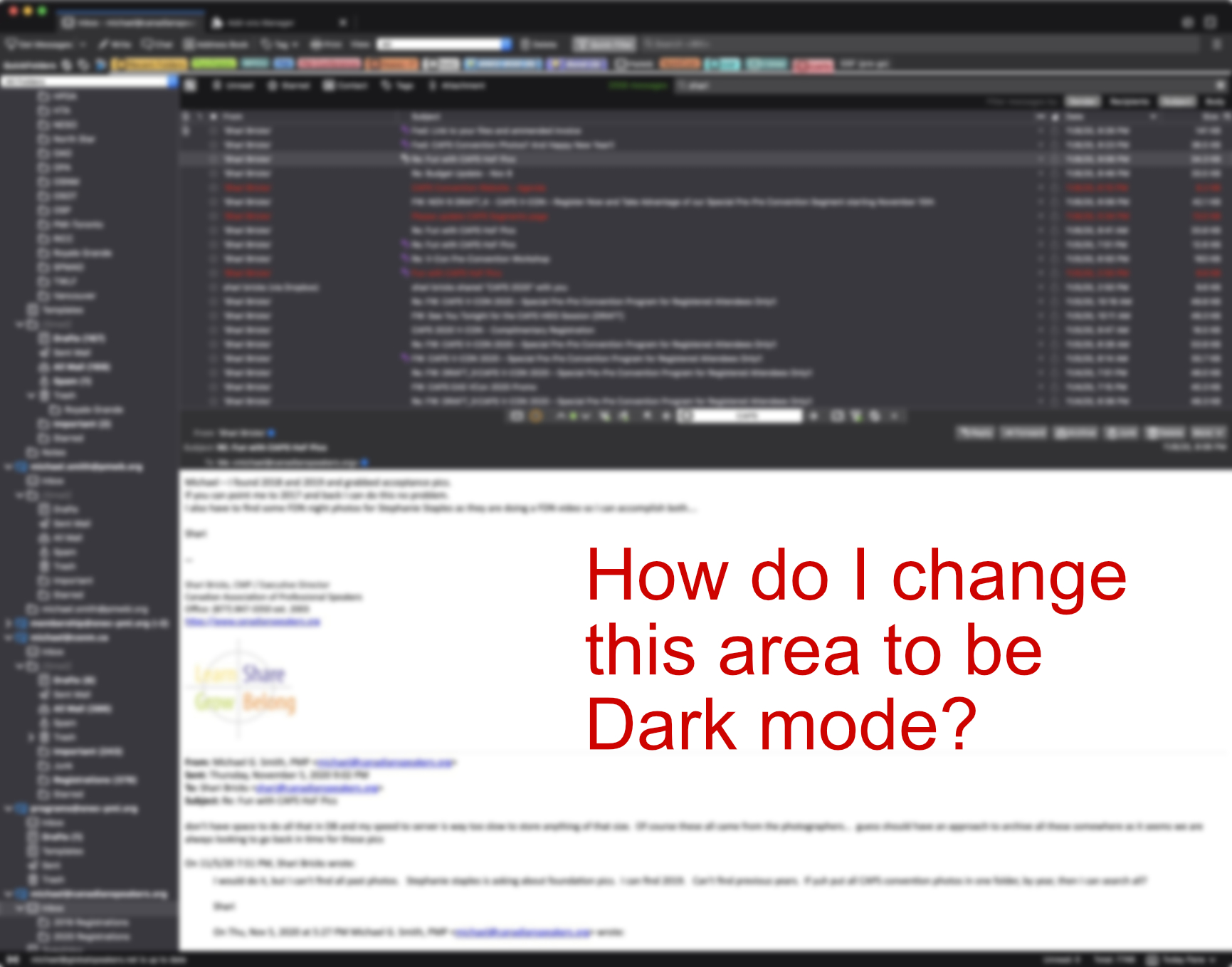
My first immediate question is I love the dark mode, but it seems the message pane appears white with black typeface - if I reply, that reply pane very nicely shows up in dark mode, i.e. dark background and white typeface. I can't find any place where I'd specify the colors used for various components... is there a way to turn off this big white area (see attached screenshot in case I'm using the wrong terminology).
Regards,
Michael
모든 댓글 (1)
Menu app icon > Options select 'General' Scroll down to 'Language & Appearance' click on 'colours' button You will see a 'Text' and a 'Background' rectangular colour box. Click on 'Background' colour box and choose black colour and click on OK
Do make sure the 'Text' colour is not black - select eg: white.