


How to remove extra space next to video

This extra space to the left of the video appeared after I accidentally clicked or pressed something. The video used to stretch from the beginning of the page to the suggest videos column and now it shrunk.
모든 댓글 (5)
Which video or which webpage?
You may have zoomed the page(s) by accident. Reset the page zoom on pages that cause problems.
- View > Zoom > Reset (Ctrl/Command+0 (zero))
If you have made changes to Advanced font settings like increasing the minimum/default font size then try the default minimum setting "none" and the default font size 16 in case the current setting is causing problems.
- Tools > Options > Content : Fonts & Colors > Advanced > Minimum Font Size (none)
Make sure that you allow pages to choose their own fonts.
- Tools > Options > Content : Fonts & Colors > Advanced: [X] "Allow pages to choose their own fonts, instead of my selections above"
It is better not to increase the minimum font size, but to use an extension to set the default page zoom to prevent issues with text not being displayed properly.
aheim said
This extra space to the left of the video appeared after I accidentally clicked or pressed something. The video used to stretch from the beginning of the page to the suggest videos column and now it shrunk.
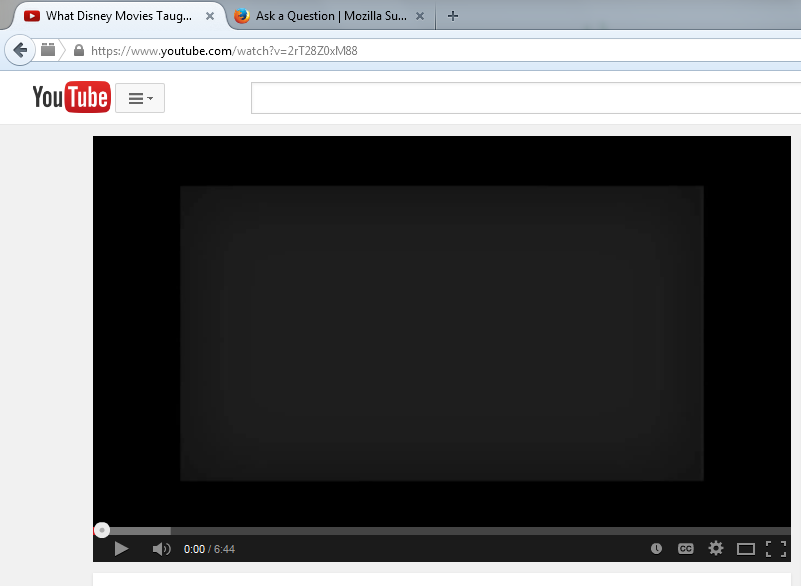
Did you try to click the "Theater mode" button to the left of the full screen button on the player control bar?
I fixed it. I just went to delete my history and checked "cite preferences"