


Strange appearance (Mozilla Thunderbird)

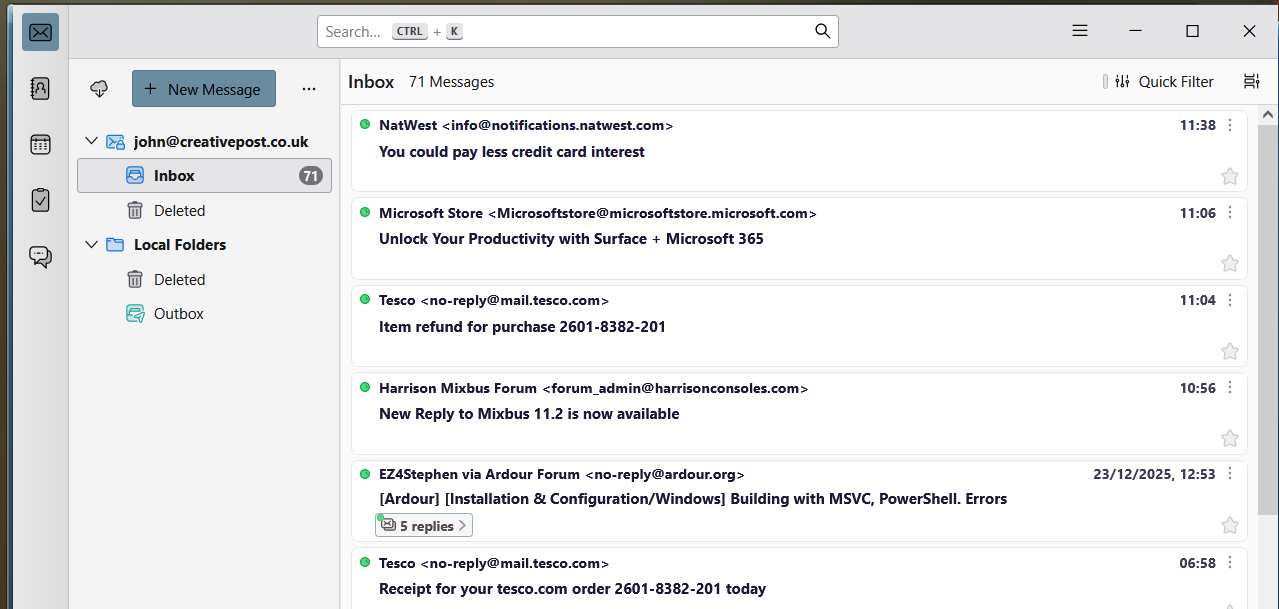
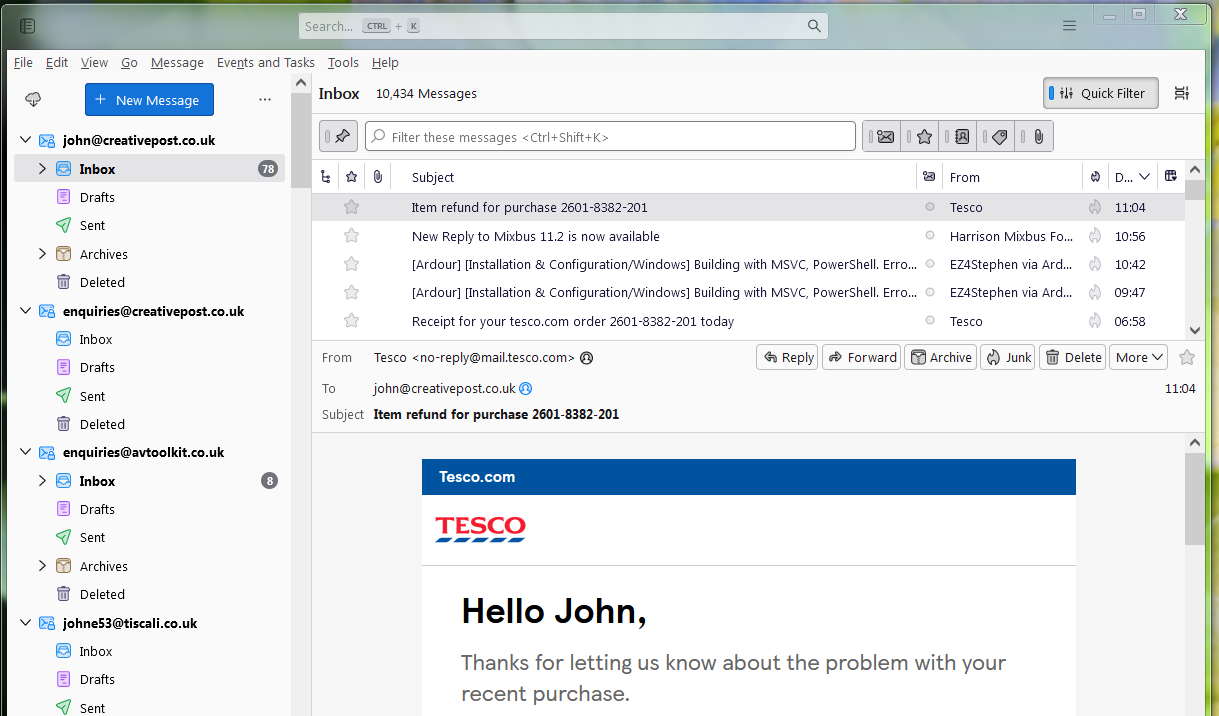
For as far back as I can remember I've been using Mozilla Thunderbird on a old computer running Windows 7. I've a Win10 machine here so a few months ago, I downloaded the latest Thunderbird and I was suprised to see it looked very different. After a bit of experimenting I managed to get it looking familiar so I uninstalled it with the intention of trying it again early in 2026 when I've a bit more free time, So this morning I installed the latest version but it looks even more different now :-(
I'm not sure how to attach images here but if it works, the original one looked like Capture01 and this morning's one is like Capture02. I still had my installer from a few months ago so I installed that one and it looks the same as today's one. Notice that there's no menu bar any more and AFAICT I can only view email headers and not their contents. Also, the 3 boxes at the top RHS (for sizing the window / minimizing it etc) don't work at all.
Is it me doing something wrong - or are there maybe some settings somewhere that I need to experiment with?
ყველა პასუხი (14)

Press <alt> to see the application menu.
Click on the film roll icon at top right and select "table view".
If you still cannot see the message bodies, click and drag the bottom border of the message list pane upward.
I don't know why the window control buttons do not work.
ჩასწორების თარიღი: , ავტორი: Rick
Rick said
Press <alt> to see the application memu.
Many thanks Rick. Pressing <alt> does bring the menu back but it doesn't seem to get remembered - i.e. if I close Thunderbird and re-open it again, the menu bar is missing again :-(
Rick said
Click on the film roll icon at top right and select "table view". If you still cannot see the message bodies, click and drag the bottom border of the message list pane upward.
Yes, the film roll icon did bring back table view but I can't seem to click the bottom border of the message list (I can only resize the entire window).
Rick said
I don't know why the window control buttons do not work.
I've figured this one out... for some strange reason, they need to be double-clicked, rather than single-clicked :-(
I also realised something else which might explain a few things:- the installer that I downloaded today (Thunderbird Setup 146.0.1.exe) and also my previous installer (Thunderbird Setup 127.0.exe) are both installing version 146.0.1
The menu issue is the result of bad design.
Try F8 for the message pane.
It is unlikely that the 127 file is installing 146. Do you have two installations of Thunderbird? Where did you get them?
Thanks again Rick. This morning's download came from here and AFAICR the older one came from the same place (although I can't be certain...)
Also... F8 does bring up the message pane but at the RHS. Is there some way to switch it back to the bottom part of the window?
Do you have two instances of the application?
Is RHS a standard abbreviation that people should know?
You will want to become familiar with the layout options under the View menu.
Rick said
Do you have two instances of the application?
Only on different machines
Rick said
Is RHS a standard abbreviation that people should know? You will want to become familiar with the layout options under the View menu.
Yes I think so, RHS is generally taken to mean "right-hand side"
And you were right about the View menu... that's now got me back to the Classic view
So where I am now, I'm seeing just two annoyances with 146.0.01:-
- Needing to double-click if I need to minimize/resize the window or whatever, rather than single clicking
- Always needing to press <alt> if I want to see the menu bar. Even just clicking in some other pane will make it disappear :-(
KB is your friend, many of your questions will be answered there https://support.mozilla.org/en-US/kb/getting-started-thunderbird-main-window-supernova
Alt key for the menu is a quick toggle, not intended to permanently display the menu toolbar
Many thanks Wayne. That's brought back my Menu bar, so apart from my item #1 (above) it's pretty much working as expected now!
[Edit...] One more question... I've installed Thunderbird onto my G: drive because my main C: drive is getting a bit too full - so where will the sent & received emails get saved? Will they also go to my G: drive or are they always saved on C: ?
ჩასწორების თარიღი: , ავტორი: johne53
After some more research this morning I've realised that new mails are in fact still getting saved to my C: drive :-(
So when I first installed Thunderbird, did I maybe miss an option to decide the location for saved mail data? I vaguely remember an Advanced option (which I didn't use...) but would that have allowed me to specify a location and not need to use the limited space on my C: drive?
[Edit...] I think I figured this out... I realised that if I start Thunderbird with the -p parameter it allows me to set up new profiles and those profiles can exist on my G: drive. I've only been using it like this for a few minutes but the initial signs are pretty encouraging (fingers crossed!)
ჩასწორების თარიღი: , ავტორი: johne53
johne53 said
Many thanks Wayne. That's brought back my Menu bar, so apart from my item #1 (above) it's pretty much working as expected now! [Edit...] One more question... I've installed Thunderbird onto my G: drive because my main C: drive is getting a bit too full - so where will the sent & received emails get saved? Will they also go to my G: drive or are they always saved on C: ?
Thunderbird be default places your profile folder on windows in the directory defined by the windows environment variable %appdata% if you type that in a run box (windowskey+R) or into the location bar of file explorer you will be shown the folder where Thunderbird will default store your data. Note that %appdata% contains the application data of many applications.
Given how intrinsic to storage these environment variables are, it might be an idea to brush up on what is available in windows and what they define. Knowing these defaults exist will explain most of the mysteries of where Windows puts things and why.
See https://learn.microsoft.com/en-us/windows/deployment/usmt/usmt-recognized-environment-variables
Thanks for everyone's help with this. I've managed to solve most of the issues now and this morning, I even figured out how to import all the data from my previous installation!! So regarding the one remaining item:-
johne53 said
annoyances with 146.0.01:-
- Needing to double-click if I need to minimize/resize the window or whatever, rather than single clicking
Should I be filing that as a bug somewhere or is it already in hand?
One more question if I may...
When experimenting over the past few days I noticed an option under Tools->Settings which allowed me to group incoming emails (e.g. if they were part of an ongoing conversation). But having imported the data from my previous system that doesn't work any more and I just noticed that it's only available for newly created folders (presumably that means newly created Thunderbird accounts?)
It doesn't work any more for my imported ones and I'm curious to know why it's restricted to newly created ones?
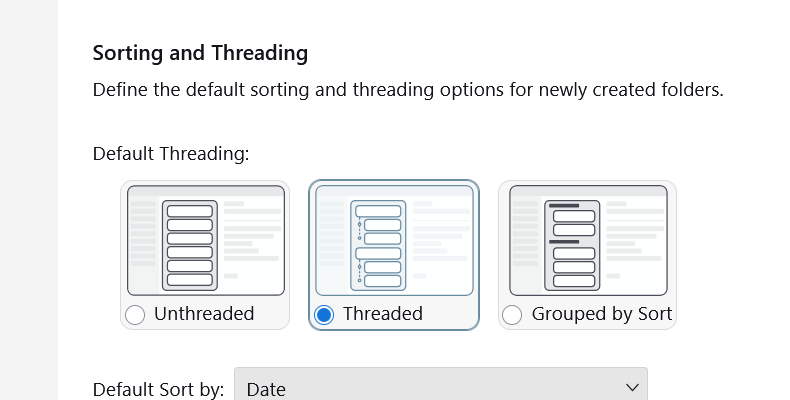
To set threading in existing folders, use the "View" > "Sort by" menu options in the application menu at the top of the screen. If the application menu is not visible, press the <alt> key.
If you want to apply one folder's settings to other folders so you don't have to change every existing folder one at a time, change one folder, then click on the button on the far right of the message list column headers and select "Apply current view to ..."